Stage 5: Merge Group & Same Time Group
2. Same Time Group
Same Time Group is a combination of a few sections under a group of same time. For Example, a few electives subjects (Mandarin, Korean and Arabic) able to run at the same time and it wouldn't clash with each other since the students can opt to choose one of those 3 electives subjects and not all of it.
To open Same Time Groups, you may go to Grouping and select Same Time Groups.

Diagram 2.1 Location of Same Time Groups
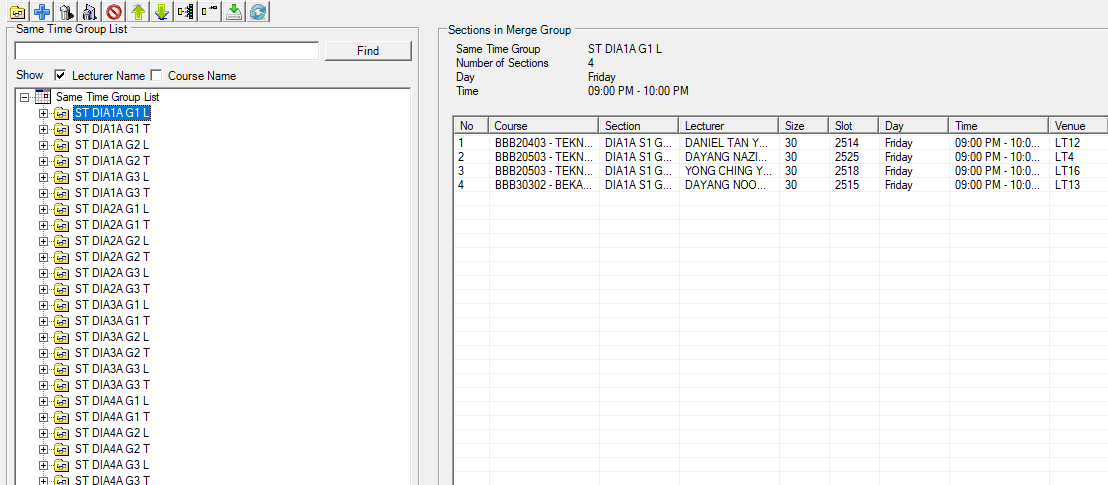
Diagram 2.2 Same Time Groups
There are few icons that need to be studied before adding the sections into Same Time Groups.

 | Click this icon to add new same time group. |
 | Click this icon to add course. |
 | Click this icon to delete the section or same time group. |
  | Click this icon to delete all the same time group. |
 | Click this icon to delete all empty same time group. |
  | Click this icon to exclude sections in all same time group. |
  | Click this icon to include sections in all same time group. |
 | Click this icon to expand group. |
 | Click this icon to collapse group. |
 | Click this icon to import from SIS. |
 | Click this icon to refresh the view of same time group |
Add Same Time Group
There are 3 alternative ways of adding Same Time Group.
ALTERNATIVE 1: To add Same Time Group, click on the add new same time group icon  .
.
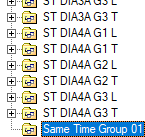
Diagram 2.3 New Same Time Group
To rename, you can select the same time group folder and click once again. OR you can right click and select Rename Group. For Example, we rename the new group as "ST DIA4B G1 T".
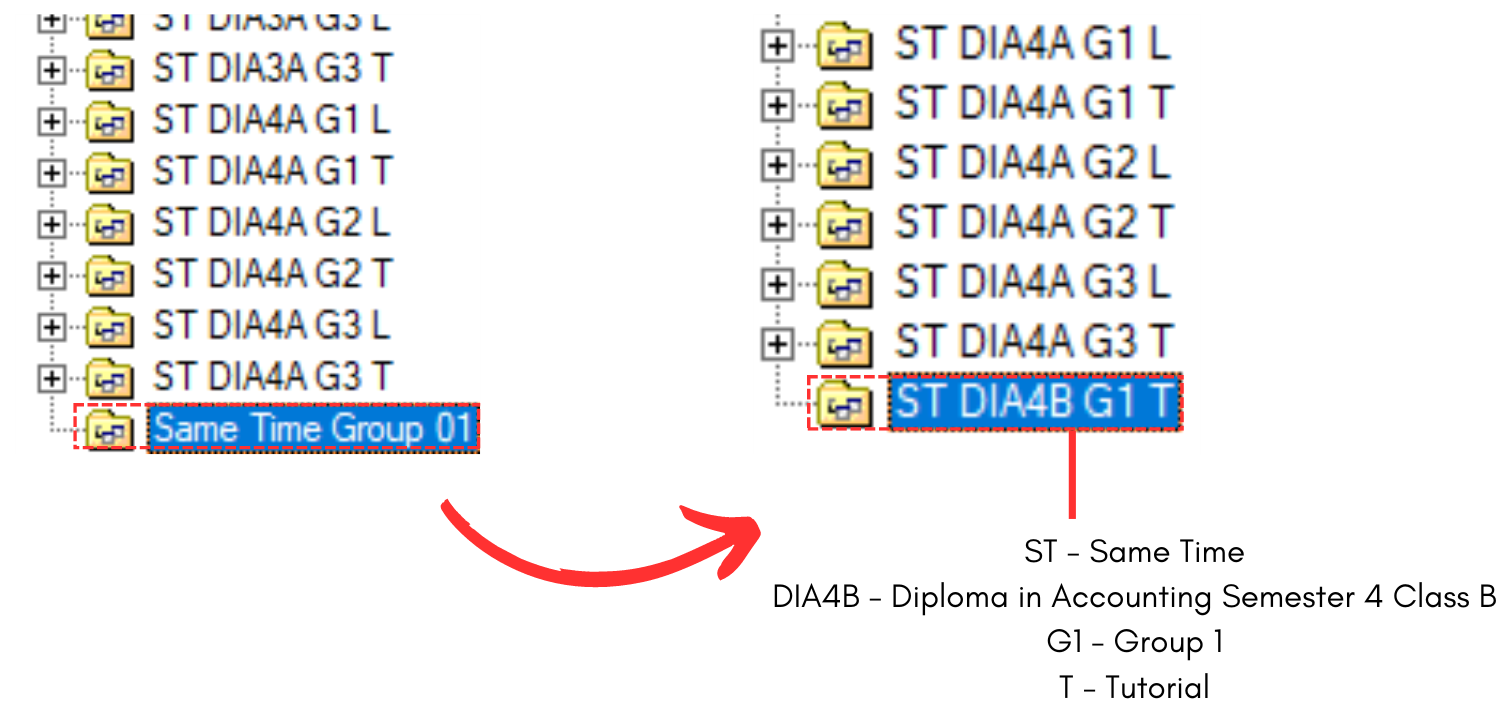
Diagram 2.4 Same Time Group Rename
Once added new group, select the the same tiome group and click on Add Course icon 
A window will appear, showing the courses that can be selected.
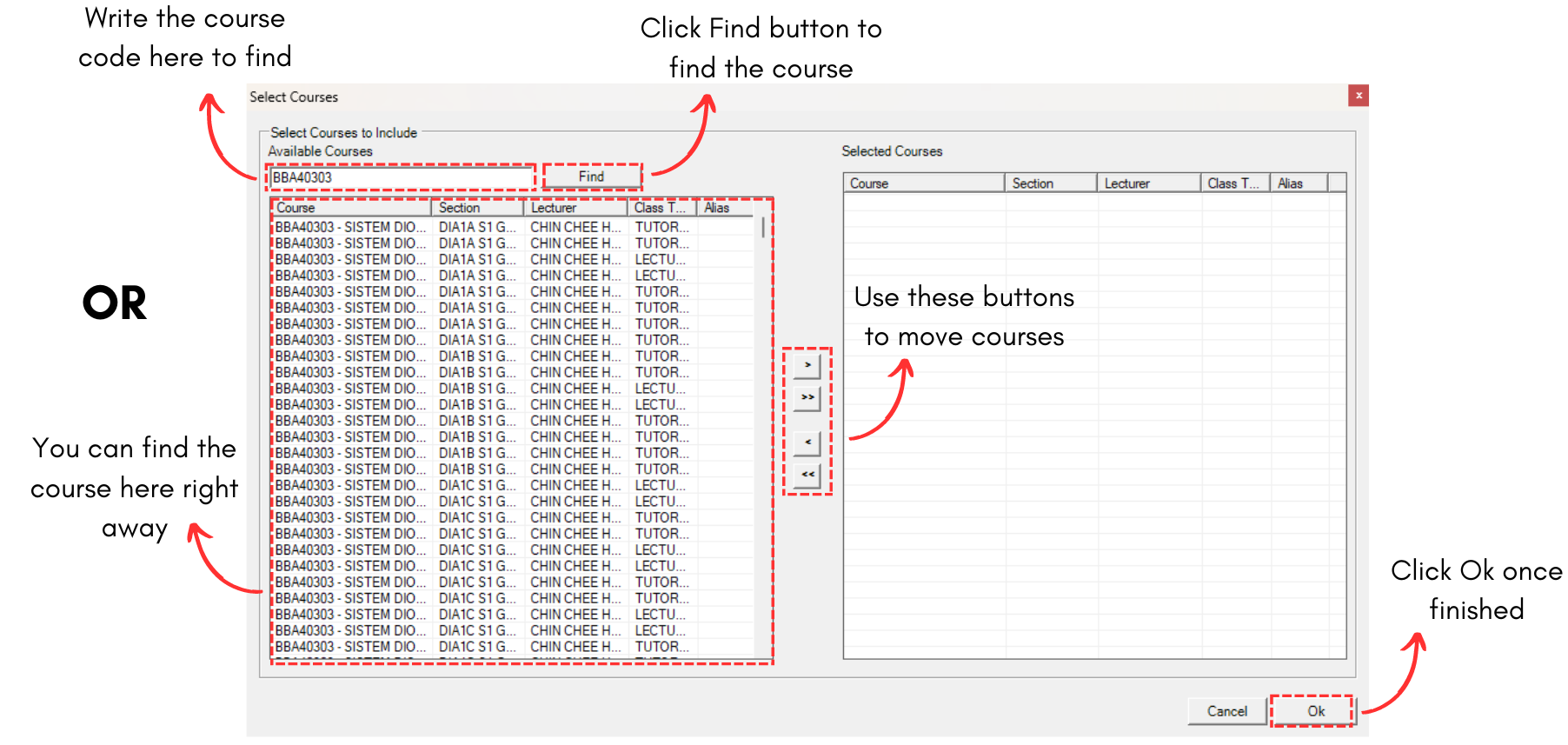
Diagram 2.5 Select Courses Window
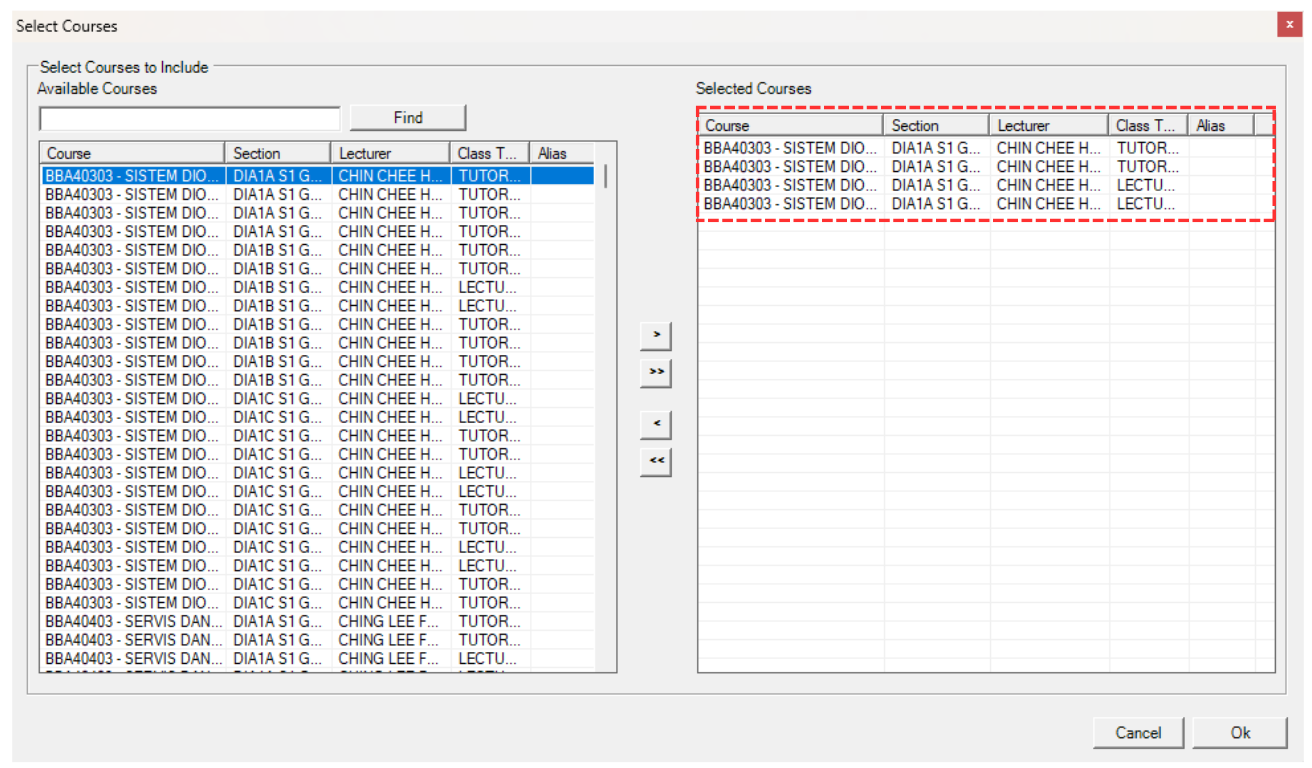
Diagram 2.6 Course Moved To The Right Side
This is how it will looks like once Same Time Group is added.
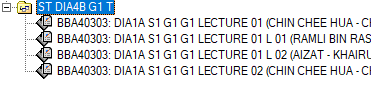
Diagram 2.7 Same Time Group Added
ALTERNATIVE 2: OR You can simply go to the Tree Structure and right click a constraint group folder. Select Moves To Group and then select Same Time Group.
Note that this will move every constraint folder or section under it to the group as well.
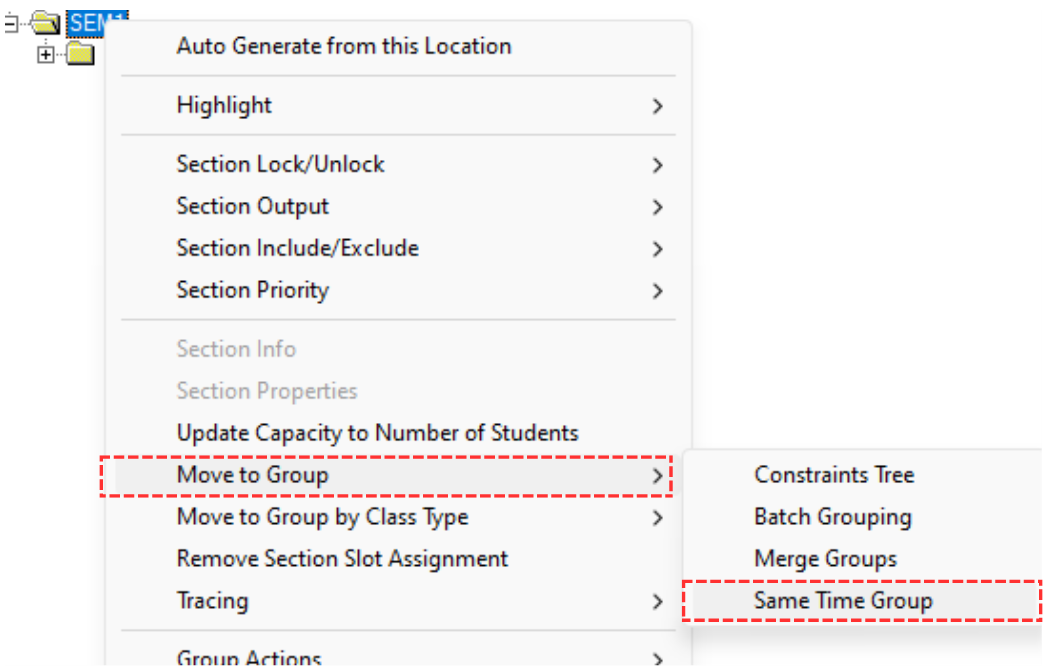
Diagram 2.8 Location of Same Time Groups on Right Click
A pop-up will appear, showing Select Same Time Group option. You may select from the list or if there none, click Add icon  to add a new Same Time Group. Click Ok once done.
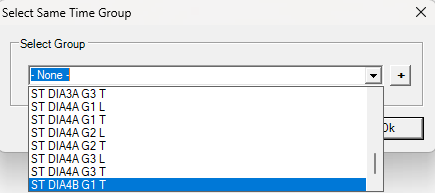
Diagram 2.9 Pop-Up Select Same Time Group
Another pop-up will appear once you click on the selected same time group. Click Yes afterward.
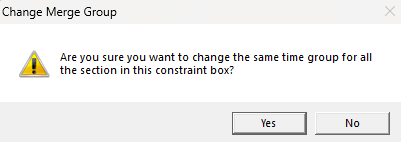
Diagram 2.10 Pop-Up Confirmation
ALTERNATIVE 3: OR you can simply double click on section at tree structure and update the same time group.

Diagram 2.11 Double Click Section
Section Properties window will appear.
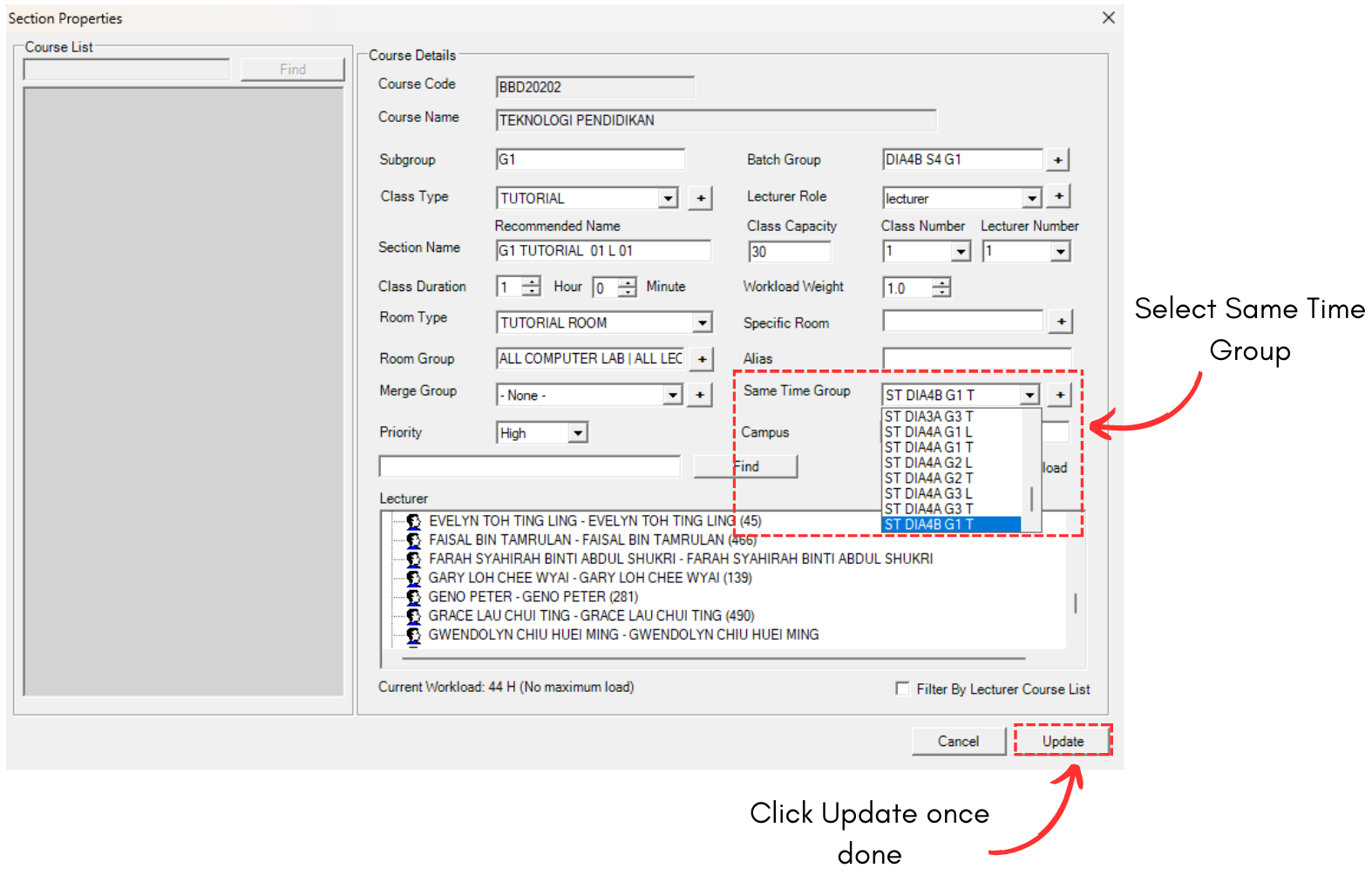
Diagram 2.12 Section Properties Window
Once updated, you can view the details on Section Details on right side.
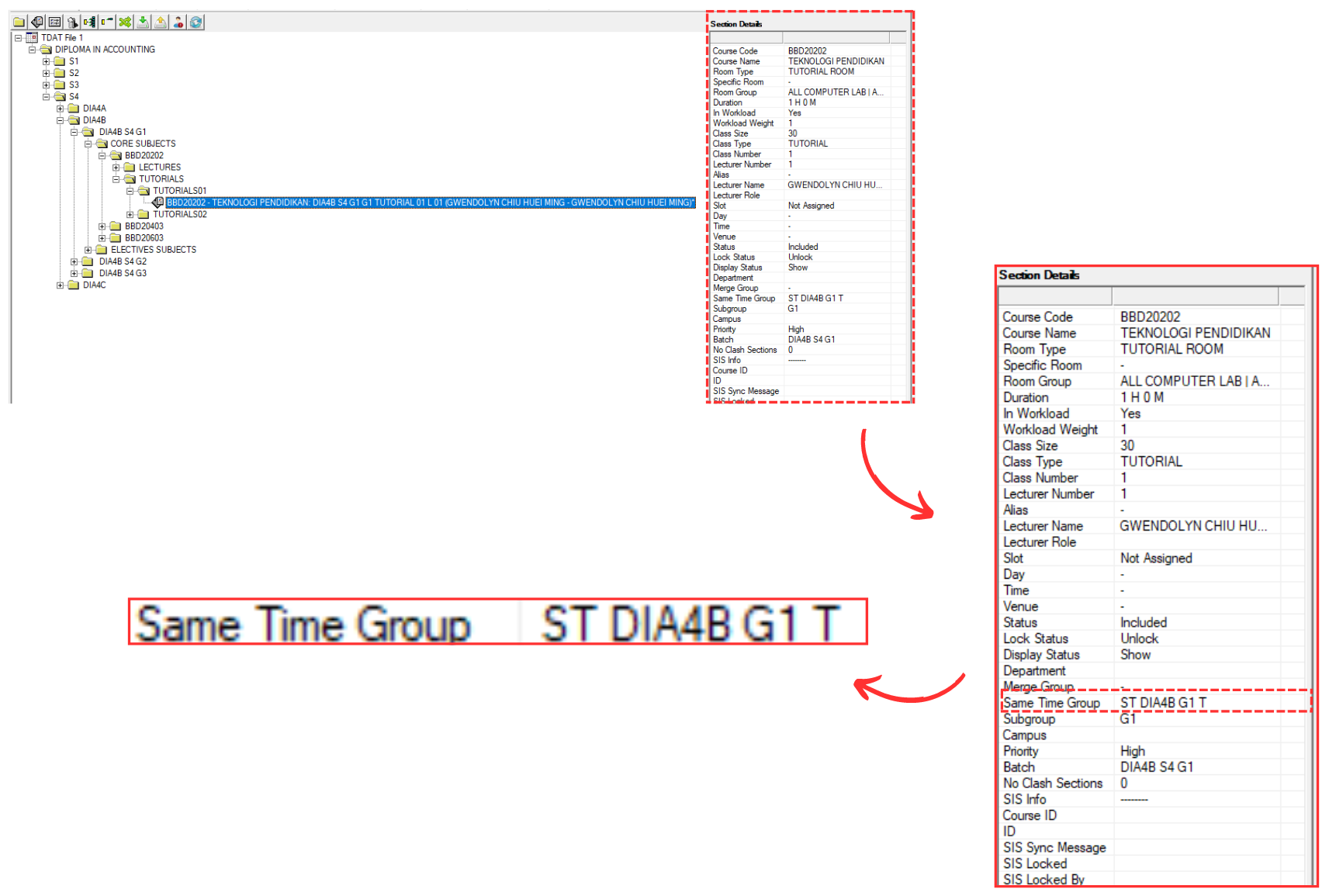
Diagram 2.13 Location of Section Details