Stage 4: Exam Course Timetable
6. Analysis
6.2. Slot
You may analyze the slot to know if the exam courses has been placed into the right slot. Note that, you may tick on Hide Empty Slot to analyze better.
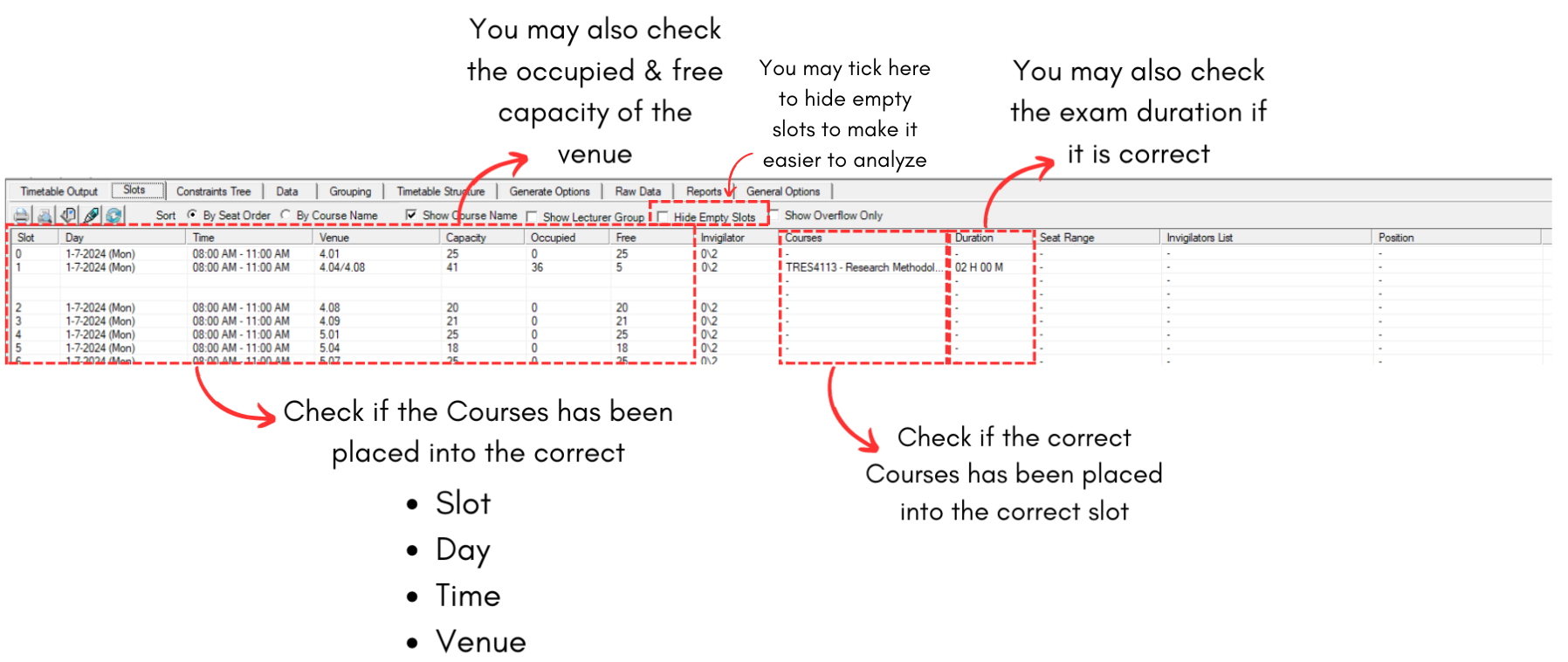
Diagram 6.2.1 Slot Analyzation
You can also analyze by doing Print Preview. You may also design your Print Preview List as well.
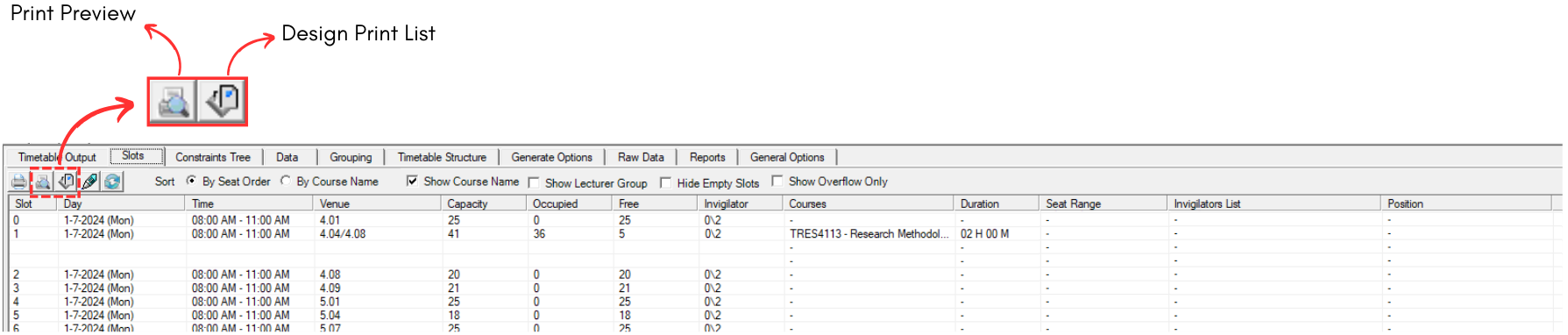
Diagram 5.2.2 Location of Print Preview & Designt Print List
To design, click on Design Print List icon.  Refer to the diagram below for the explanation.
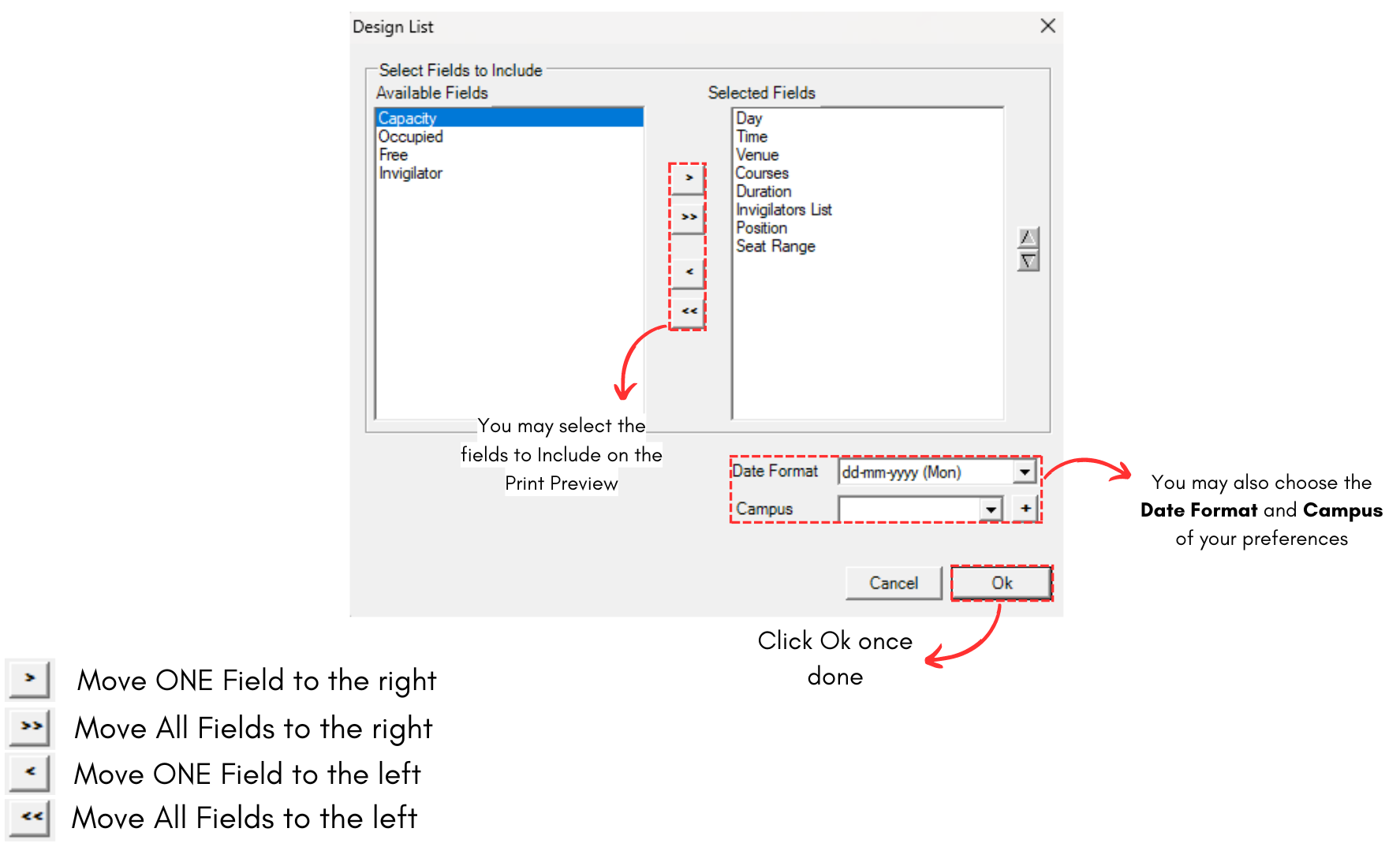
Diagram 6.2.3 Design Print List
Once you have finished with design print list, click on Print Preview icon. 
Print Preview Option window will appear.
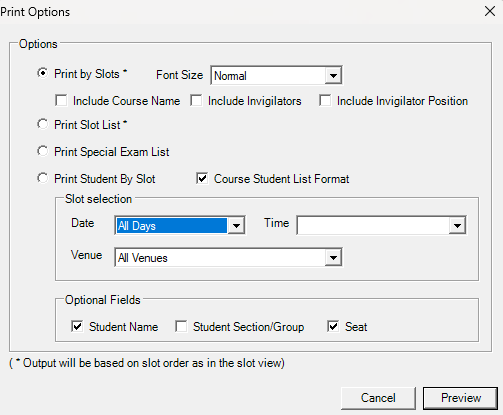
Diagram 6.2.4 Print Preview Option
- You may choose to Print By Slot, Print Slot List, Print Special Exam List or Print Student by Slot.
- If you choose to Print By Slot, you may choose the Font Size and choose to Include Course Name, Invigilator or Invigilator Position.
- If you choose to Print Student By Slot, you may choose the Slot Selection and Optional Fields to include in the Print Preview.
Once done, click Preview. 
To edit, you may refer to the Stage 4: Exam Course Timetable (Editing)