Stage 4: Exam Course Timetable
5. Generate Courses
5.2. Generate All Courses
Now you may generate all other courses into the Timetable Output. There are 3 simple steps to do so.
STEPS 1: You need to Include All Sections first. Refer to the diagram below.

Diagram 4.2.1 Location of Include All Sections
STEPS 2: Once you are done with include all sections, you might want to include more slots after that. You may include the second week's slot now. Refer to Include Preferred Slot
It is important to put 0 first in Clashing Section at Generate Option for Course.
STEPS 3: And you may generate schedule as usual. Refer to Generate Included Course
Once you generated the schedule, you might encounter some of the sections not being assigned into the slot.
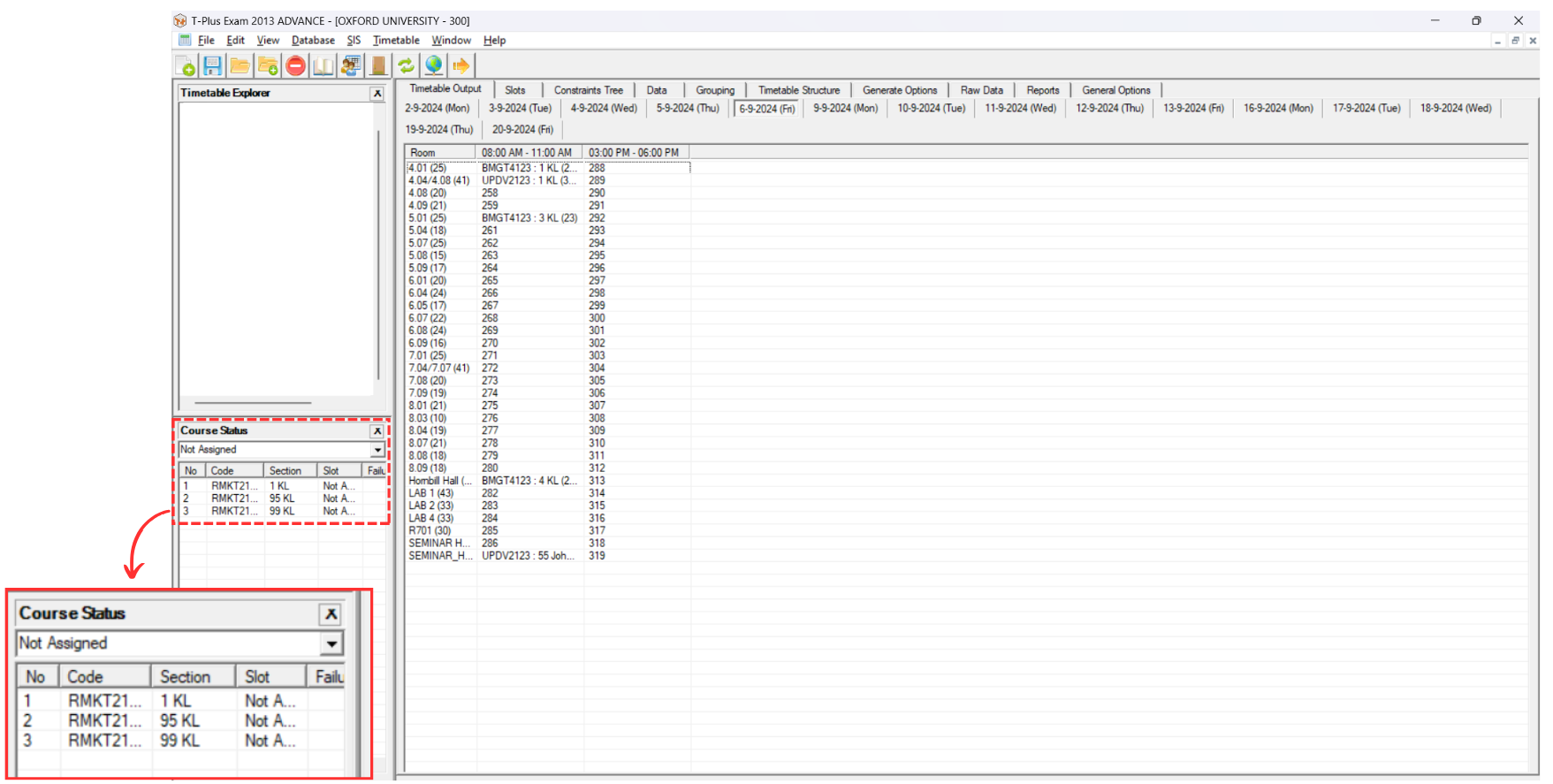
Diagram 4.2.2 Not Assigned Section at Course Status in Constraint Tree
IMPORTANT NOTE: There are 2 optional steps you may do to ensure all sections are slotted in.
FIRST OPTIONAL STEPS: You may now include the slot day by day and keep on generate the schedule until it is all slotted in.
SECOND OPTIONAL STEPS: If you have already include all slots in Timetable Output and some sections are still not assigned, you may change The Clashing Section into -1 at Course's Generate Option which means in one day there might be more than 1 course examinations held.
Once all sections already slotted in, lock them in Timetable Output.