Stage 1: Database
3. Import Raw Data
3.1. Student Raw Data
There are 2 ways of importing Student Raw Data which is Import from SIS or Import from Peer.
Import from SIS
There are 4 simple steps to Import Student-Course Raw Data from SIS.
Step 1: Click Raw Data tab and then Click Student Raw Data tab to open up Student Raw Data window
Step 2: Click the import data icon  to import student-course raw data
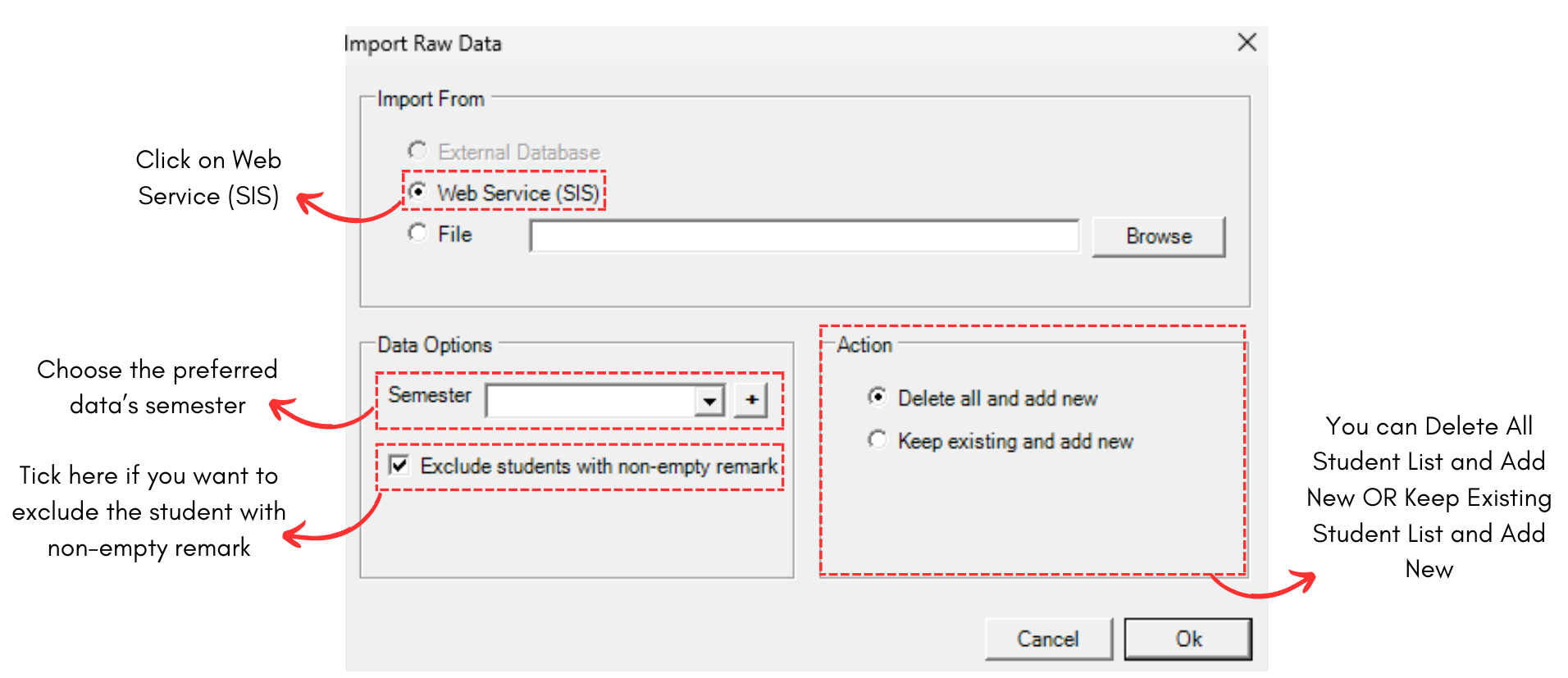
Diagram 2.1.1 Import Raw Data Popup
Steps 3: Tick on Web Service (SIS) and choose your preferred options on Data Options and Action.
Steps 4: Click Ok.
Import from Peers
You can import the raw data from peers using excel  (with csv file extension). Note that, the data in the excel file need to be filled as below.
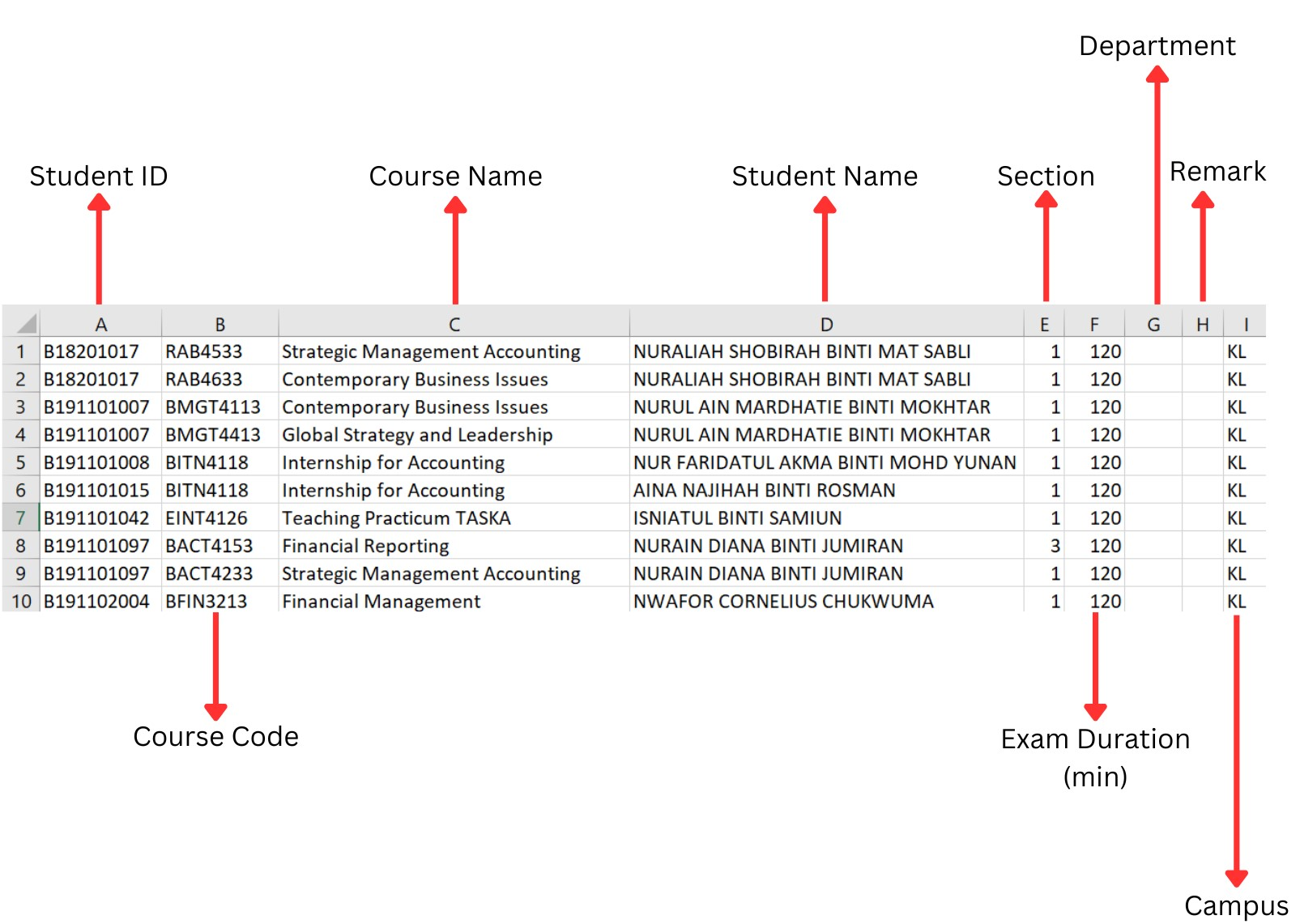 Diagram 2.1.2 Sample of the Student-course Excel Template
|
Student ID |
Student ID is the number or code for the student. IMPORTANT: Do not put 0 or leave it blank in the excel sheet. |
|
Course Code |
Course Code is the code or short name for the course. IMPORTANT: Do not put 0 or leave it blank in the excel sheet. |
|
Course Name |
Course Name is the full name of the course. |
|
Student Name |
Student Name is the full name of the student. |
|
Section |
Default section is 1. However you may change the number according to the preferred number of sections. IMPORTANT: Do not put 0 or leave it blank in the excel sheet. |
|
Exam Duration (min) |
Default duration is 180 (in minutes). However you may change the number according to the preferred duration of the class. IMPORTANT: Do not put 0 or leave it blank in the excel sheet. You can opt to put the duration in Course Management as well. |
|
Department |
The Department of the course. Department is non-compulsory. |
|
Remark |
The Remark of the course. Remark is non-compulsory. |
|
Campus |
The Campus of the course. Campus is non-compulsory. |
Table 2.1.1 Excel Template Explanation
There are 4 simple steps to Import Student-Course Raw Data from peers.
Step 1: Click Raw Data tab and then Click Student Raw Data tab to open up Student Raw Data window
Step 2: Click the import data icon  to import student-course raw data
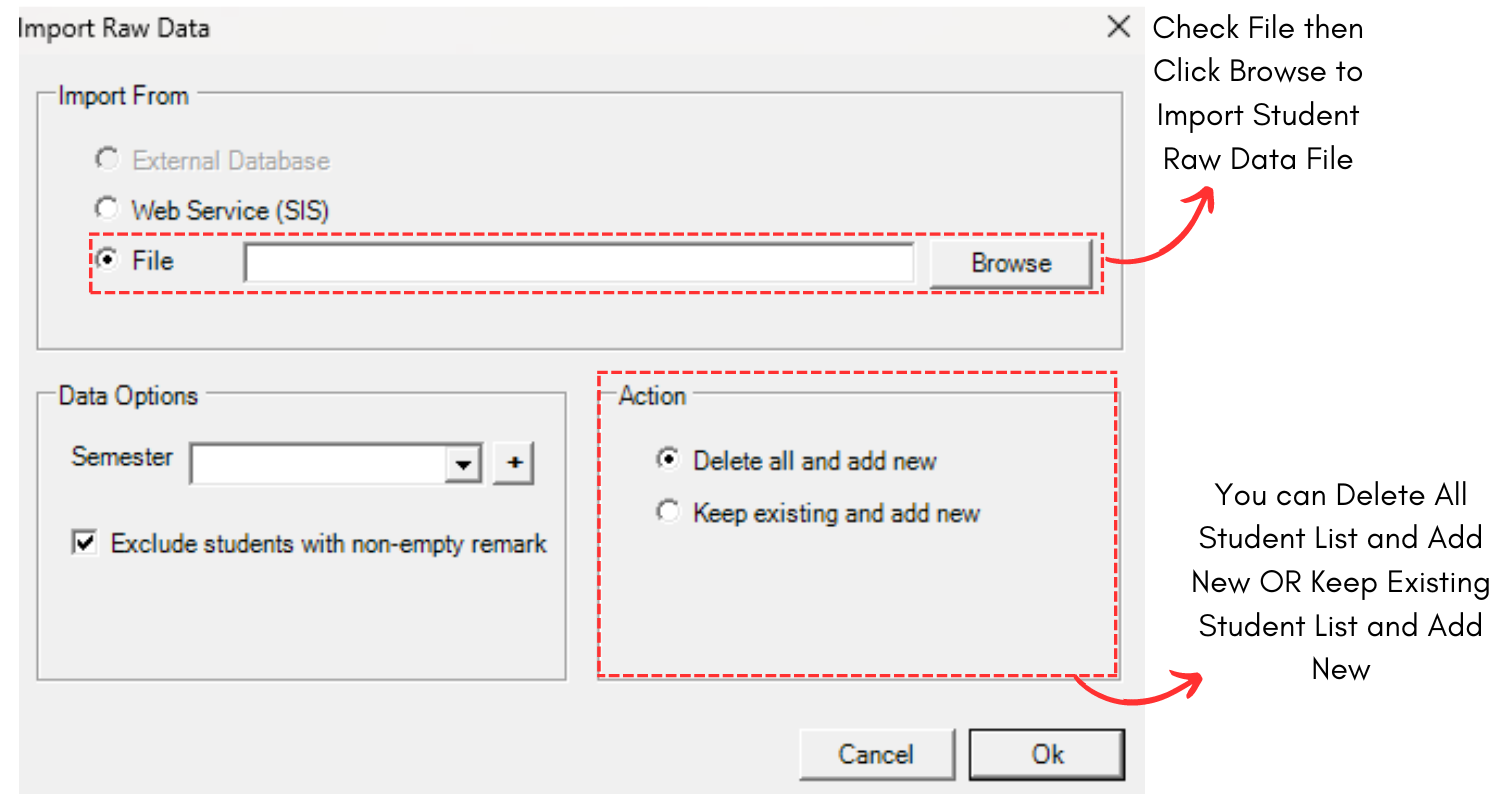
Diagram 2.1.3 Import raw data window
Step 3: 'Checked' File and then Click browse to import Student Raw Data file.
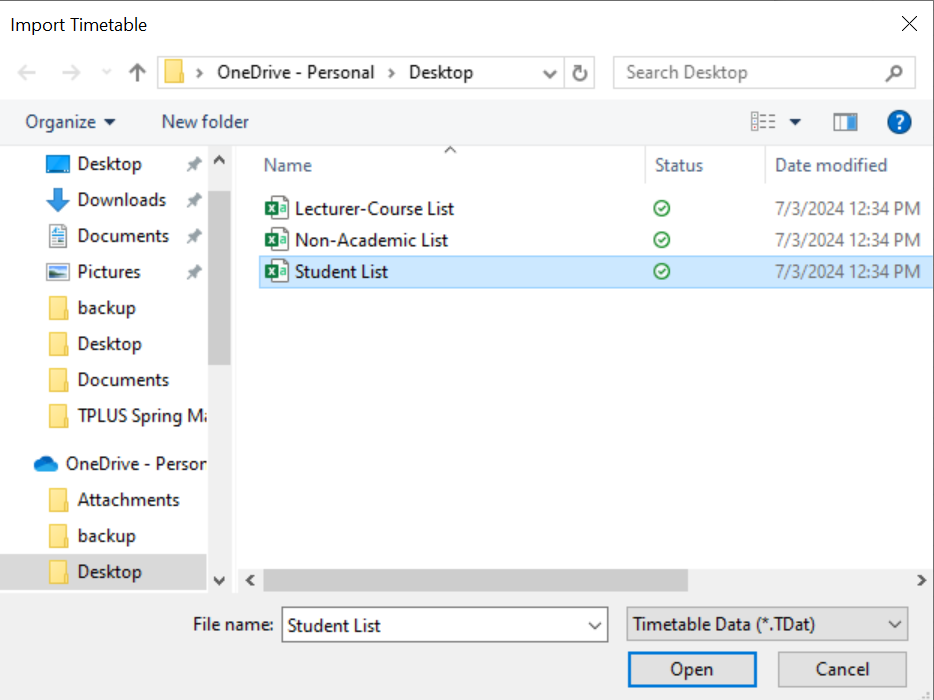
Diagram 2.1.4 Import Student Raw Data Popup
Step 4: Select the file that user want to import and click open or double click the file to import.
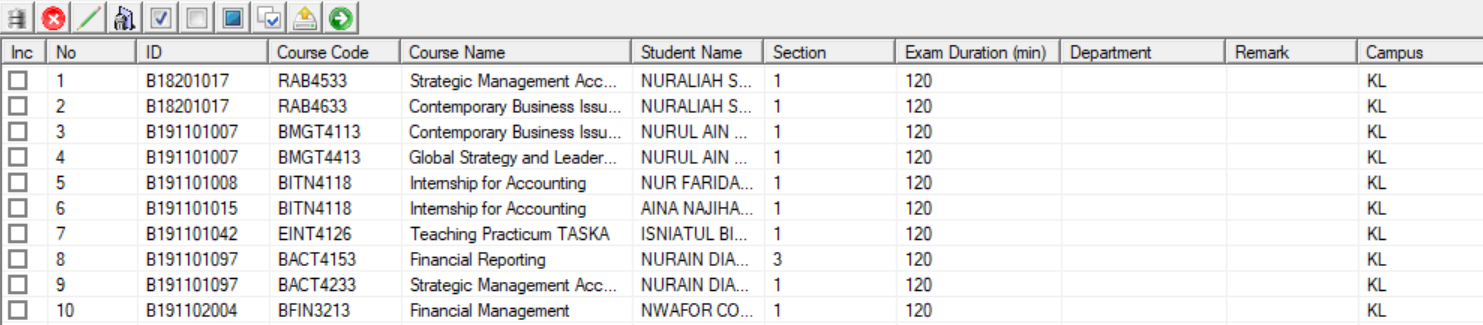
Diagram 2.1.5 Importing Student List Completed