Opening Up and Getting Used to Timetable Plus Exam
2. Opening New Timetable & Folder
To open New Timetable, select New Timetable icon 
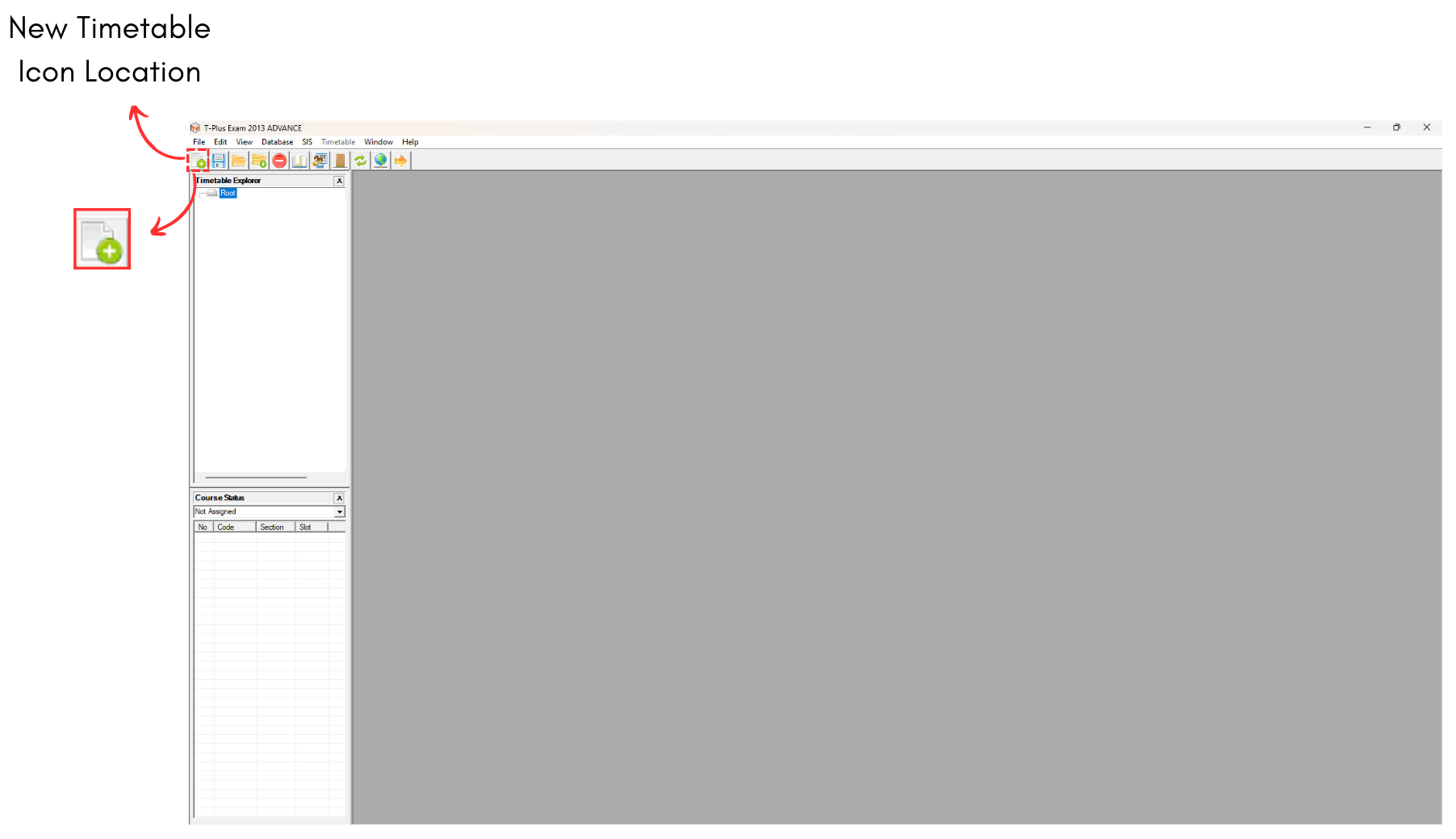
Diagram 2.1 Location of New Timetable
Once clicked, an untitled file appear on the screen.
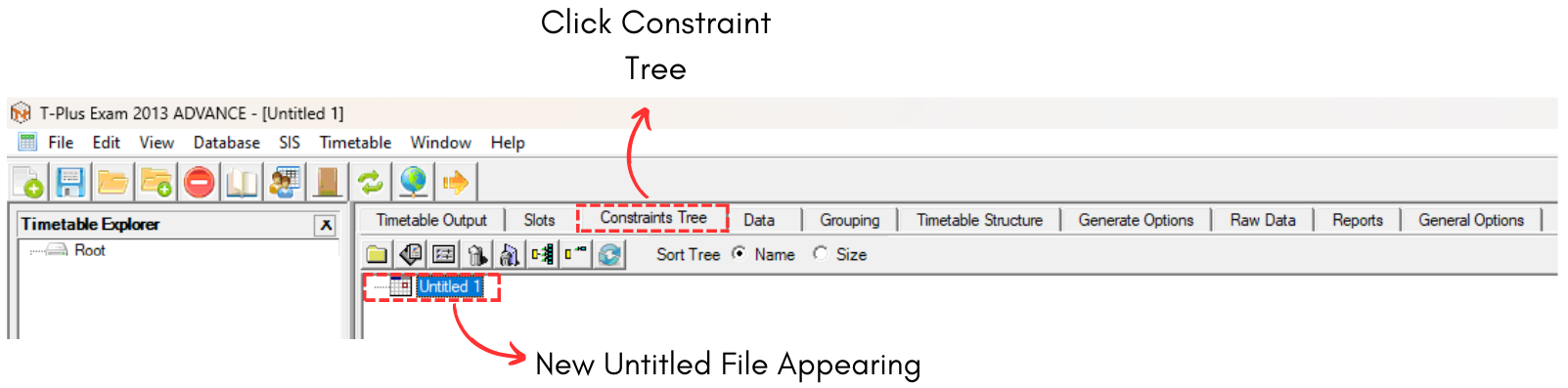
Diagram 2.2 New Untitled File
Note that it is IMPORTANT to click Save after opening a new timetable to avoid losing the file.
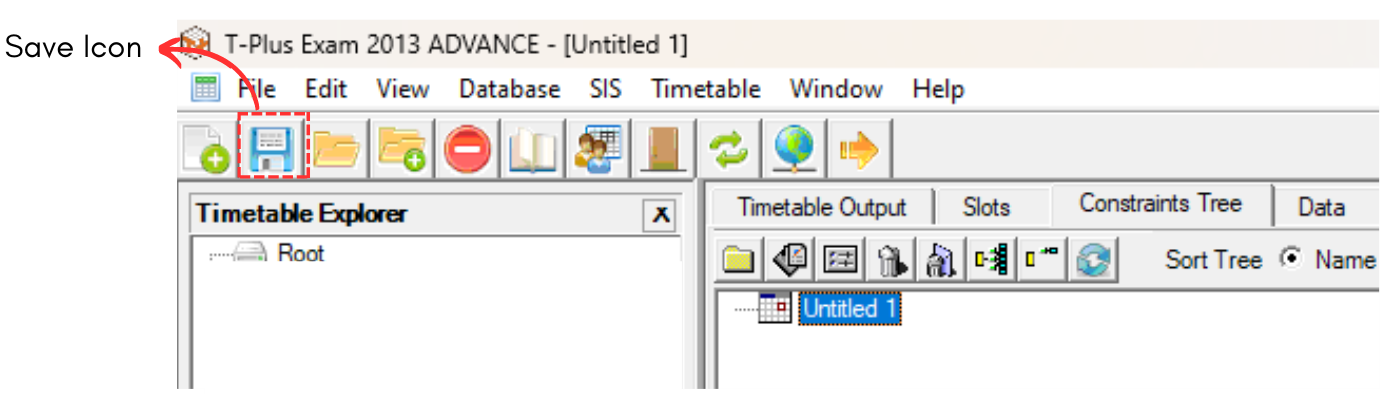
Diagram 2.3 Location for Save Icon
A pop up will appear, rename the file as desired and click Save.
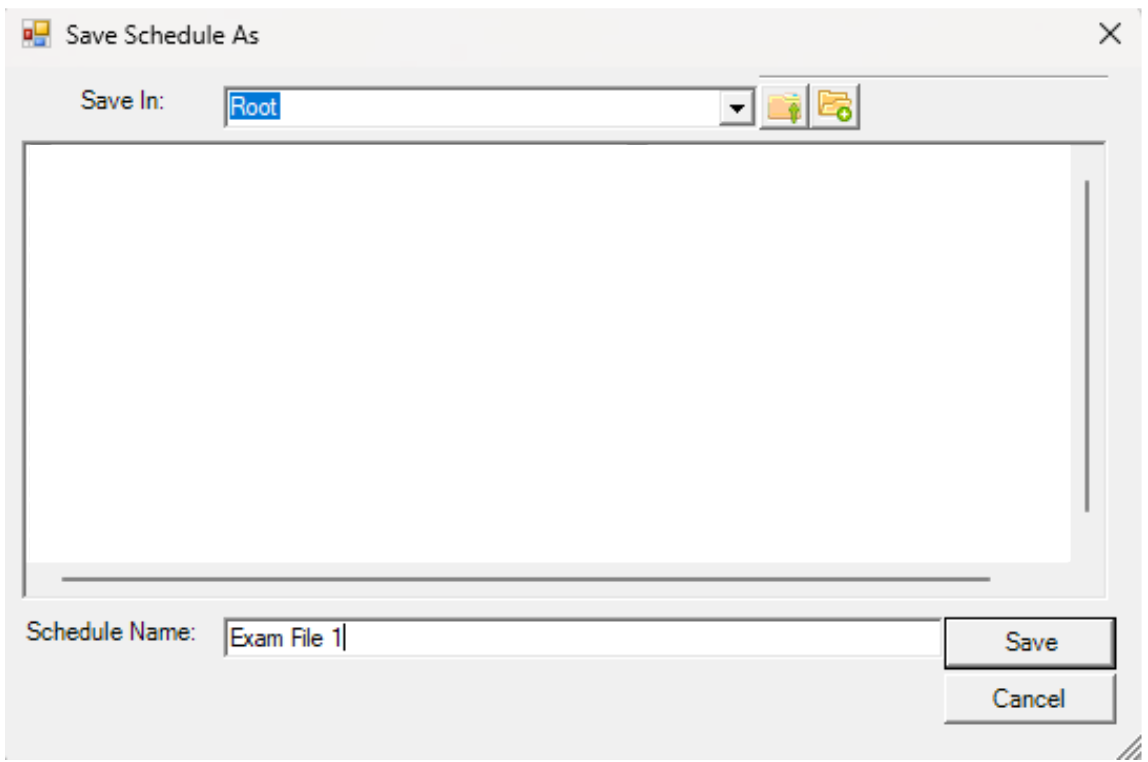
Diagram 2.4 Save File Pop Up
Optional: Organize your file into respective folder (Non-Compulsory)
Once you have multiple files, you may want to organize them into folders. For example, folder is organized by year.
To open new folder, select New Folder icon 
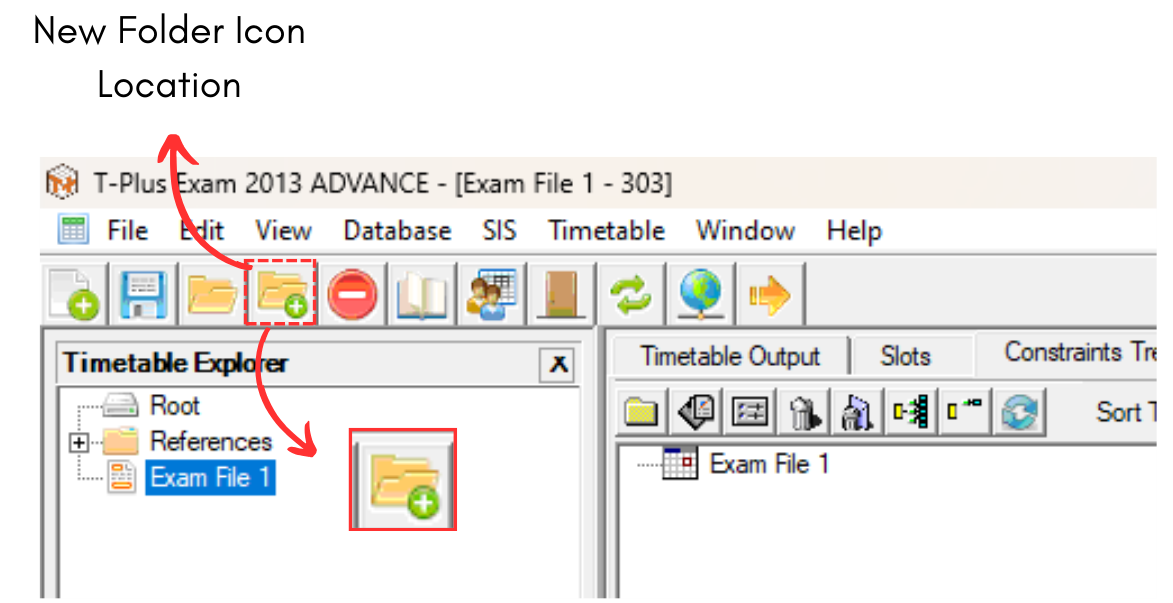
Diagram 2.5 Location of New Folder
A new folder will appear on Timetable Explorer.
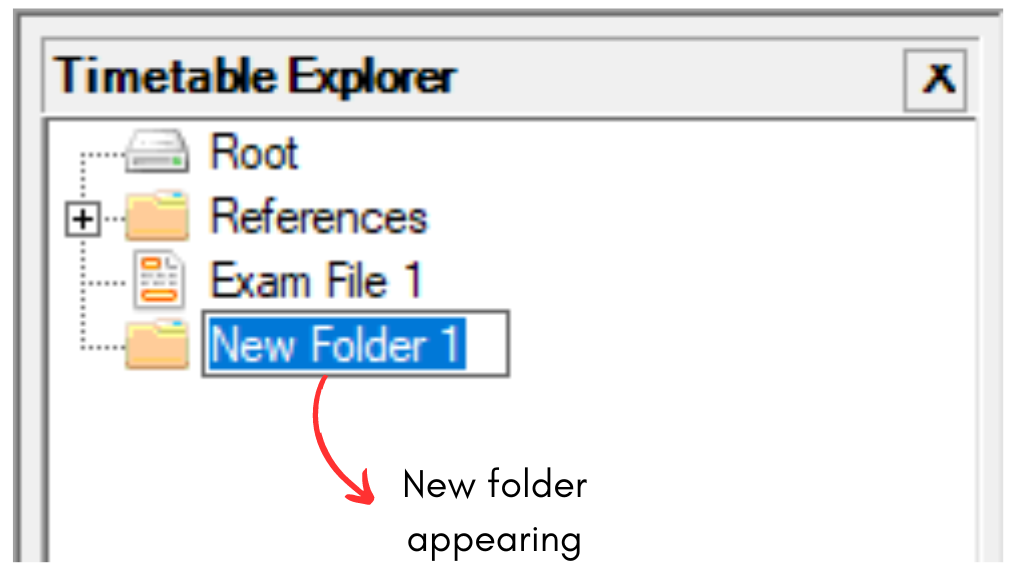
Diagram 2.6 New Folder
You can rename the folder as desired. For Example, "2024".
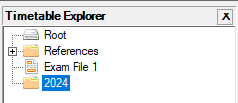
Diagram 2.7 Renamed Folder
Select a file and drag into the folder and drop.
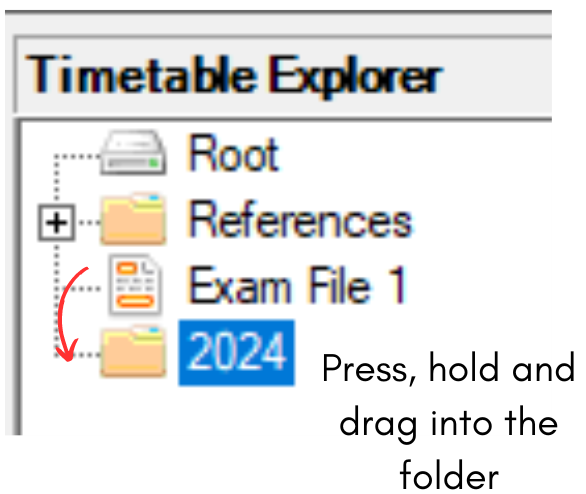
Diagram 2.8 Selected File
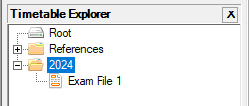
Diagram 2.9 File dragged inside the folder