Stage 3: Data Entry Analysis
1. Mark Courses Complete and Incomplete
1.1. Mark Courses Complete
Courses will be placed in Incomplete Status. To view the the results at Tree Structure, Courses List, Batches List and Lecturers List, you need to mark courses as complete.
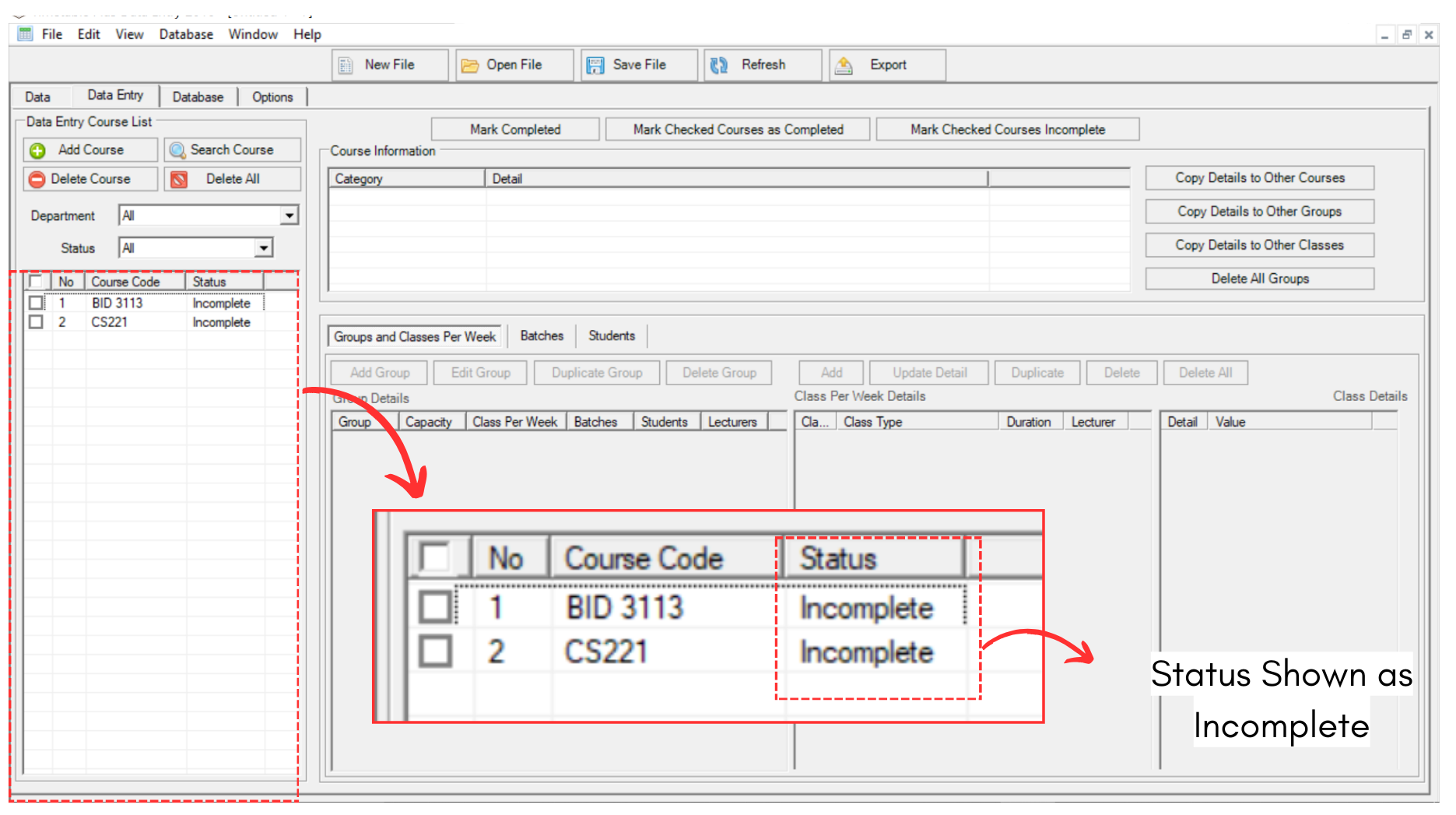
Diagram 1.1.1 Incomplete Status in Course
There are two ways of marking courses as complete.
1. Mark Completed
If you are done with all of the Data Entry in Data Entry tab, you may click on the preferred course and click Mark Completed.
Note that this can only be done with one course at one time.
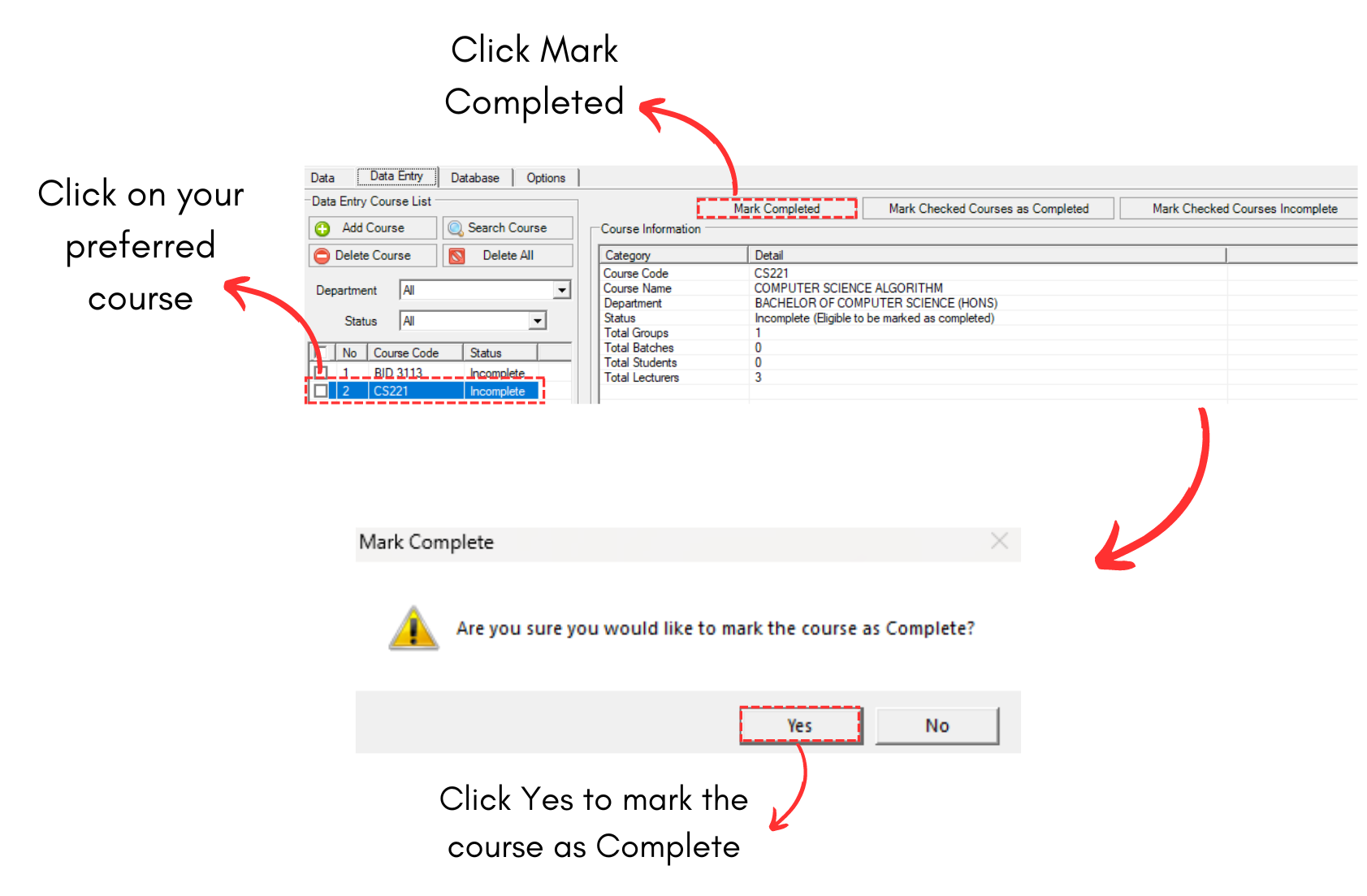
Diagram 1.1.2 Mark Completed
A popup will appear saying it has been completed.
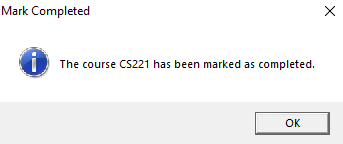
Diagram 1.1.3 Popup course been marked as completed
Once done, you may go to Data  to see the results at Tree Structure, Courses List, Batches List and Lecturers List.
2. Mark Checked Course as Completed
If you are done with all of the Data Entry in Data Entry tab, you may check on the boxes on the preferred courses and click Mark Checked Course as Completed.
Note that this will help you to select multiple courses to mark them as completed.
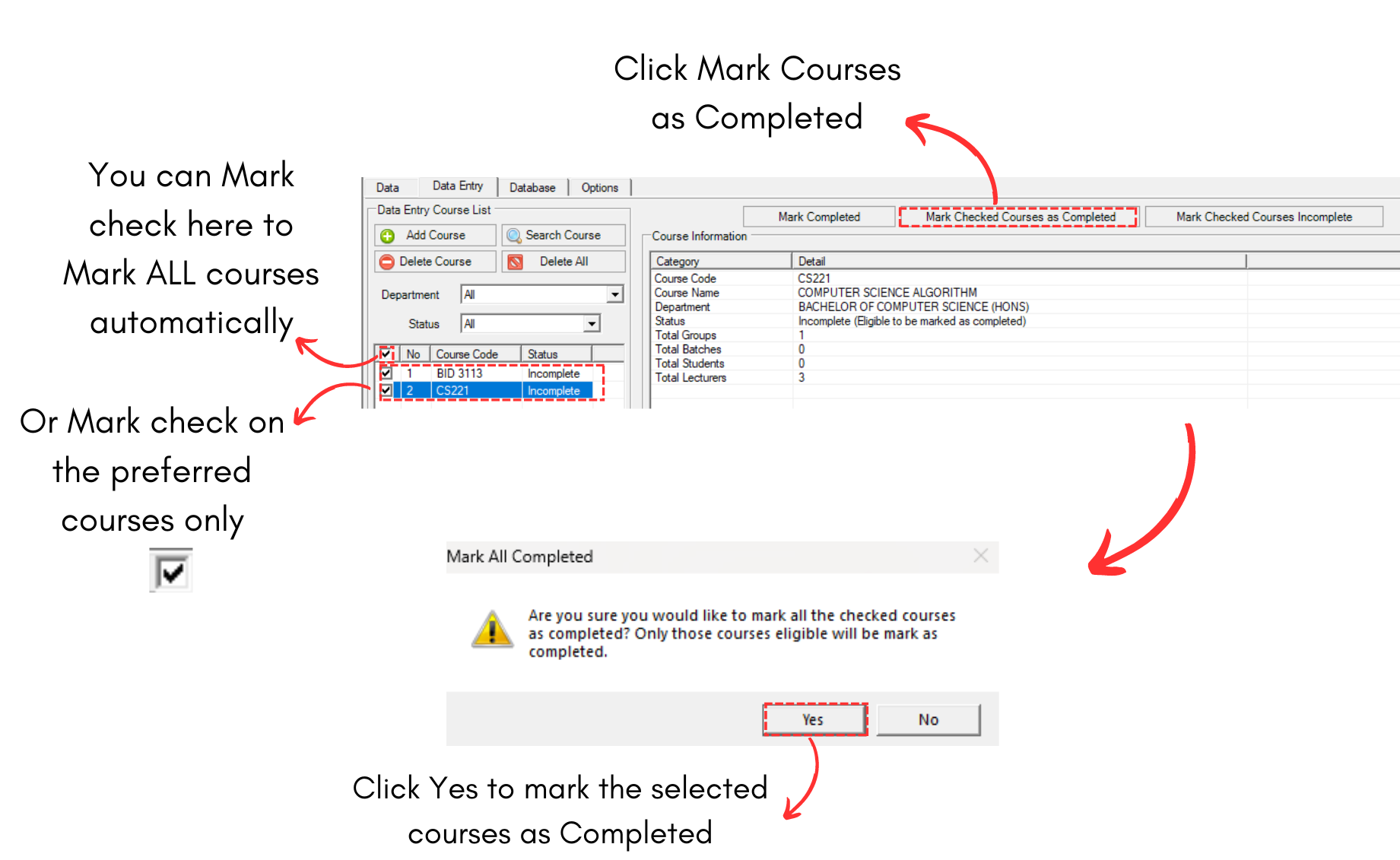
Diagram 1.1.4 Mark Checked Course as Completed
You may see that the Status will be shown as complete at the end.
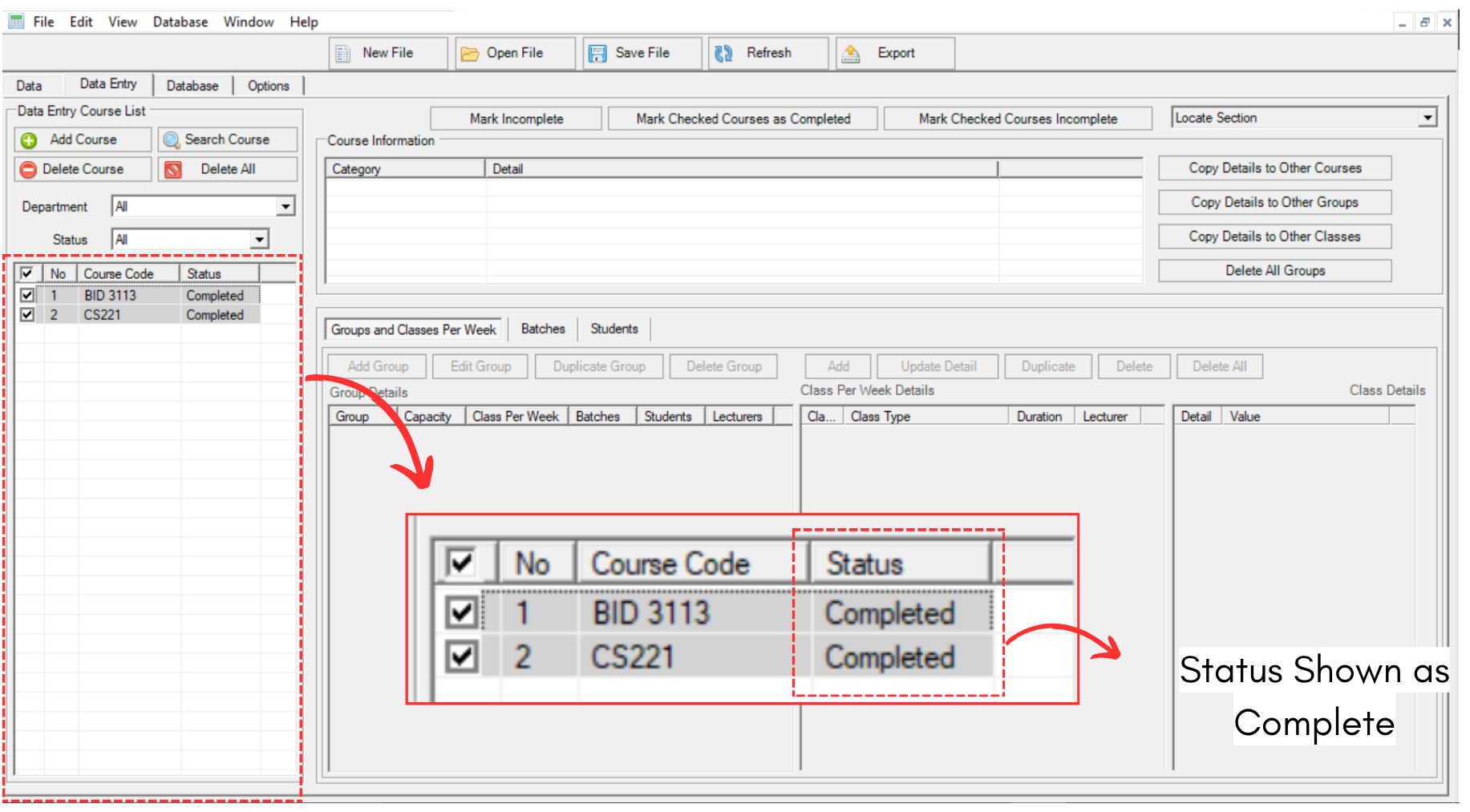
Diagram 1.1.5 Complete Status in Courses
Once done, you may go to Data to see the results at Tree Structure, Courses List, Batches List and Lecturers List.