Stage 5: Invigilators
1. Set Constraints for Invigilator
In this chapter you will learn How to Set Constraints for Invigilator.
There are 2 places where you can set constraints for Invigilator:
- Data - Invigilators List
- Grouping - Invigilator Grouping
Invigilators List

Diagram 1.1 Location of Invigilators List
Click Data tab and then Click Invigilators List tab to open up Invigilators List window
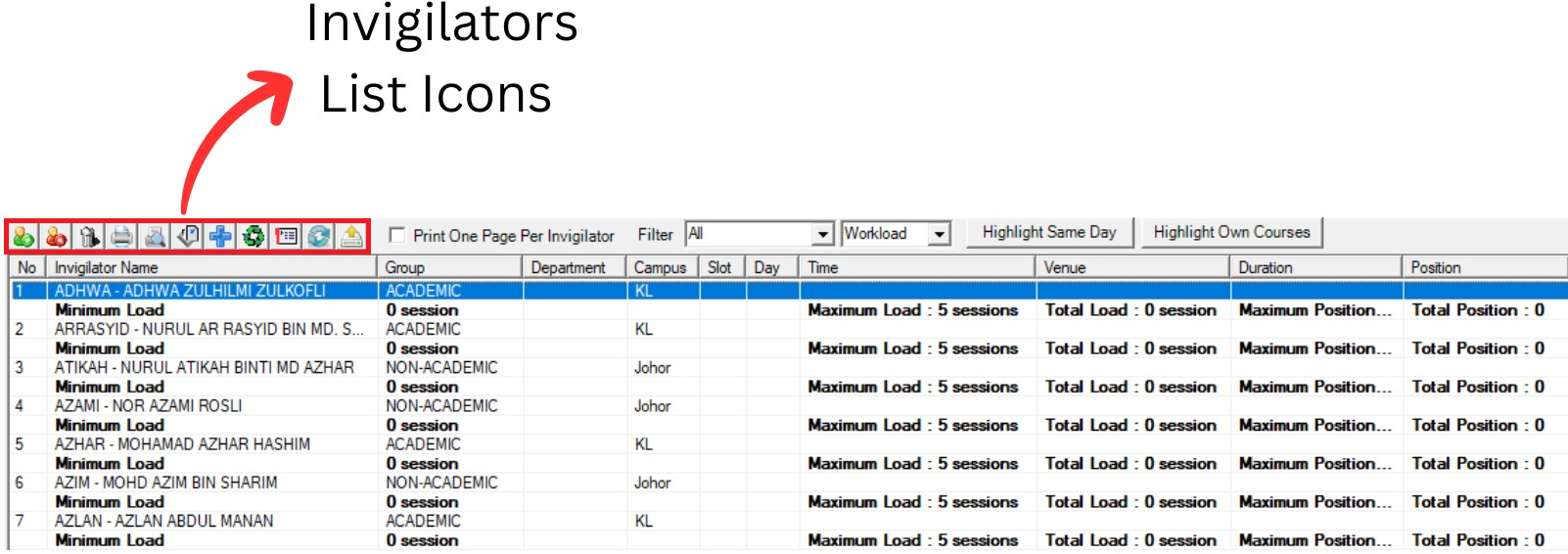
Diagram 1.1.2 Invigilators List Window
Inside Invigilators List window, you will be able to see icons on the top left side.

 |
Click this icon to Add invigilator. |
  |
Click this icon to Delete invigilator. |
  |
Click this icon to Delete All invigilators. |
  |
Click this icon to Print List. |
  |
Click this icon to Print Preview. |
  |
Click this icon to Design Print List. |
  |
Click this icon to Hide and Show Invigilators. |
 |
Click this icon to Reset All Invigilators Preferences. |
 |
Click this icon to Set Preferences. |
 |
Click this icon to Refresh invigilator list. |
 |
Click this icon to Csv Export. |
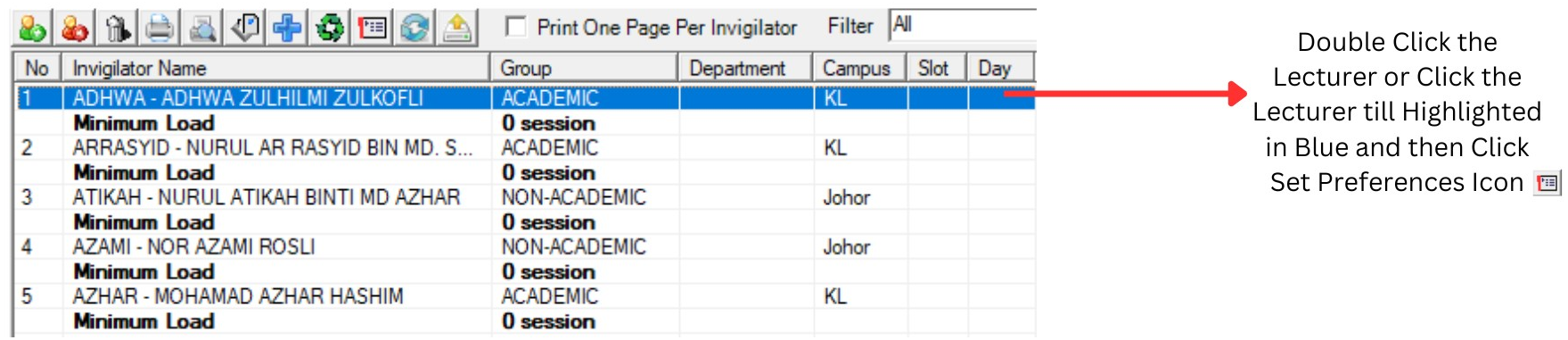
Diagram 1.2. Invigilators List Window
Double click the lecturer OR Click the lecturer then Click the Set Preferences Icon to open up the Lecturer Constraints window.
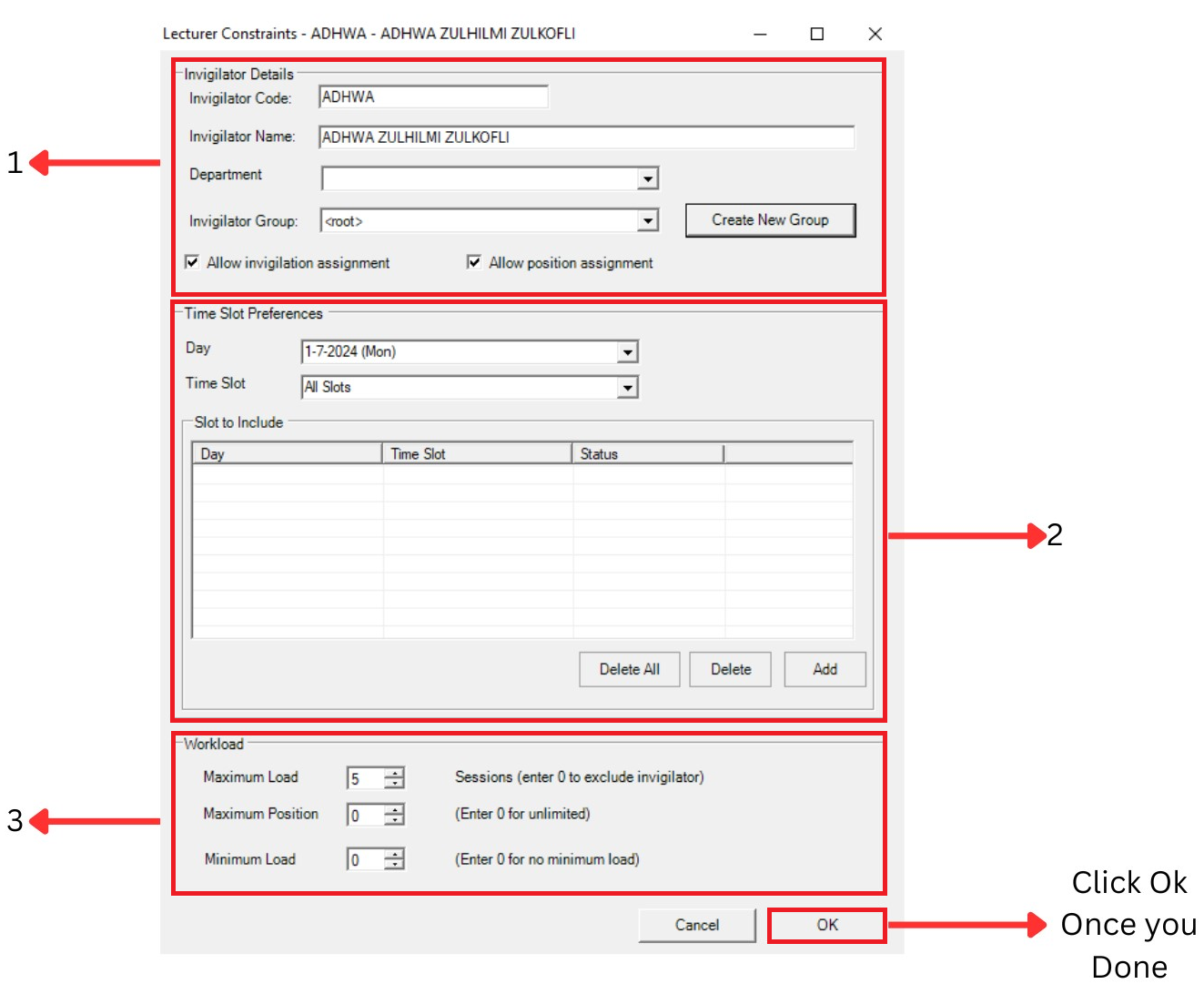
Diagram 1.3 Lecturer Constraints Window
1. Invigilator Details
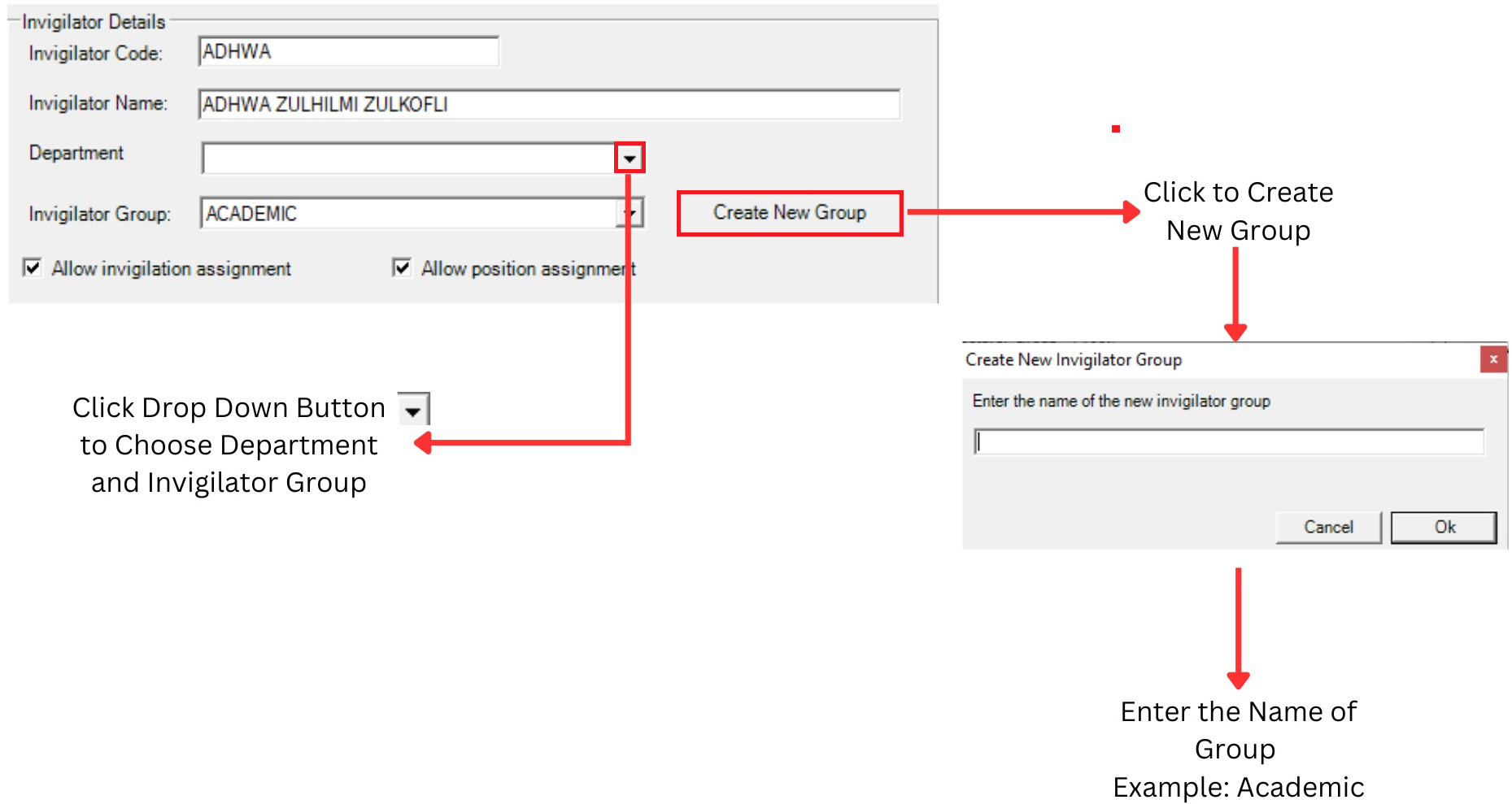
Diagram 1.4 Invigilator Details
You can make any changes at Invigilator Code and Invigilator Name.
Click drop down button
 to choose Department and Invigilator Group
You can Tick to Allow invigilation assignment and Tick to Allow position assignment
2. Time Slot Preferences
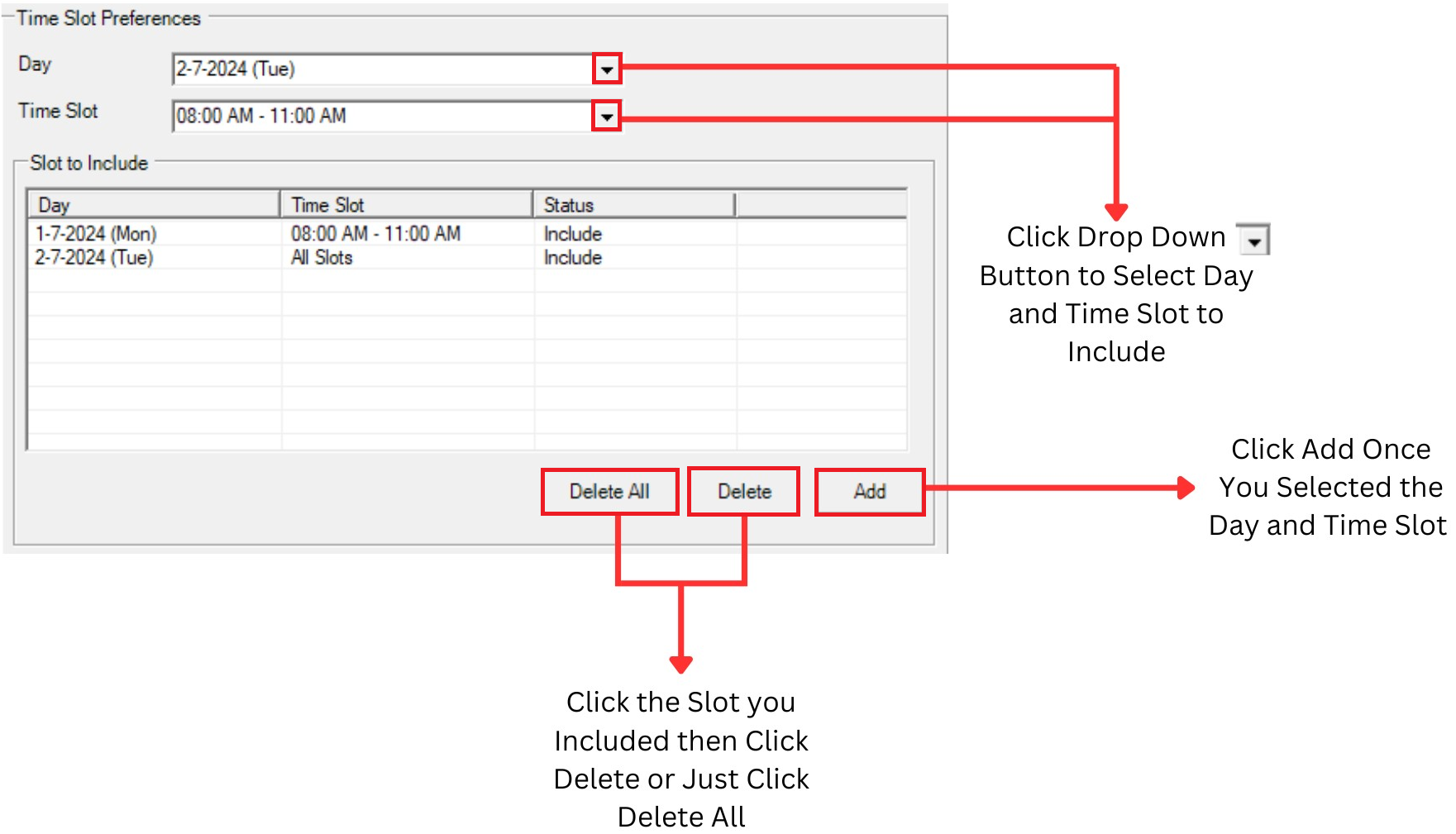
Diagram 1.5 Time Slot Preferences
Lecturers can define the time slot or day to Include by Adding to the Slot to Include Box.
3. Workload
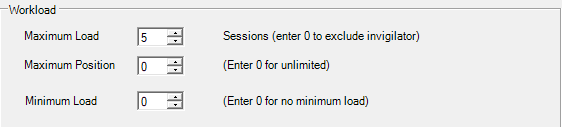
Diagram 1.6 Workload
You can Enter Maximum load, Maximum position and Minimum load for lecturer.
Invigilators Grouping

Diagram 1.7 Location of Invigilator Grouping
Click Grouping tab and then Click Invigilators Grouping tab to open up Invigilators Grouping window
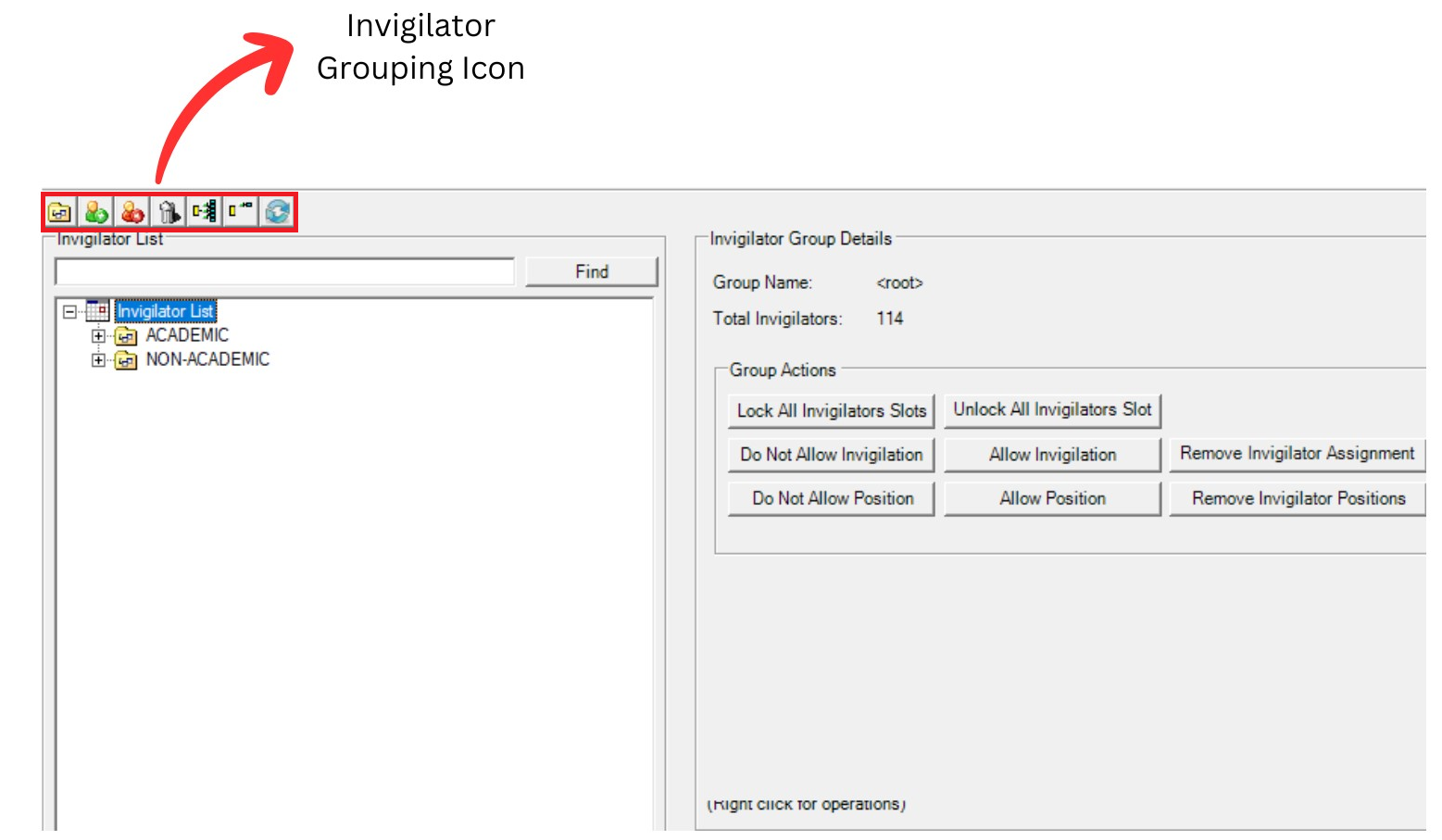
Diagram 1.8 Invigilator Grouping Window
Inside Invigilators Grouping window, you will be able to see icons on the top left side.

| Click this icon to Add invigilator. |
| Click this icon to Delete invigilator. |
| Click this icon to Delete All invigilators. |
| | Click this icon to Print List. |
| | Click this icon to Print Preview. |
| | Click this icon to Design Print List. |
| | Click this icon to Hide and Show Invigilators. |
Double Click the lecturer to open up Lecturer Constraint window and set the constraint.
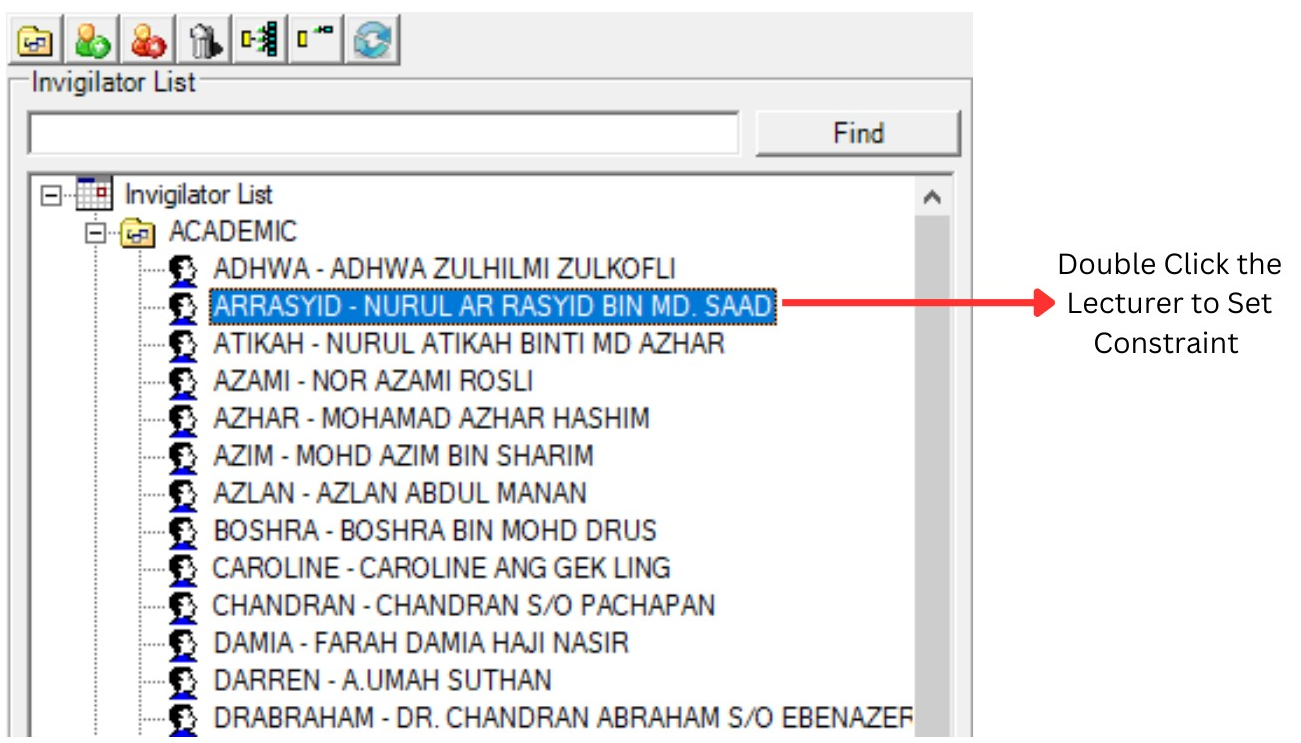
Diagram 1.9 Invigilator Grouping Preferences
To edit the constraint, refer to Diagram 1.3 Lecturer Constraints Window.