Stage 4: Exam Course Timetable
4. Set Constraint
4.2. Constraint at Generate Option
It is very important to set constraint at Generate Option for Courses before you generate.
You may go to Generate Options and select Courses.

Diagram 4.2.1 Location of Course in Generate Options
Below is the Courses Tab under Generate Options.
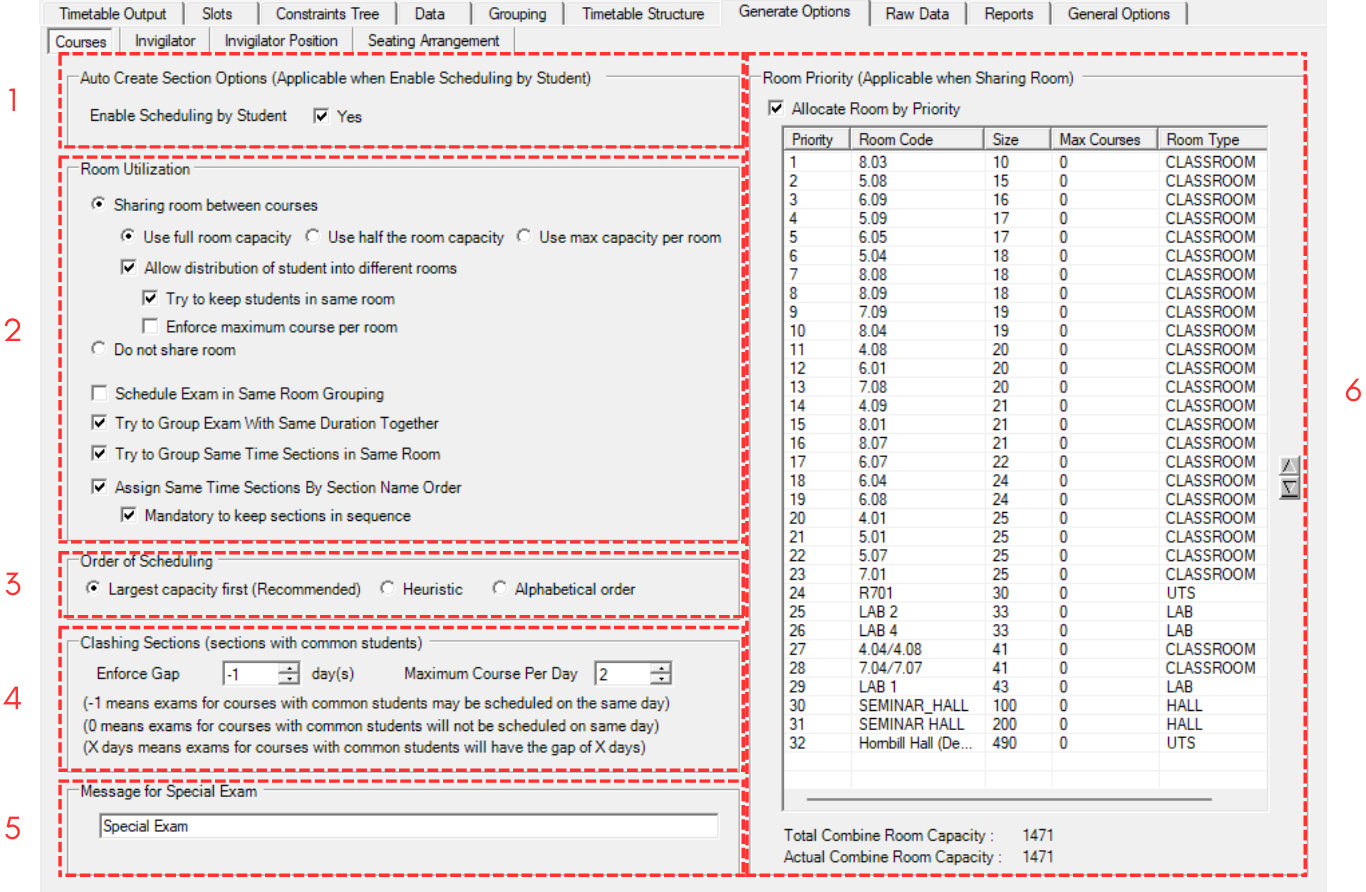
Diagram 4.2.2 Course Constraint Window
1. Auto Create Section Options

Diagram 4.2.3 Auto Create Section Options
Tick Yes if you want to Enable Scheduling by Student.
2. Room Utilization
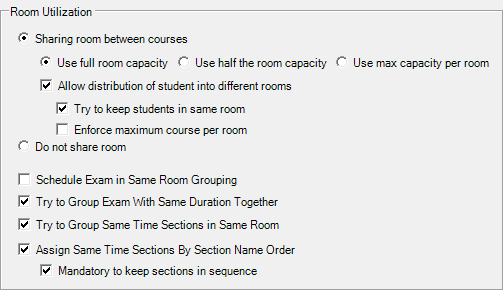
Diagram 4.2.4 Room Utilization
- You can choose between Sharing room capacity or Do not share room
- If you choose Sharing room capacity you need to choose between use full room capacity, use half room capacity or use max capacity per room
- You can Tick to Allow distribution of student into different room. If you Tick to Allow you can Tick to Try to keep students in same room and Enforce maximum course per room. Maximum Course Per Room can be refer to the Room List at Timetable Structure.
- You can Tick to arrange Schedule exam in same room grouping
- You can Tick to Try to group exam with same duration together. The suggestion is to attempt to group exams with the same duration together.
- You can Tick to Try to group same time sections in same room. The suggestion is to arrange sections of the same time in the same room.
- You can Tick to Assign same time sections by section name order
- You can Tick to Mandatory to keep section in sequence.
NOTE THAT, Diagram 3.2.4 is the recommended settings for the Room Utilization.
3. Order of Scheduling

Diagram 4.2.5 Order of Scheduling
You can set of scheduling by Largest capacity first (recommended), Heuristic or Alphabetical order.
4. Clashing Sections
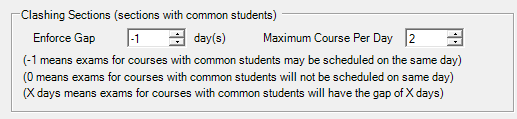
Diagram 4.2.6 Clashing Sections
- If you put -1 day means exams for courses with common students may be scheduled on the same day. And you need to put Maximum course per day. Default course per day is 2.

Diagram 4.2.7 Maximum course per day
- If you put 0 day means exams for courses with common students will not be scheduled on the same day. Meaning that there will only be one examination per day.
- If you put X days means exams for courses with common students will have the gap of X days. For Example if you put 3 days and you will have the gap 3 days between examination.
IMPORTANT NOTE: it is recommended to put as 0 first for the first time generating courses.
5. Message for Special Exam

Diagram 4.2.8 Message for special exam
You can write any message for special exam since special exam wouldn't be having venue or time slot.
6. Room Priority (Applicable when Sharing Room)
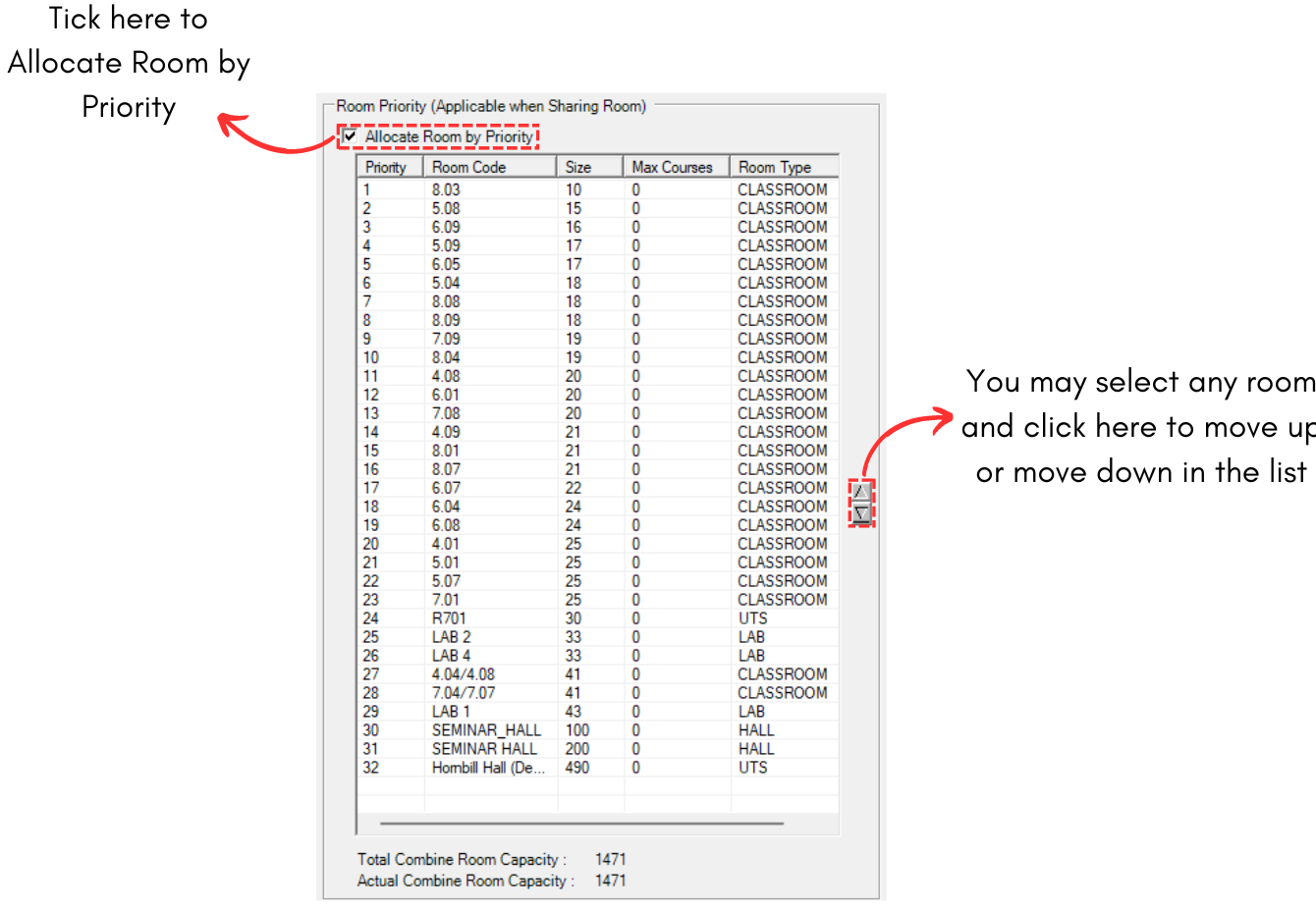
Diagram 4.2.9 Room Priority
You can move the room to up and down based on your priority. For example we move LAB 1 to priority number 1.
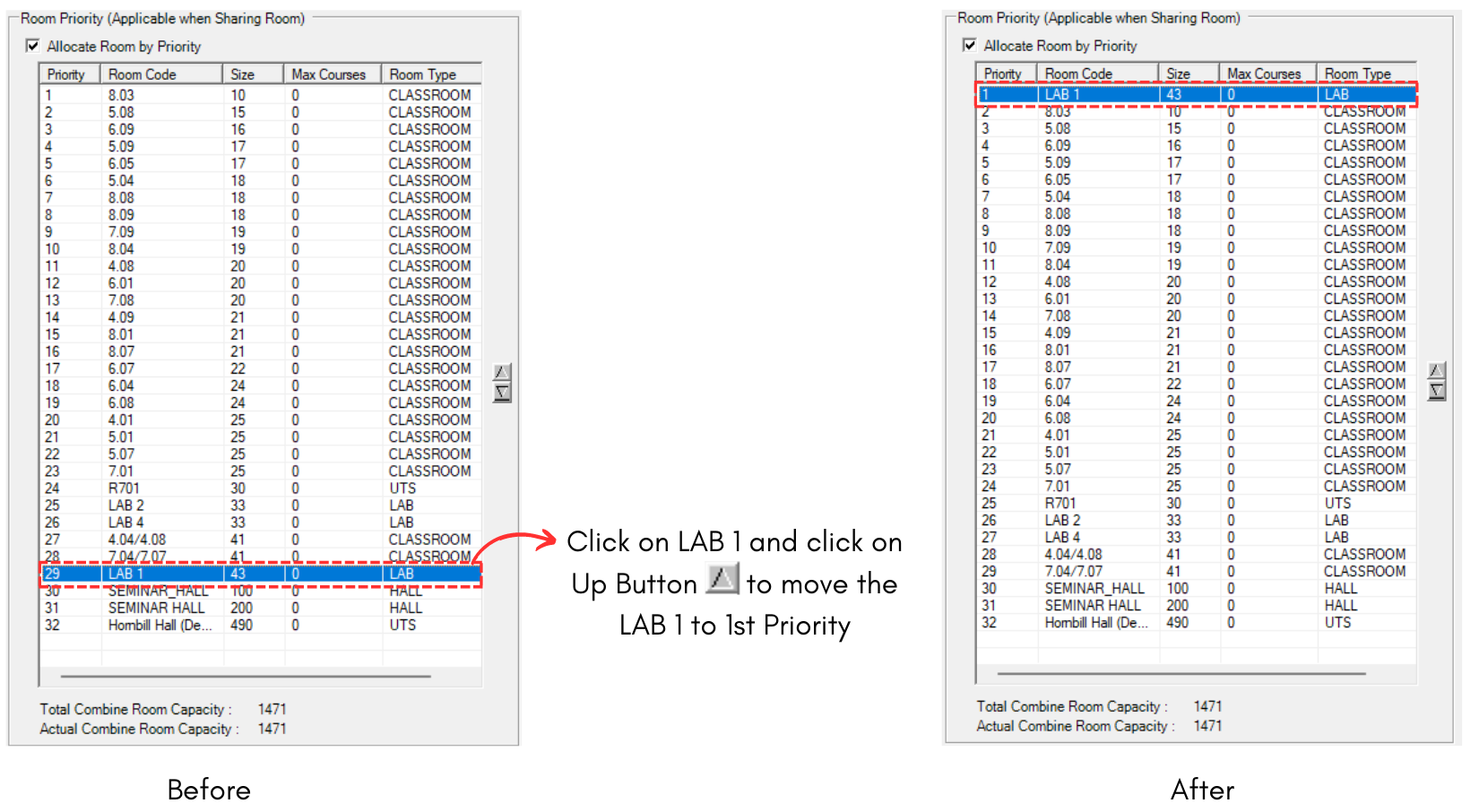
Diagram 4.2.10 Room Priority
If you use room priority, the program will try its best to fill up the room based on the priority number given. It is important to make sure that the rooms are arranged accordingly to your preference to avoid having the wrong room filled.
Below is the course's recommended settings for Generate Option.
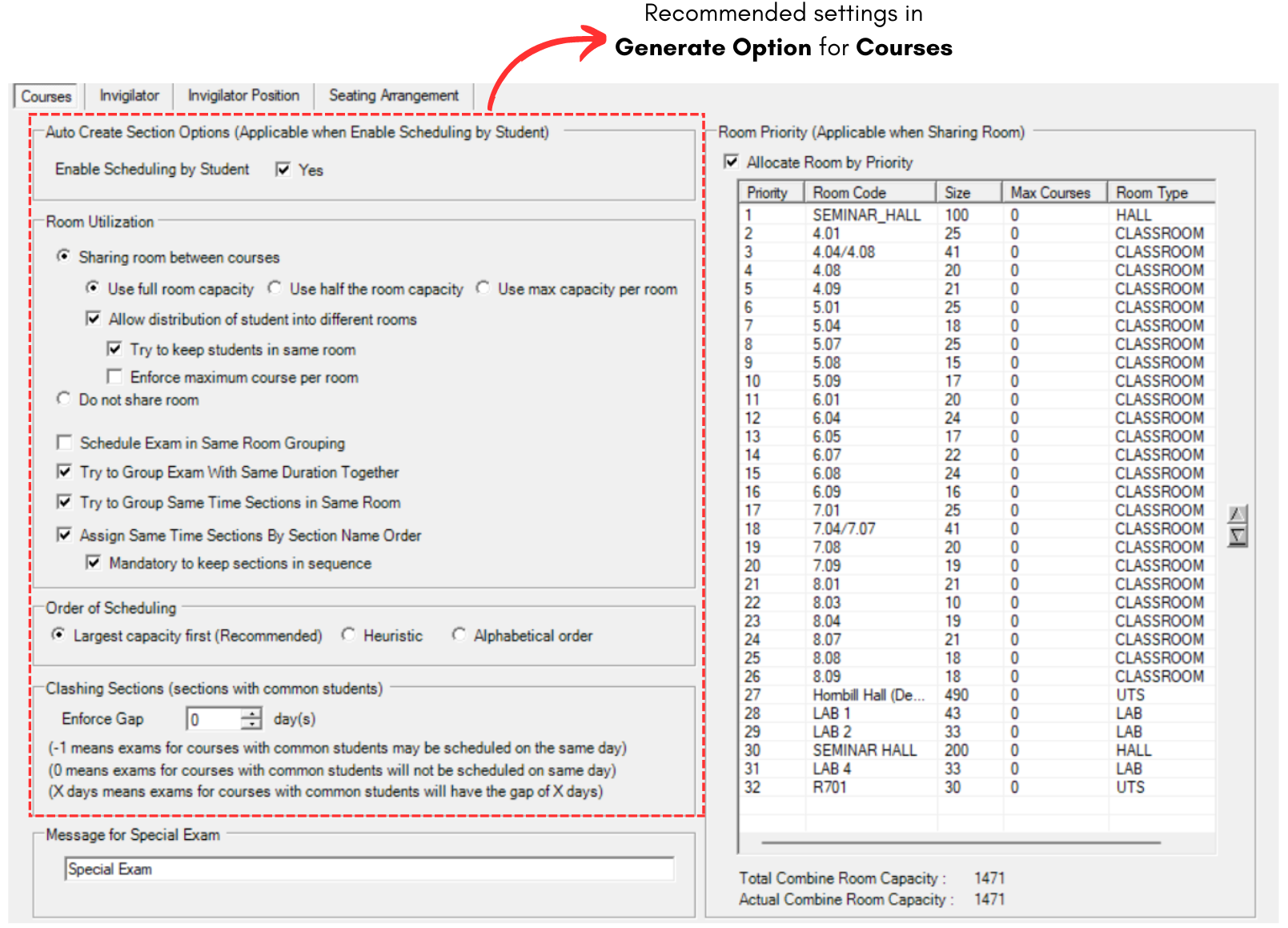
Diagram 4.2.11 Course Recommended Settings in Generate Option