Stage 1: Database
1. Import Database
1.1. Course Management
Go to Icons in Timetable Menu and Select Course Management.
There are 3 simple steps to Import Course Database.
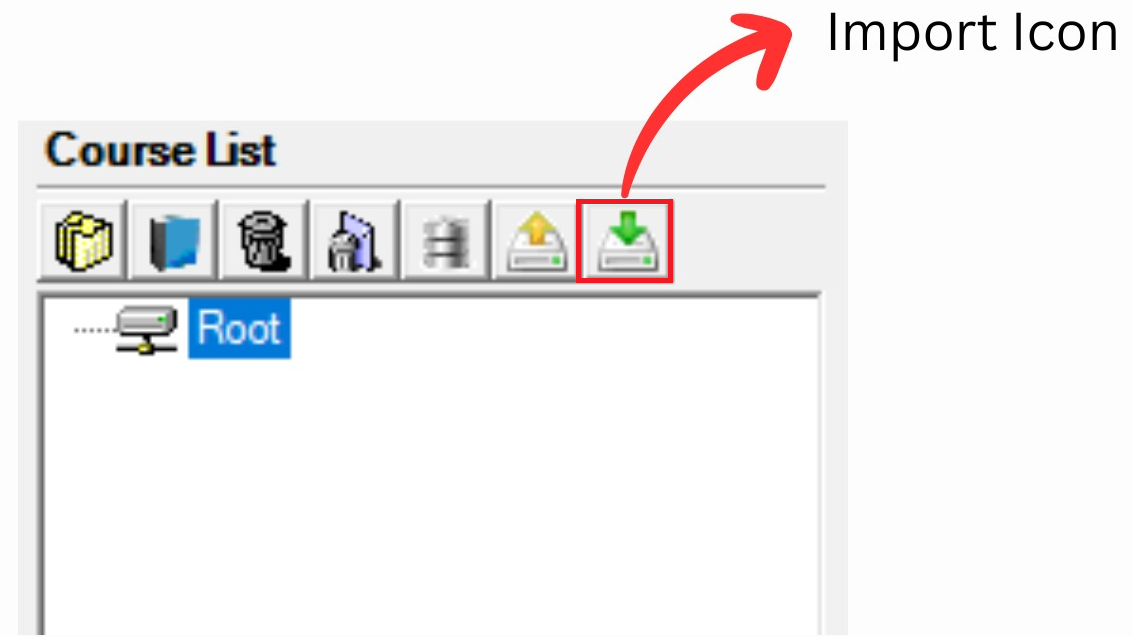
Diagram 1.1.1 Location of Import Icon
Step 1: Click the Import Icon to import Course Database.
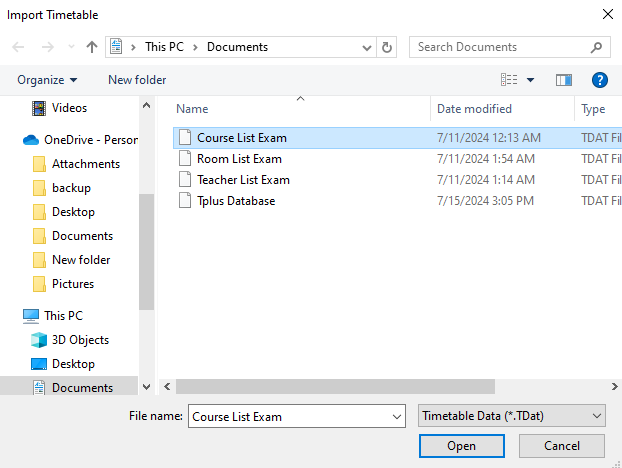
Diagram 1.1.2 Open Course Database file
Steps 2: Select the file that user want to import and click open or double click the file.
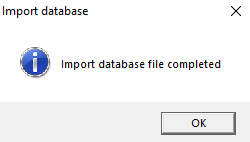
Diagram 1.1.3 Import Database Pop-Up Completed
New window will pop-up, showing it has been completed
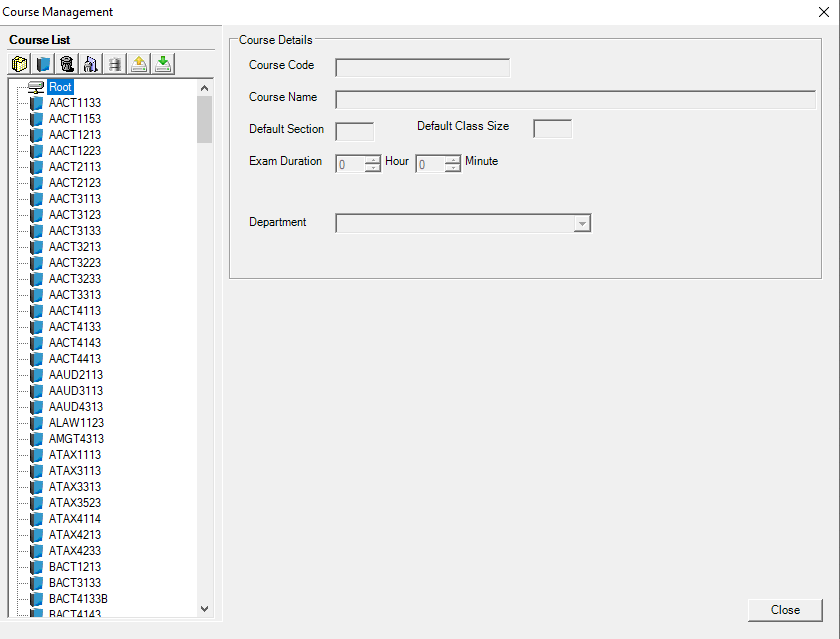
Diagram 1.1.4: Importing course list completed
Steps 3: Click Close, and the course list is automatically save in Course Management.