Stage 1: Database
3. Add, Edit and Delete in Database
3.9. Course Teach
In this subchapter, we will learn on how to Add, Edit and Delete Course Teach in Course Teach Management.
Note that, this is optional.
1. Add Course Teach
To add course teach in Course Teach Management, there are 3 simple steps.
STEPS 1: To Add new course teach, click on the icon Add Course Teach. 
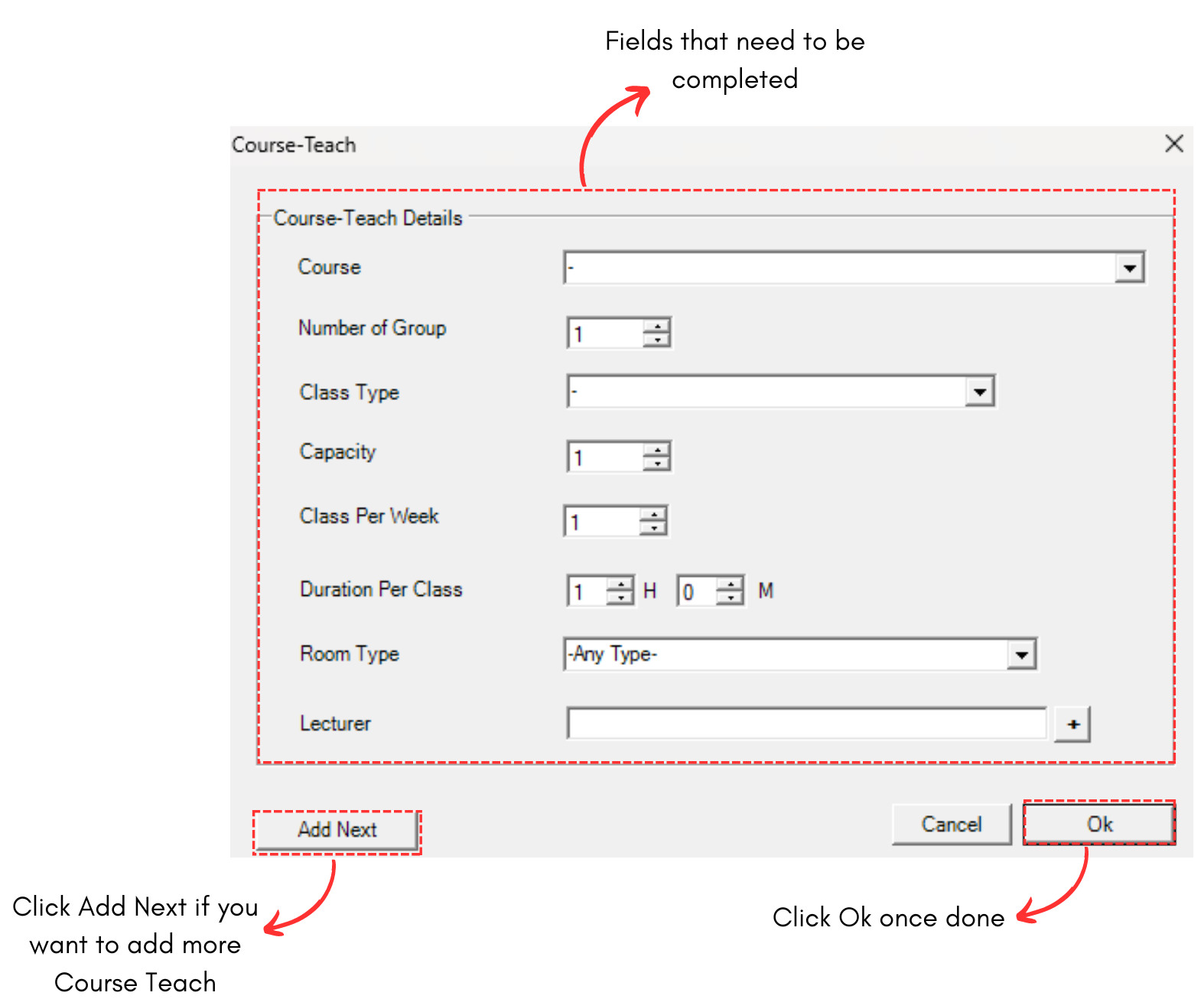
Diagram 3.9.1 Add Course Teach Popup
To fill in the details, refer to the table below.
|
Course |
Choose the preferred course. |
|
Number of Group |
Choose the number of group that the lecturer will teach for the course. |
|
Class Type |
Choose the class type for the course to be teached. |
|
Capacity |
Choose the class capacity for the course group. |
|
Class Per Week |
Choose the number of Class Per Week. |
|
Duration Per Class |
Choose the duration of the class in the course |
|
Room Type |
Choose the room type for the class. |
|
Lecturer |
Choose the lecturer to teach the course. |
Table 3.9.1 Course Teach Details Explanation
Below is the example how it will look like after filling the form.
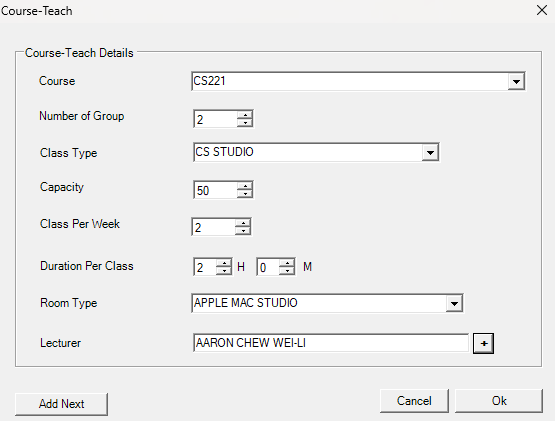
Diagram 3.9.2 Filled Course Teach Details
STEPS 3: Click Ok once finished.
To search for the course teach that has been added, simply click CTRL + F and search your preferred group.

Diagram 3.9.3 Added Course Teach
2. Edit Course Teach
To edit course teach in Course Teach Management, there are 4 simple steps.
STEPS 1: To edit course teach, you can simply choose the course teach that you want to edit and click Edit Course Teach Icon  OR double click the selected course teach.
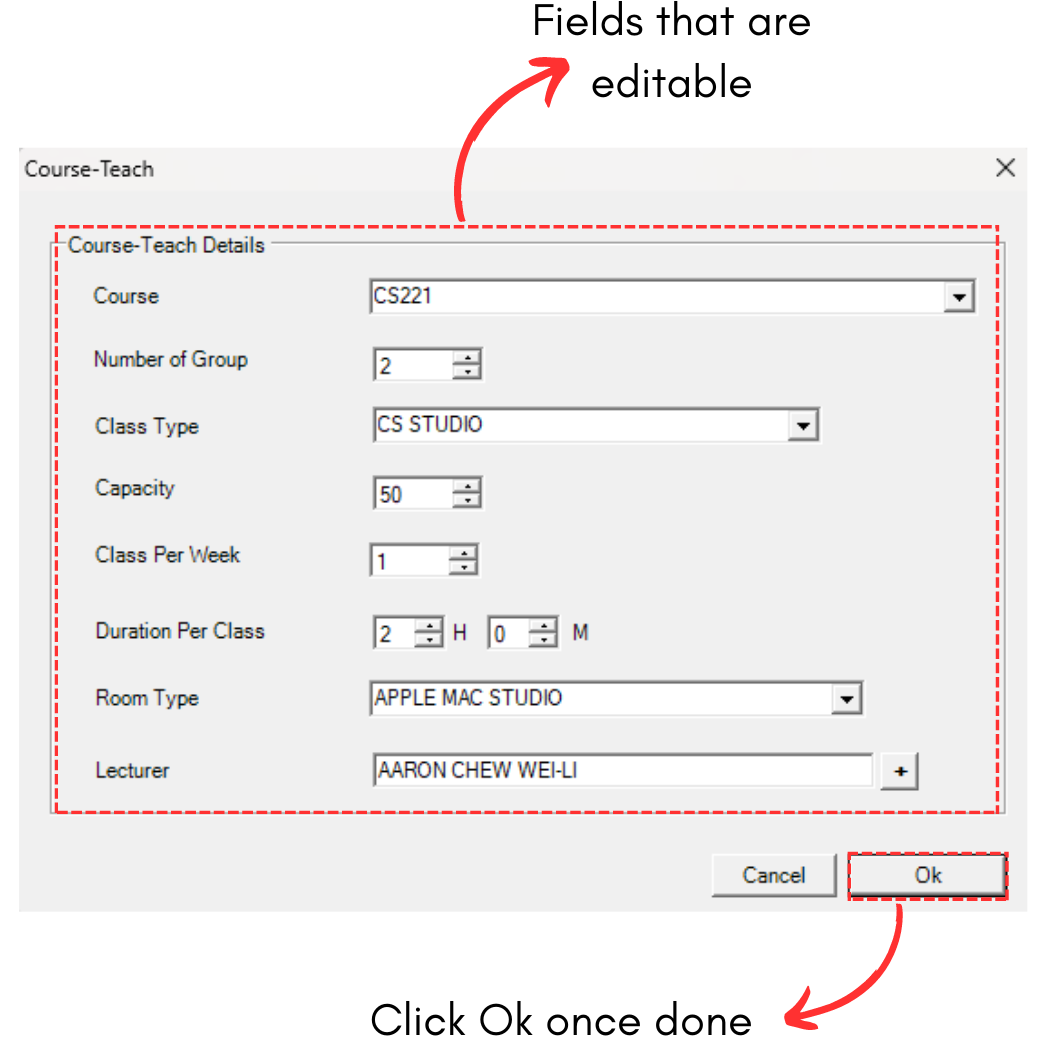
Diagram 3.9.4 Editable Fields
STEPS 3: Edit the Course Teach Details. For Example, we change the course from CS221 to CSN 3333
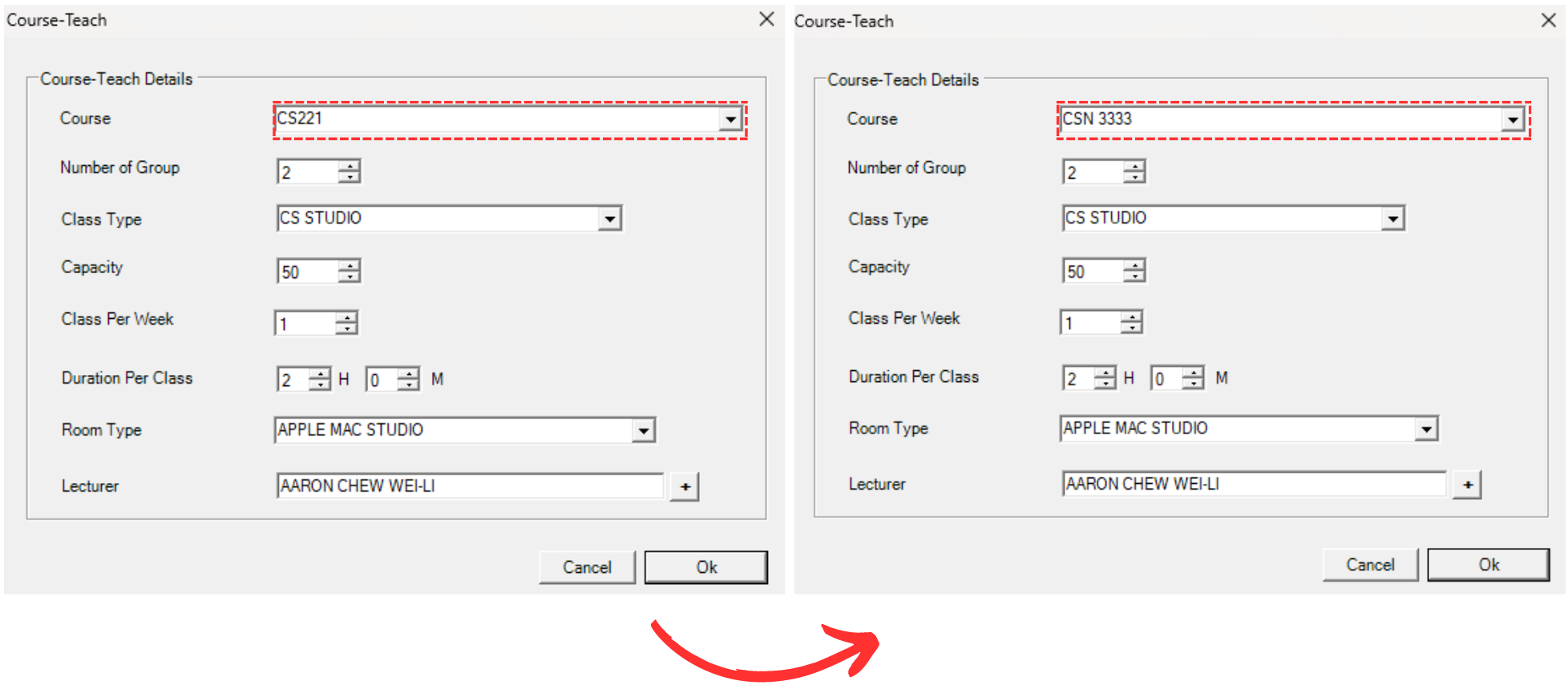
Diagram 3.9.5 Changed Course Teach Name
STEPS 4: Click Ok once done. Below is how it would look like once changed.

Diagram 3.9.6 Updated Course Teach Details
3. Delete Course Teach
To delete, you can simply refer to the picture below.

Diagram 3.9.7 Steps on How to Delete Course Teach