Stage 2: Timetable Structure
1. How to Create New Timetable
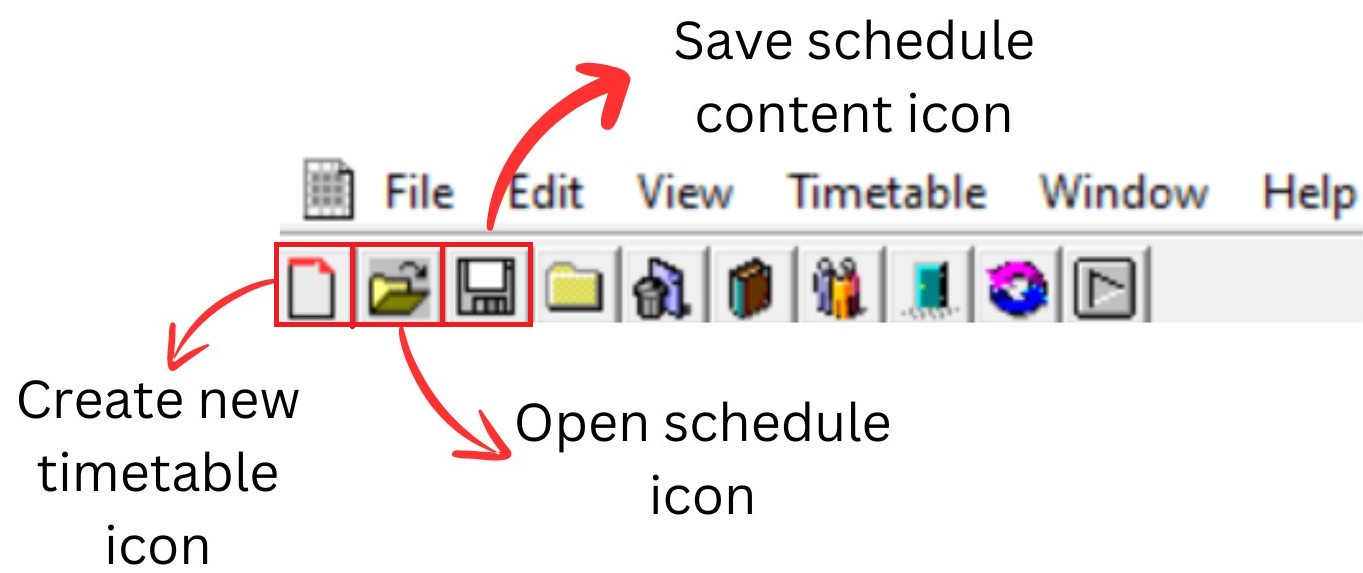
Diagram 1.1: Timetable plus spring icons
Click New timetable icon  to create new timetable
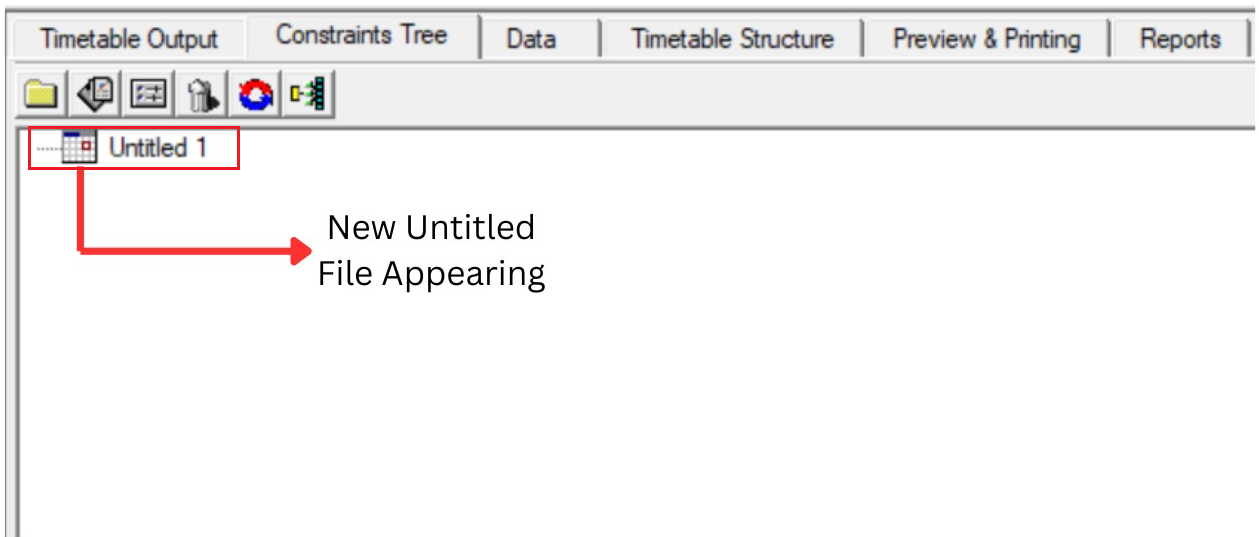
Diagram 1.2: New timetable window
Click Save schedule content icon  . ( User need to save the schedule first before start Set Time structure )

Diagram 1.3:Location of Save schedule icon
Save Schedule As window will pop up.
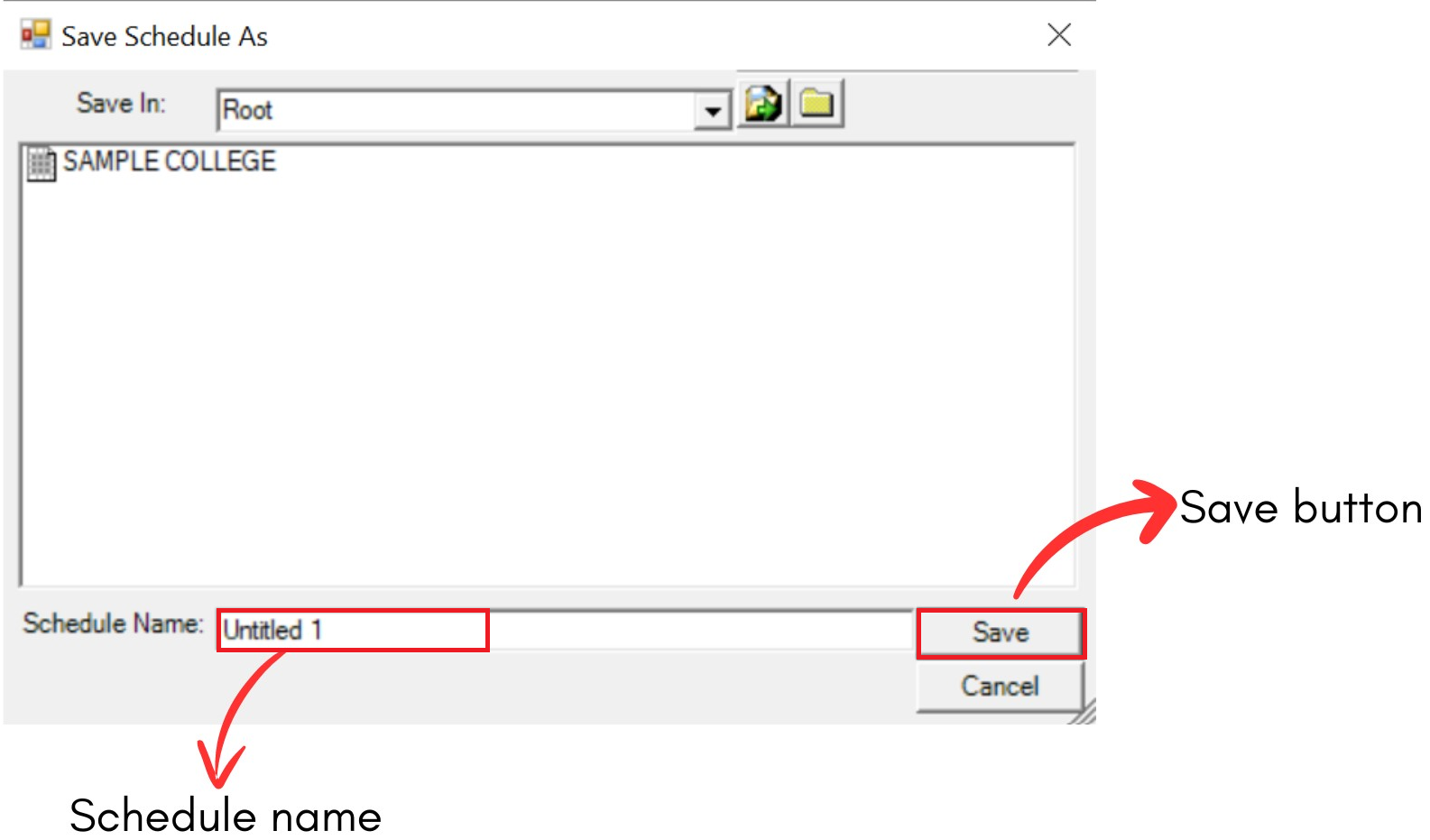
Diagram 1.4: Save schedule window
You need to RENAME schedule first. You can rename based on your university or department
Example: Oxford University
After rename the schedule you need to click Save button to save the schedule.
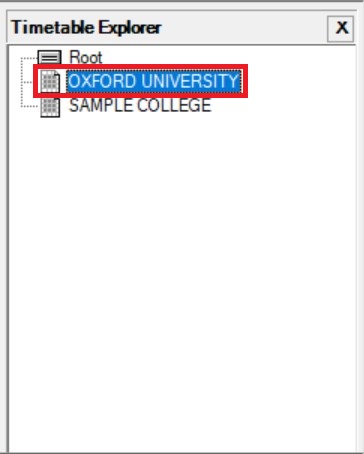
Diagram 1.5: Saved schedule
Your schedule under Root after save and you can start Set Time Structure.