Stage 6 : Analysis & Editing
2. Editing
2.2. Add Course Manually
This topic had been discussed before on the earlier topic called Manual Allocation. Here we will learn Step to Add Manually the Section that Not assigned after Auto Generate.
Here is the sections Not Assigned after Auto Generate

Diagram 2.2.1 : The Sections Not AssignedStep to add manually is :
- Locate Section at Tree
- Highlight the Batch Grouping
- Highlight the Lecturer
- Add Manually at Timetable Output
Step 1: Locate Section at Tree
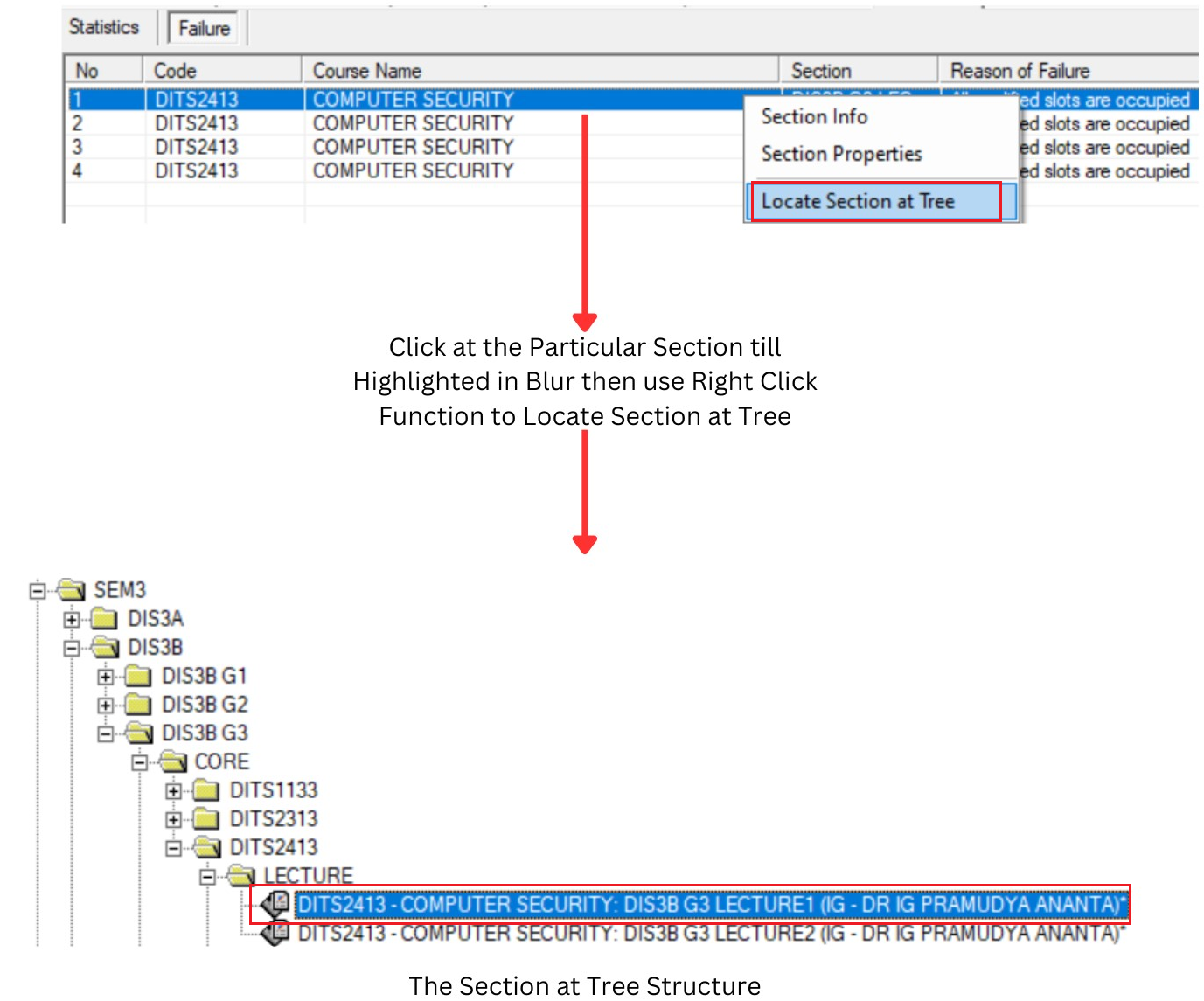
Diagram 2.2.2: Locate Section at Tree
Step 2: Highlight the Batch Grouping
Step 2a: Highlight the Section first at Tree Structure
Step 2b: Highlight the Batch grouping of the Section
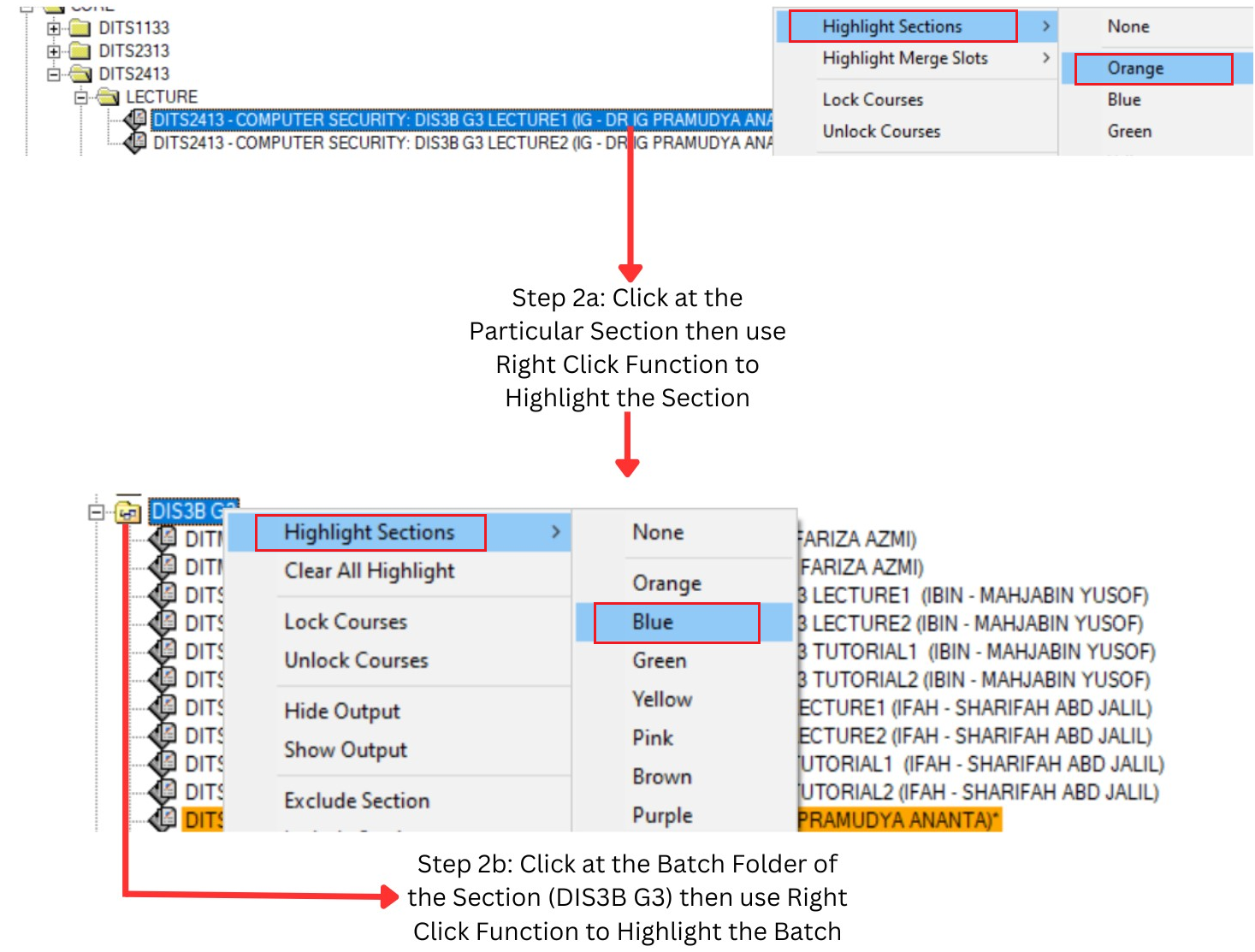
Diagram 2.2.3 : Highlight the Batch Grouping
Step 3: Highlight the Lecturer
Step 3a: Identify the Lecturer of the Course
Step 3b: Highlight the Lecturer at Lecturer List
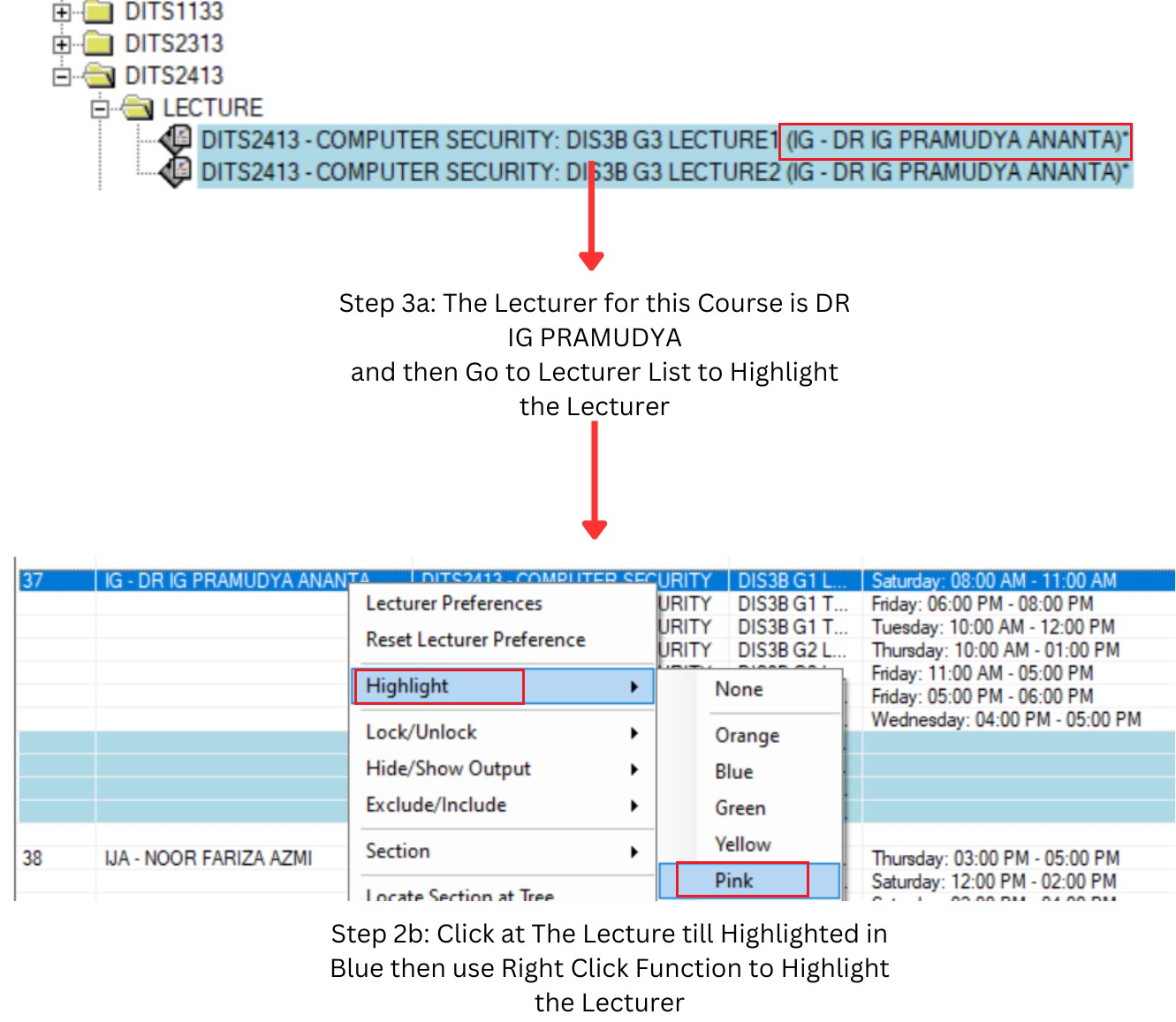
Diagram 2.2.4: Highlight the Lecturer
Step 4: Add Manually the Section at Timetable Output
Step 4a: Find the Slot at the Timetable Output
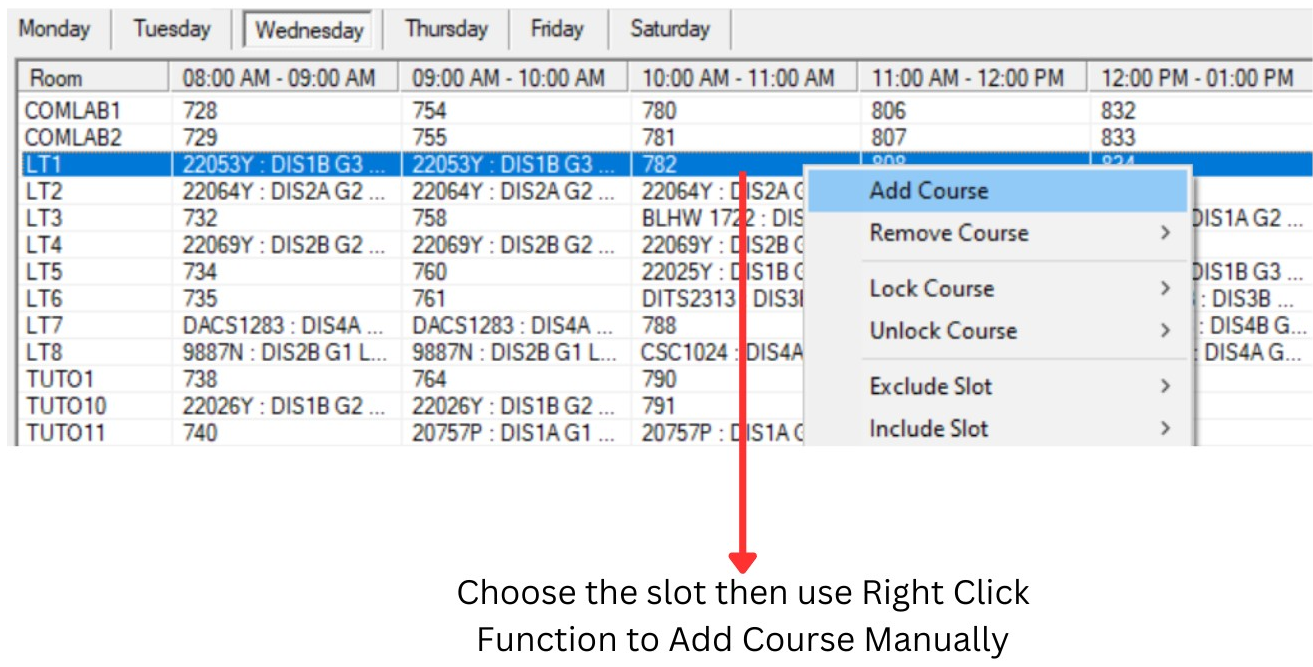
Diagram 2.2.5: Find a Slot at Timetable Output
(NOTE: Find the slot that no clashing between the highlighted colours that means no batch clashing and lecturer clashing)
Step 4b: Add Course Manually in the Slot
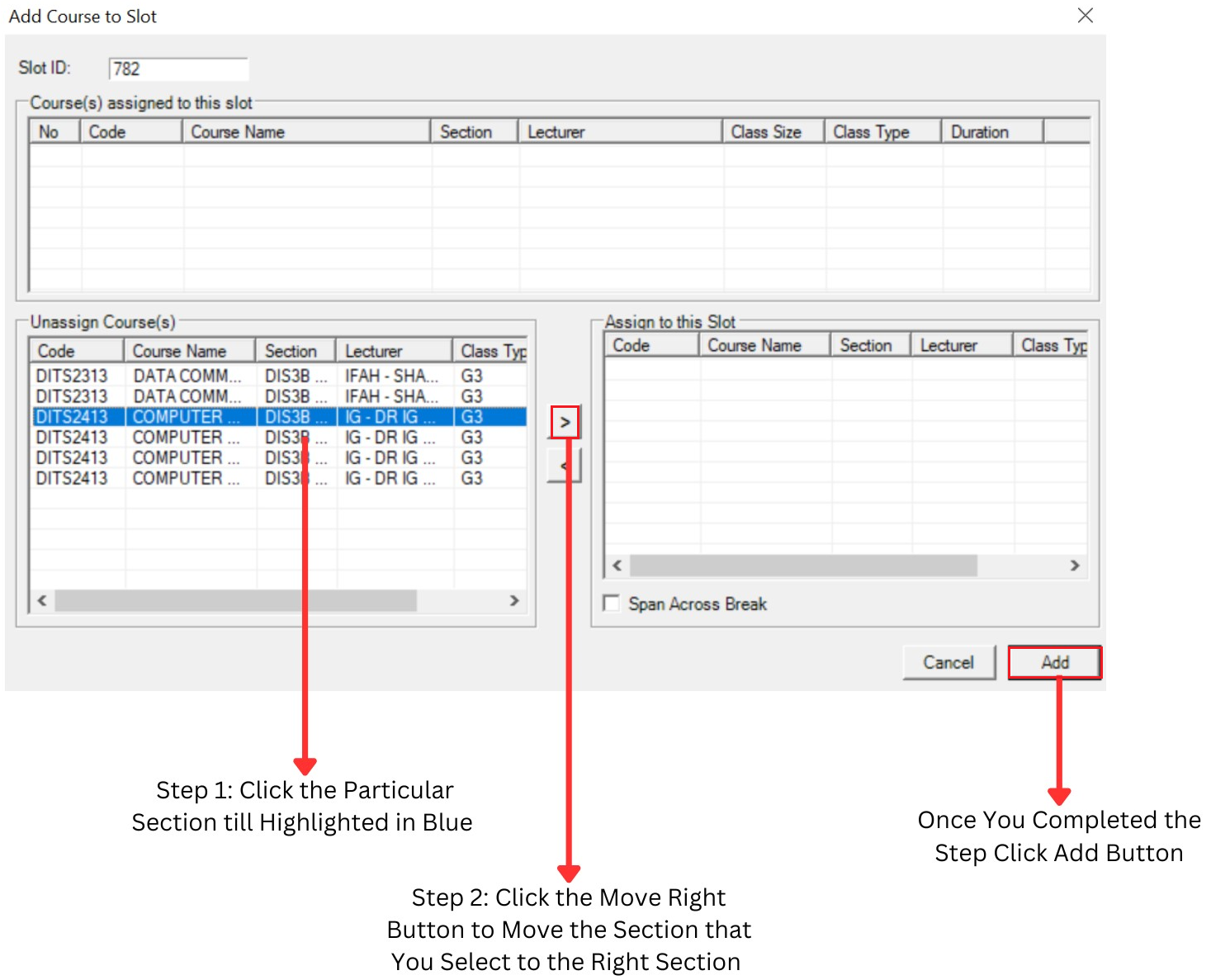
Diagram 2.2.6: Add Course to Slot Manually
Here is the result after You completed all the step.
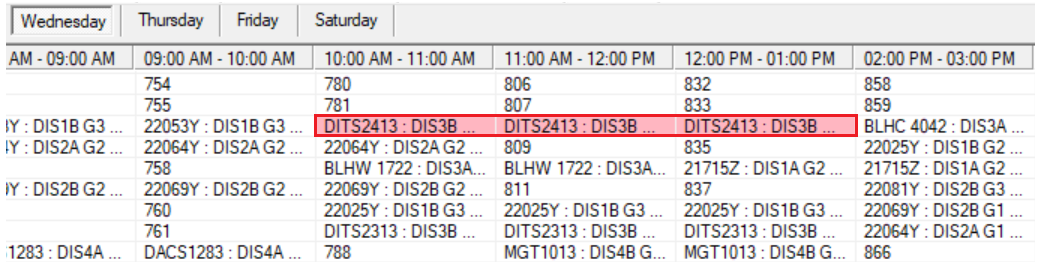
Diagram 2.2.7: The Result