Stage 4: Constraint Setting
4. Batch Constraint
User need to set this constraint to avoid CLASHING for the Same Batch of Student.
STEP 1: Getting to Data Batch Grouping
Step 1.a : Click Data Tab
Step 1.b : Click Batch Grouping Tab to open up Data Batch Grouping

Diagram 1.1 : Location of Batch Grouping
Step 2: Setting the Compulsory Constraint for ALL Course Group Folders (RECOMMENDED)
Step 2.a : Select any Batch Group Folder & Double Click on it to open up Set Group Constraint window
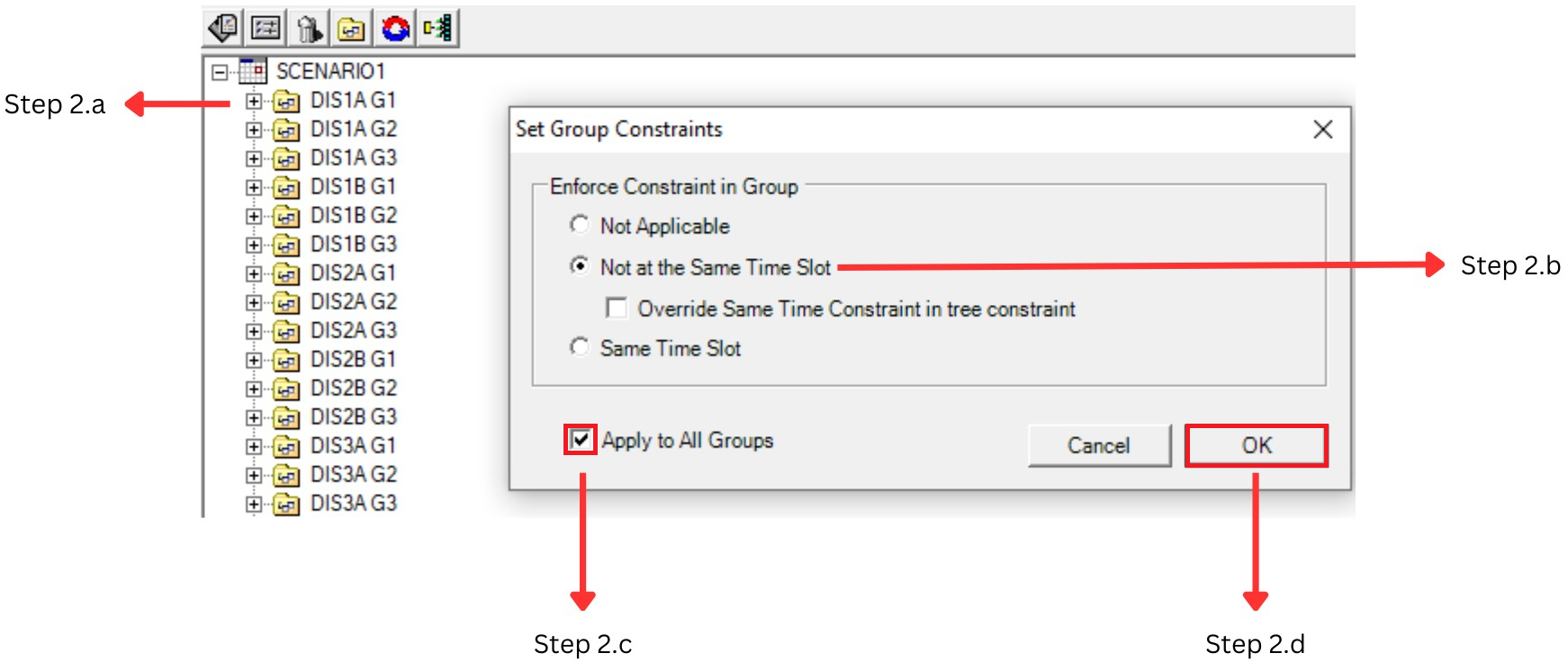
Diagram 1.2 : Set Group Constraints window appear
Step 2.b : Once “Set Group Constrains Box” appears Select and tick  at “Not at the Same Time Slot”. Leave “Override Same Time Constraint in tree constraint” uncheck.
Step 2.c : Tick  at “Apply to All Groups”
Step 2.d : Once completed the step Click on OK Button 
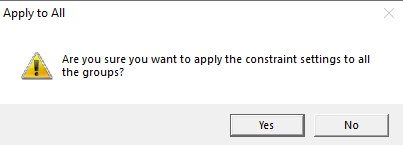
Diagram 1.3 : Confirmation window
Step 3 : Confirmation window will pop-up and click Yes to proceed. Press No to cancel.
(Note: If users prefer to choose “Override Same Time Constraint in Tree Structure”, any Same Time request at the Tree Structure under the same Batch of Student will be ignored. The Same Time request will be explained further at the Non-Compulsory Constraint.)