Stage 7 : Printing
1. Print from Timetable Plus
1.1. Print Preview
Click Preview & Printing Tab to go Print Preview

Diagram 1.1.1: Location of Preview & Printing tab
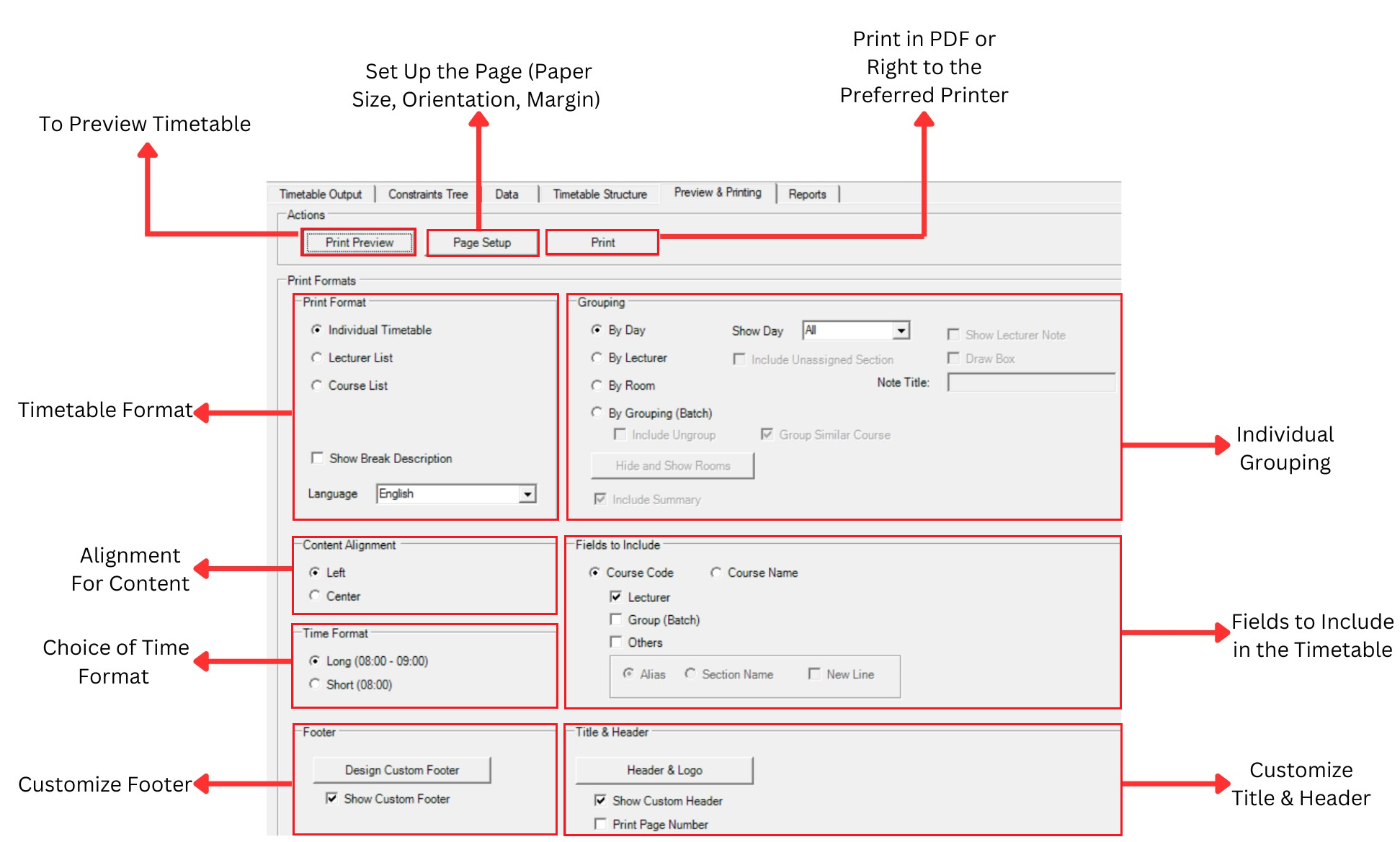
Diagram 1.1.1: Print Preview Window
1. Print Format
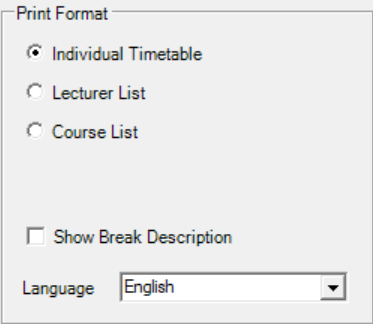
Diagram 1.1.2: Print Format
For Print Format, you are able to choose to print Individual Timetable, Lecturer List or Course List.
-Individual Timetable
To Preview individual timetable by selected grouping
(must select one of the Grouping Field)
-Lecturer List
For Lecturer, you able to hide or show lecturers by clicking the Hide and Show Lecturers
Click 
Select Lecturers Box will appear. In order to print certain lecturer user need to select the lecturers at Hidden Lecturers and bring them to the left (Unhidden Lecturers).
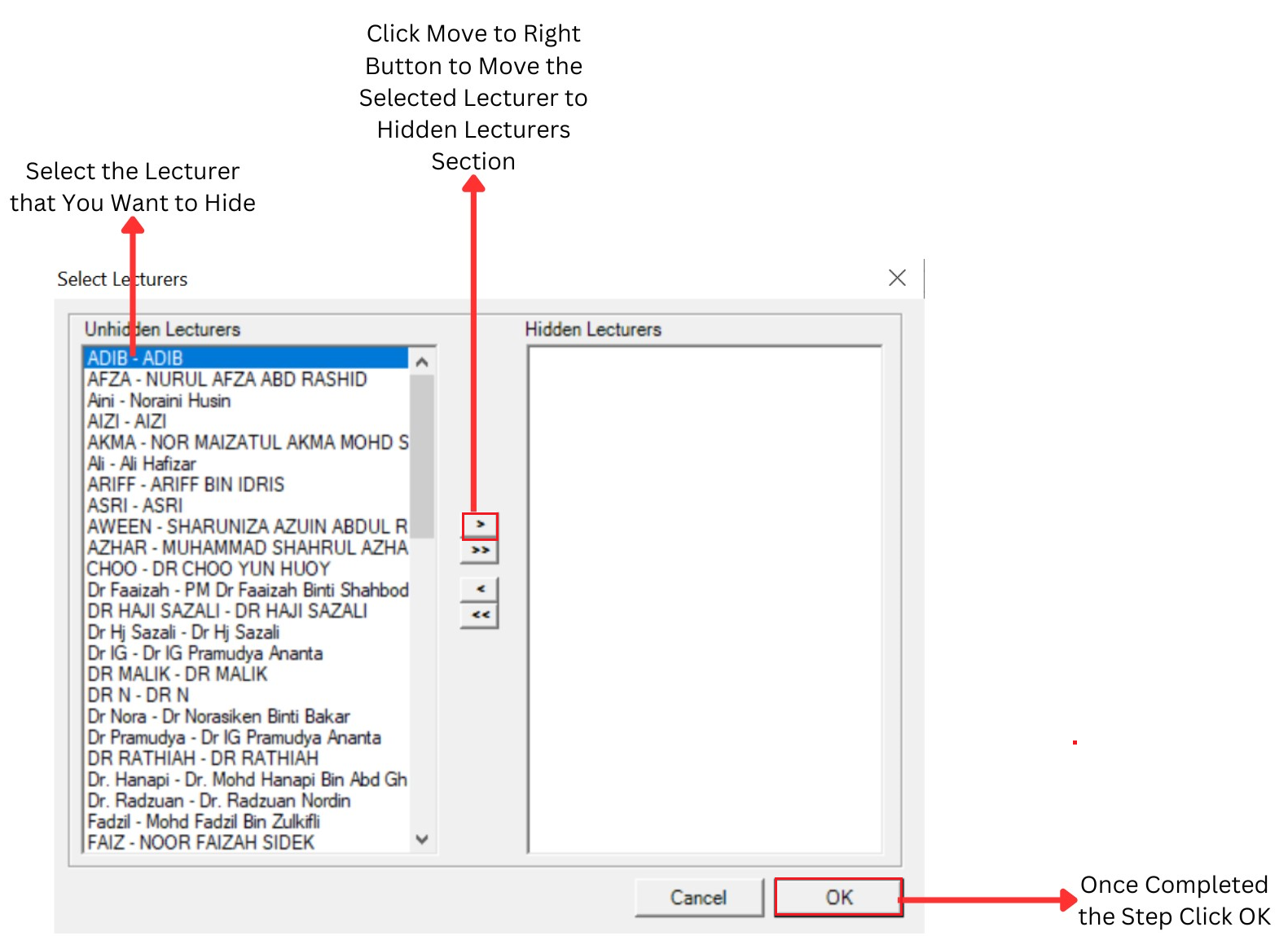
Diagram 1.1.3 : Select Lecturers Box
2. Grouping
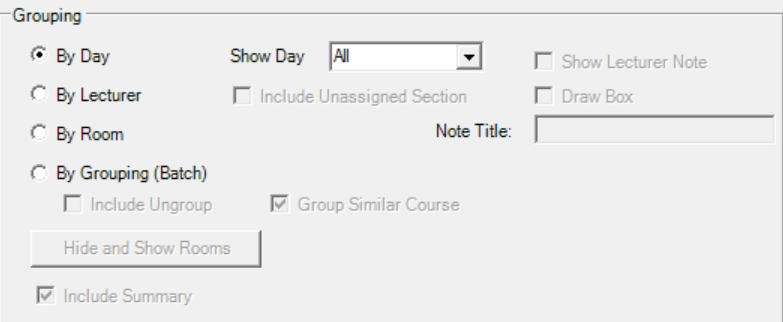
Diagram 1.1.4: Grouping
Grouping: Only Apply When You choose Individual Timetable
in Print Format.
You can have your content to be printed by day, lecturer, room and grouping.
3. Content Alignment
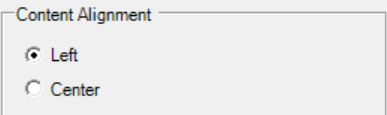
Diagram 1.1.5: Content AlignmentYou may choose to have your content on left side or center.
4. Time Format
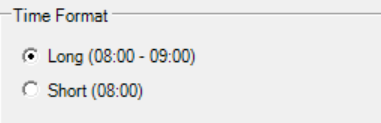
Diagram 1.1.6: Time FormatUser can choose to set the Time Format either using the
long (0800-0900) or the shorter version (0800).
5. Fields to Include
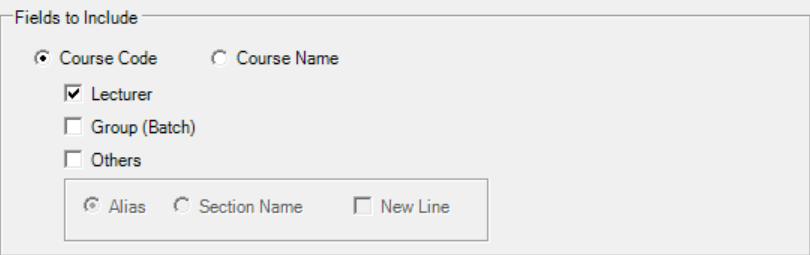
Diagram 1.1.7: Fields to IncludeUser have the choice to select the following:
- Course Code: Recommended as it won’t take too
much space
- Course Name: Too long to be inserted in the timetable
- Group (Batch): The name in the Grouping Box
- Others: Either the Alias or Section Name from
the Section Properties
6. Footer
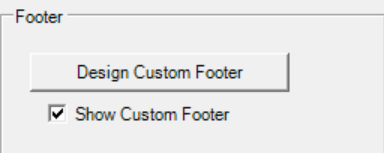
Diagram 1.1.8: Footer
User can include footer. The footer can be designed by the user by clicking
the 
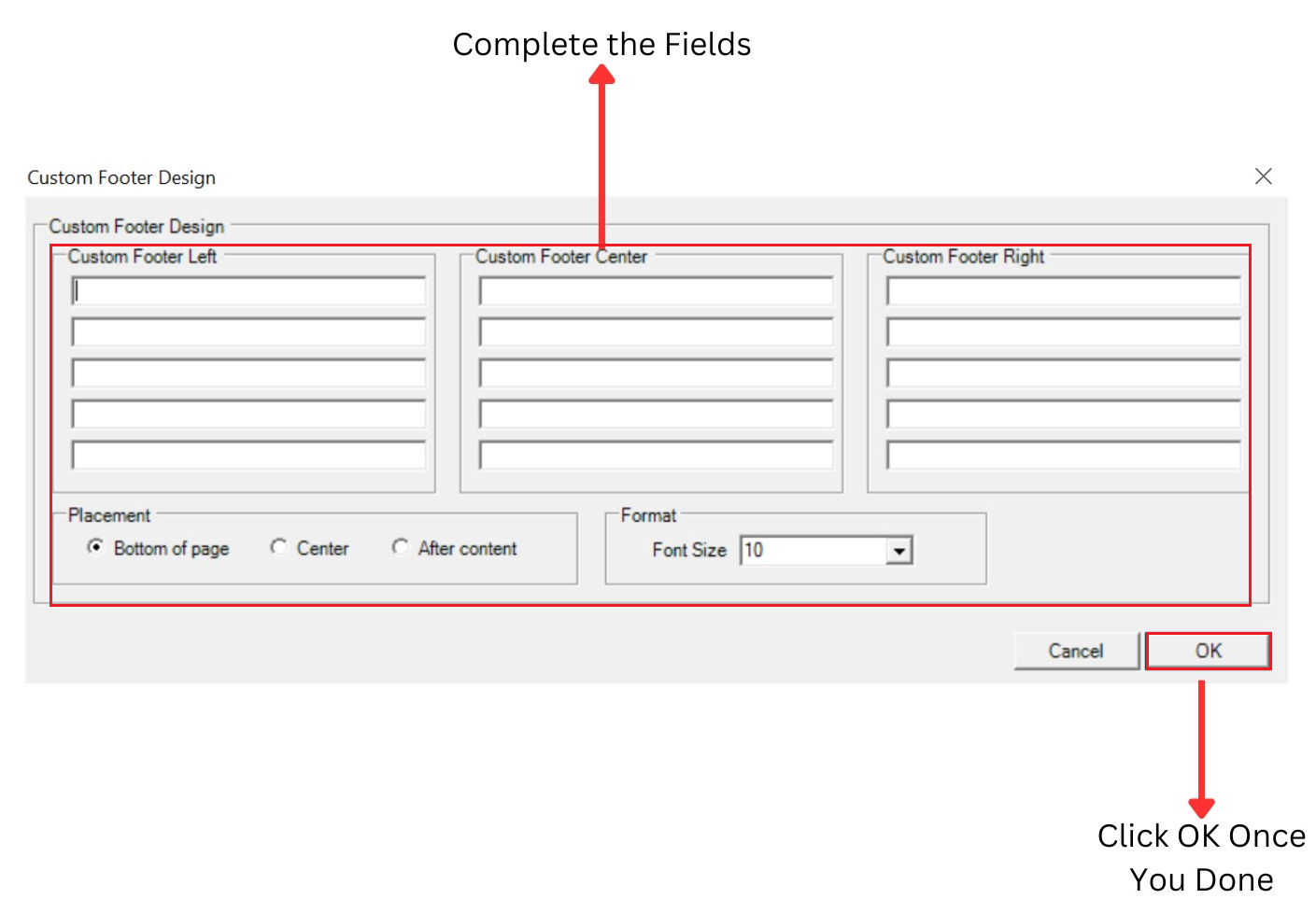
Diagram 1.1.9: Custom Footer Design7. Title & Header
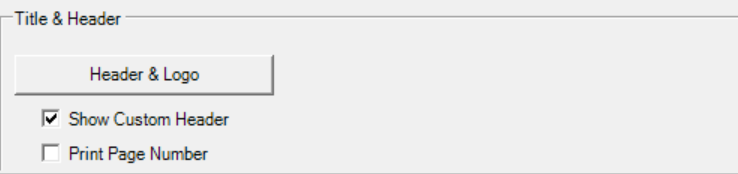
Diagram 1.1.10:Title & HeaderUser can also customized the Title & Header by clicking
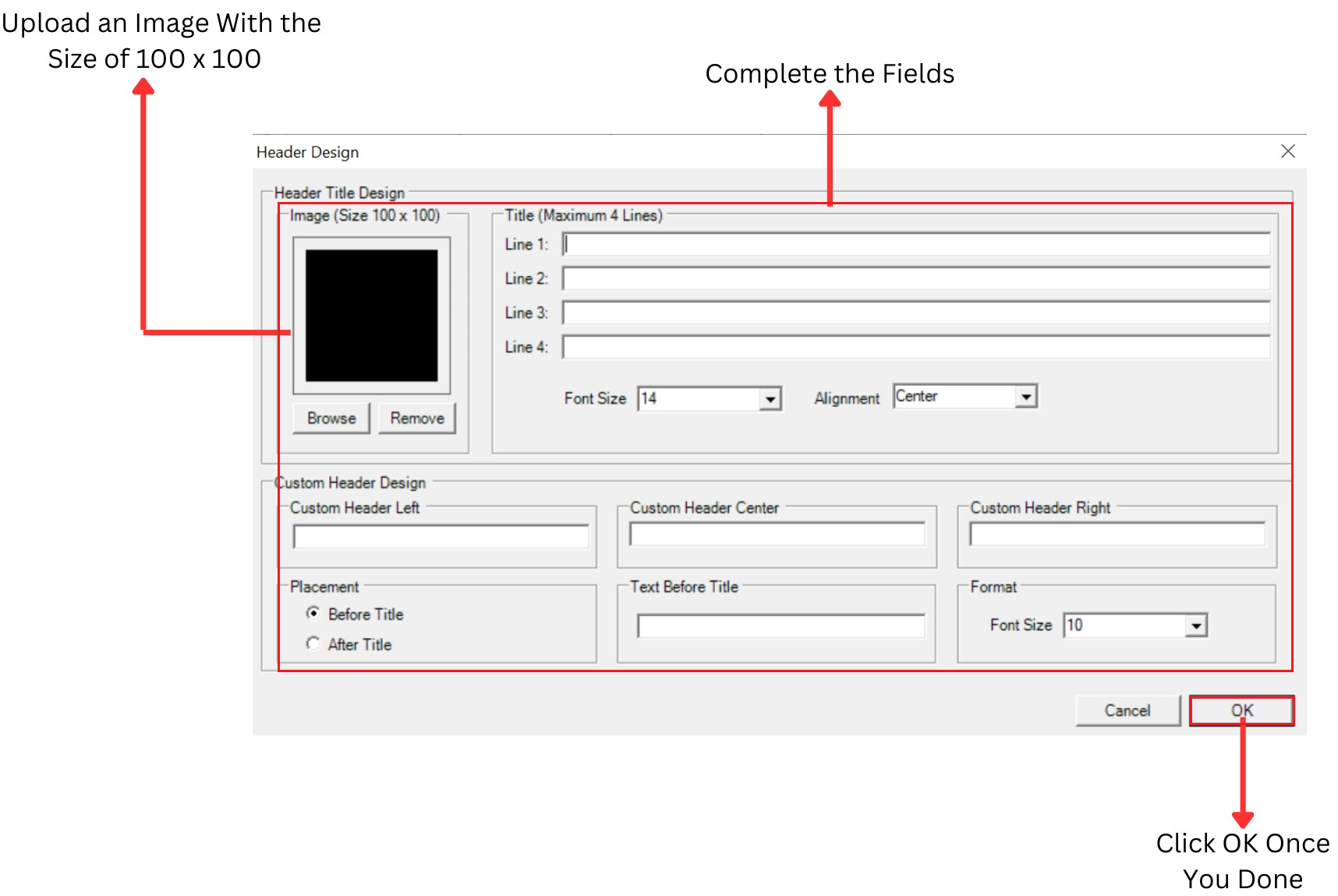
Diagram 1.1.11: Header Design