Stage 1: Database
2. Lecturers Management
2.2. How To Delete A Folder Or Lecturer
Keep your Lecturer List tidy by deleting Lecturer or folder you no longer need.
There are 2 simple steps to Delete Lecturer/Folder Only or Delete All:
Delete Lecturer/Folder Only
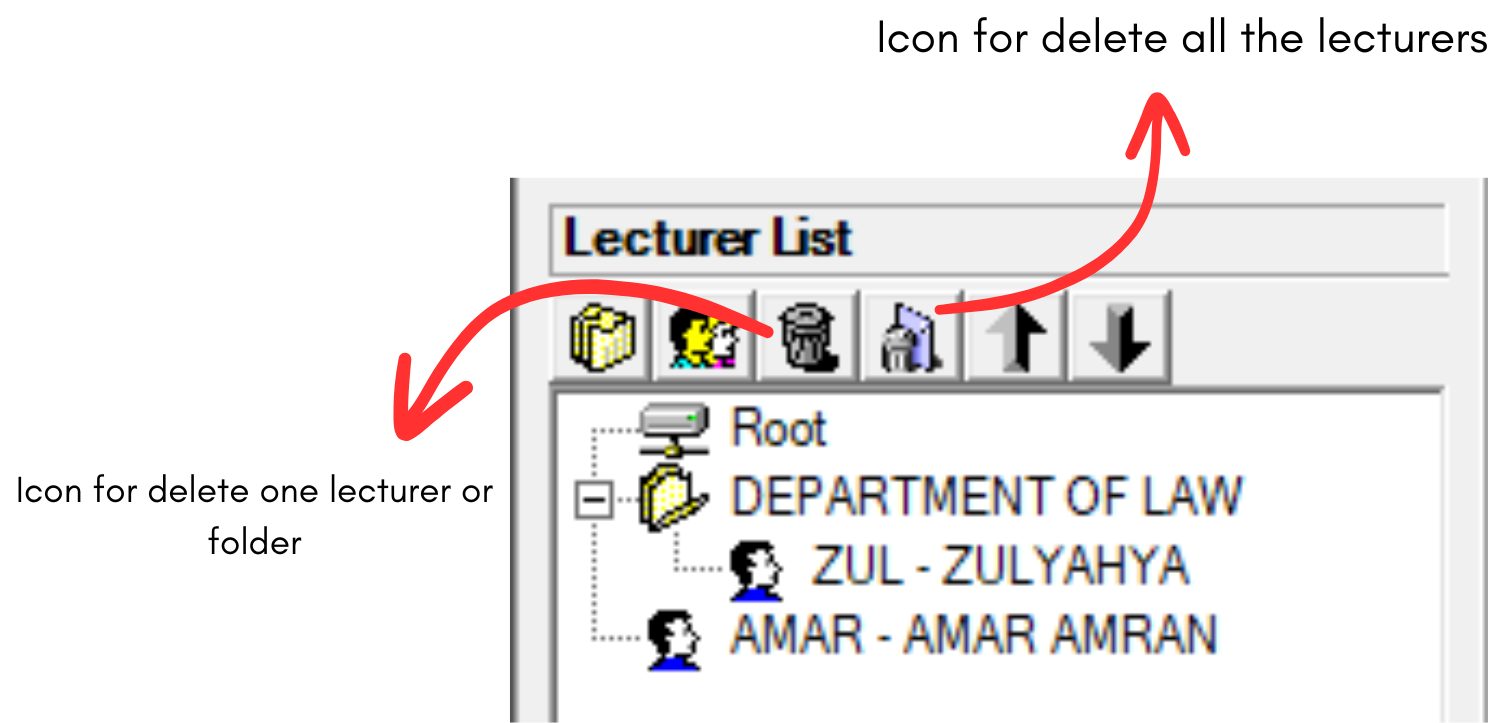
Diagram 2.2.1: Delete lecture and delete all the lecturers icon
Step 1: Select the Lecturer or folder and Click Delete Lecturer Or Folder Icon 
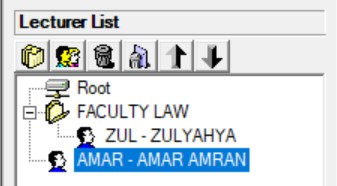
Diagram 2.2.2: Selected lecturer to delete
Step 2: Confirmation window will pop-up and click Yes to Delete
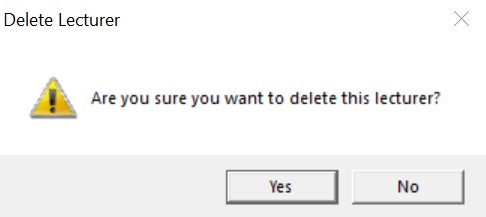
Diagram 2.2.3: Confirmation window to delete lecturerDelete All
Step 1: To delete all, click the delete all icon 
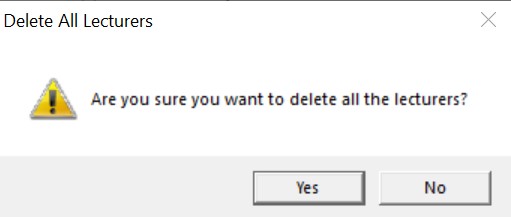
Diagram 2.2.4: Confirmation window to delete all the lecturers