Stage 1: Database
2. Lecturers Management
2.1. How To Create A New Lecturer
There are 2 simple Steps to Create New Lecturer in Lecturer Management :
Step 1: Click create new lecturer icon  to add new lecturer
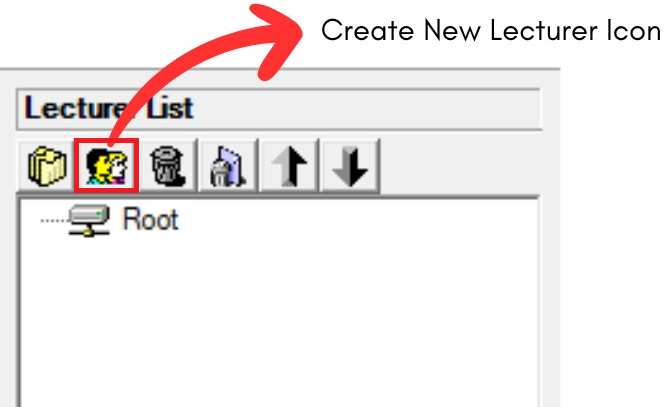
Diagram 2.1.1: Create new folder and new lecturer icon
Step 2: Fill in the course detail with the information you have
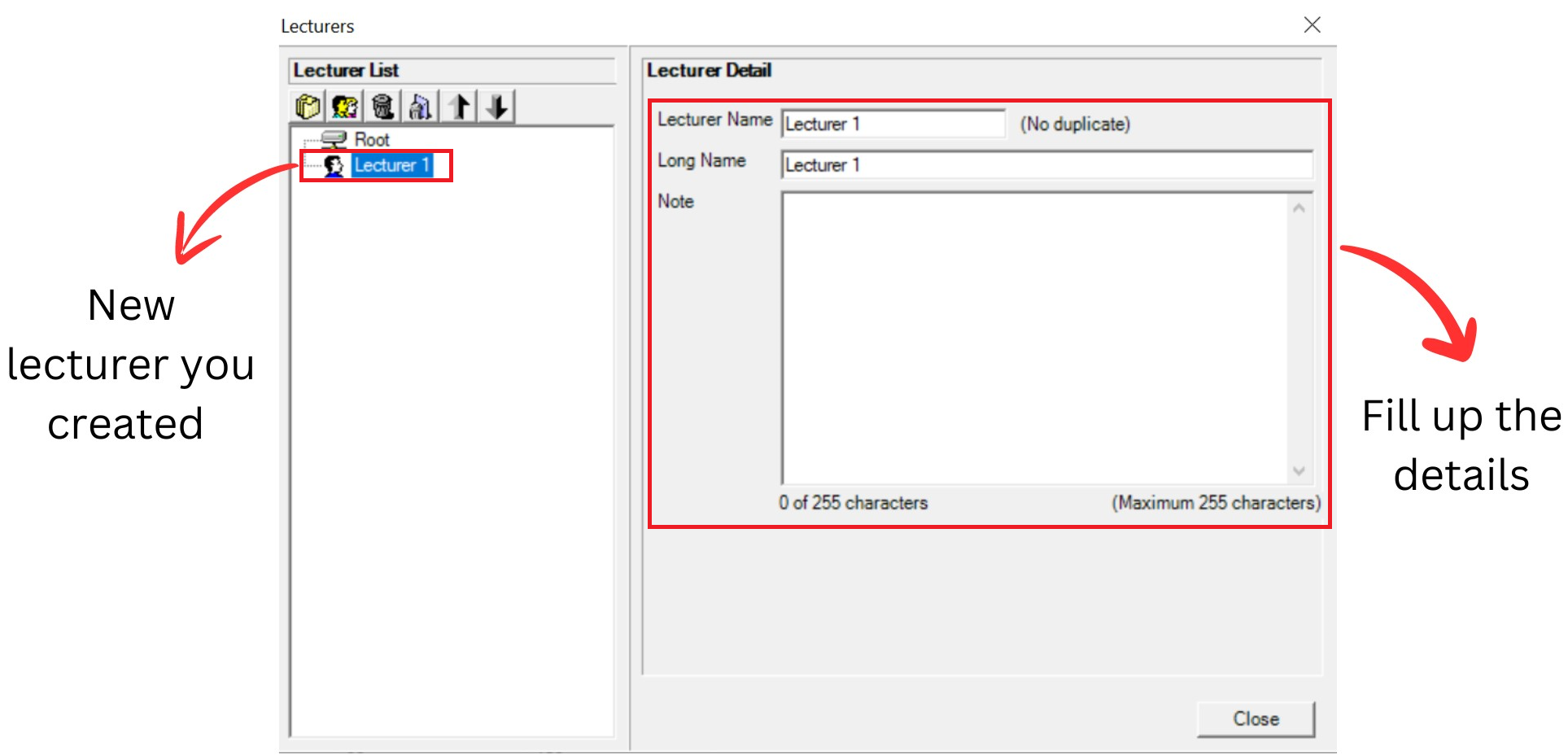
Diagram 2.1.2: Default details of a new lecturer Refer to the table below as example.
Short Name | Short name of the lecturer. Short name cannot be duplicated |
Long Name | Long name of the Lecturer |
Note | Optional to put the note or preference of lecturer Example: In charge of swimming club |
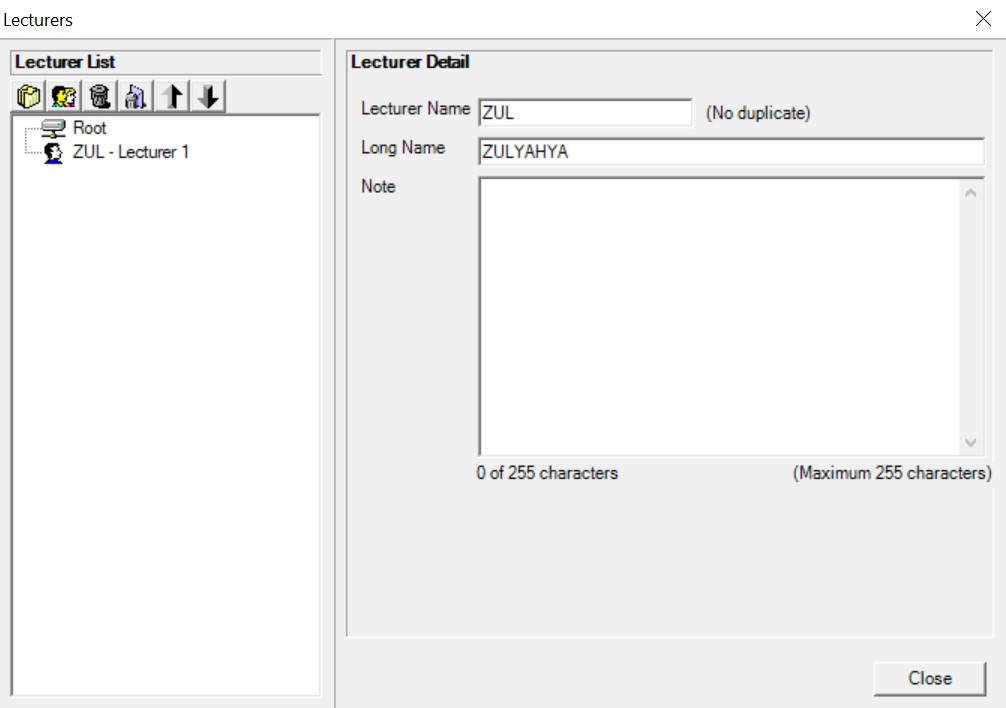
Diagram 2.1.3: Filled lecturer detailsImportant note:
New lecturer you created will automatically appear at the bottom list of courses. Fill up the lecturer detail and you close the lecturer management window and reopening it, the course will be found in the list of lecturers according to alphabetical order.
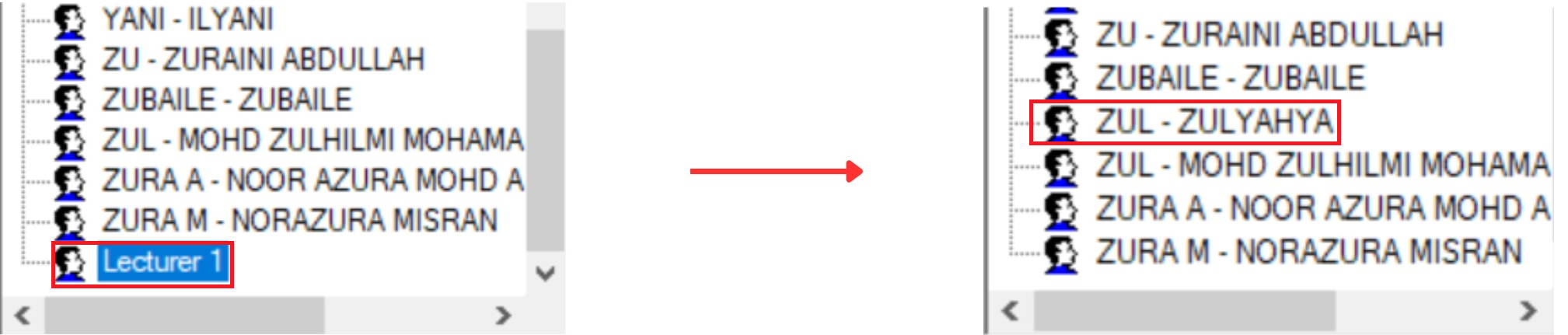
Diagram 2.1.4: Location new lecturer you created before and after fill up the detailsOption 1: Organize your lecturers into respective folder (Non-compulsory)
There are 3 steps to Create New Folder in Lecturer Management
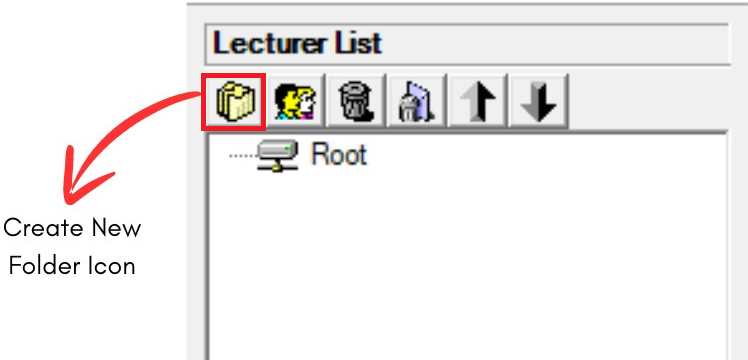
Diagram 2.1.5: Location of Create New Folder IconStep 1: Click Create New Folder icon  to organize your lecturers into respective folder
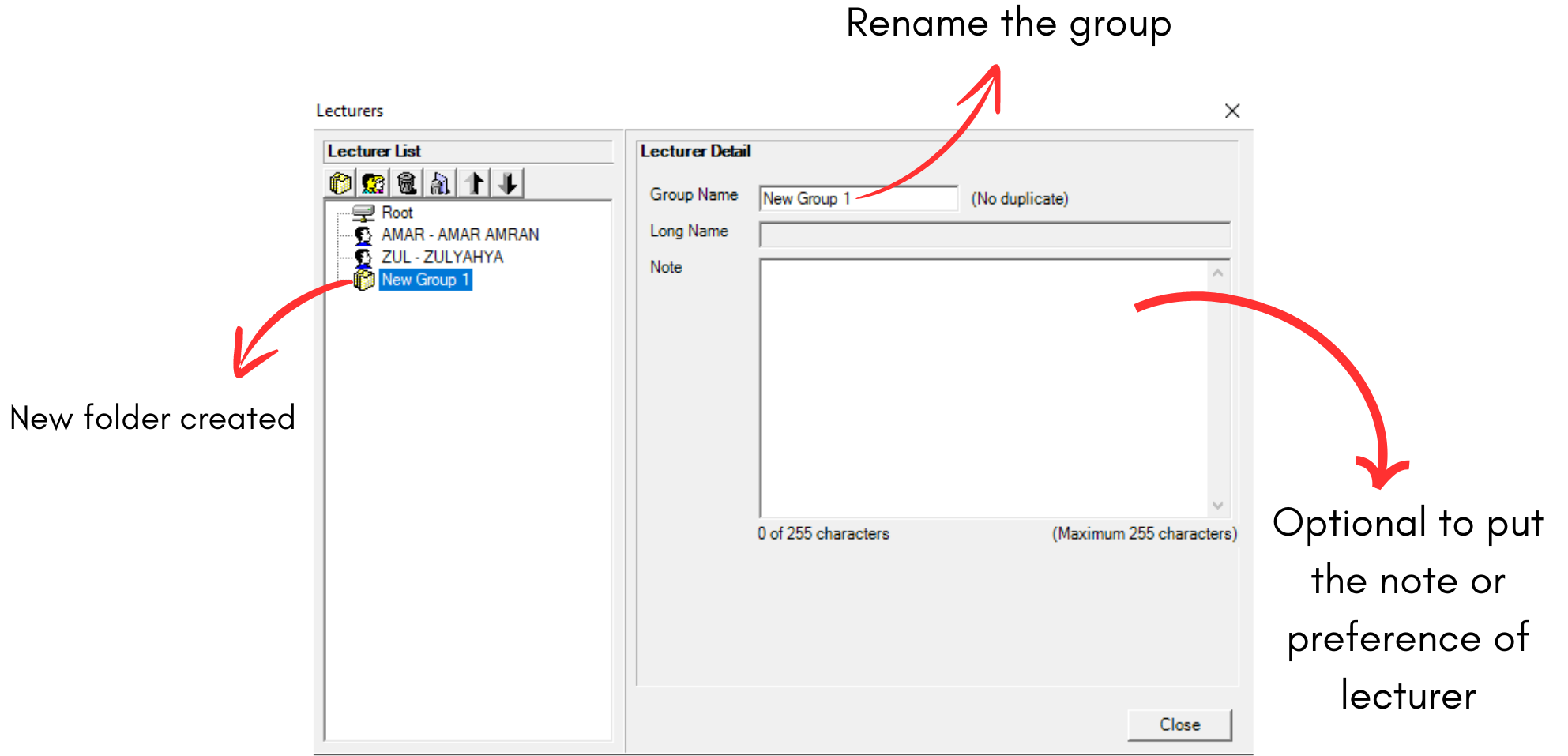
Diagram 2.1.6: Lecturer's folder details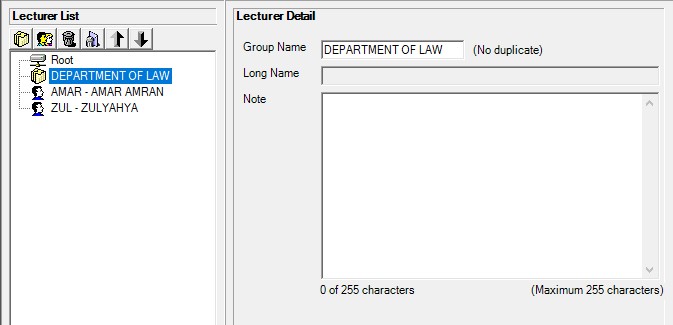
Diagram 2.1.7: Filled lecturer's folder detailStep 2: Rename the group.
(User can change the name by department of course. Example: DEPARTMENT OF LAW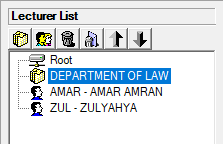
Diagram 2.1.8: Renamed lecturer's folderStep 3: Drag the selected lecturer to the folder and drop
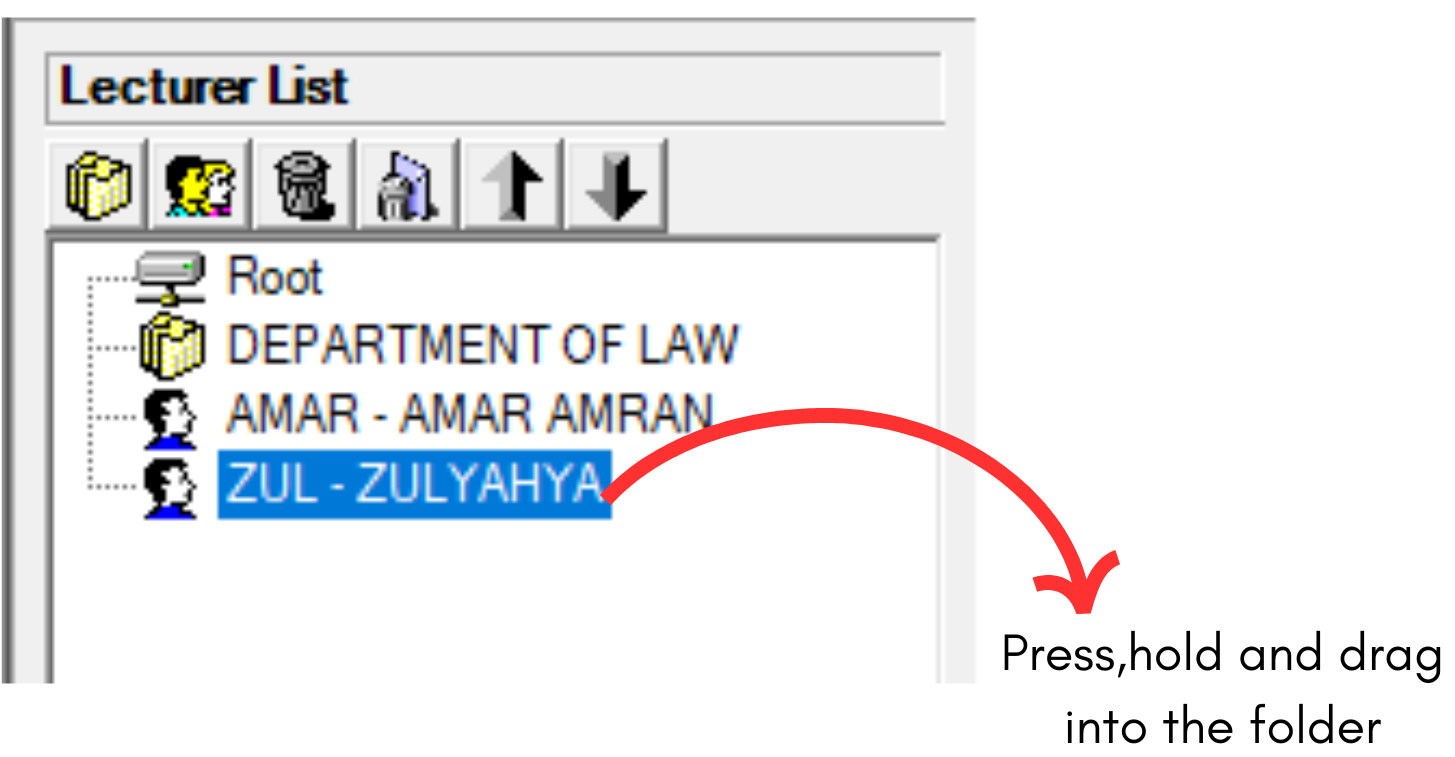
Diagram 2.1.9: Select a course to drag into the folder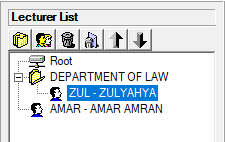
Diagram 2.1.10: Lecturer under a folderNOTED: New lecturers, new folders can be found at the bottom of the Lecturer List. Once, Lecturer Management has been closed, the new folder will follow the alphabetical order of the Lecturer List once Lecturer Management is reopened.